4.1. HOW TO CONFIGURE THE ASTERX-U FOR RTK
Step 2: Configure the Rover receiver
Enable RTK positioning mode on the rover receiver
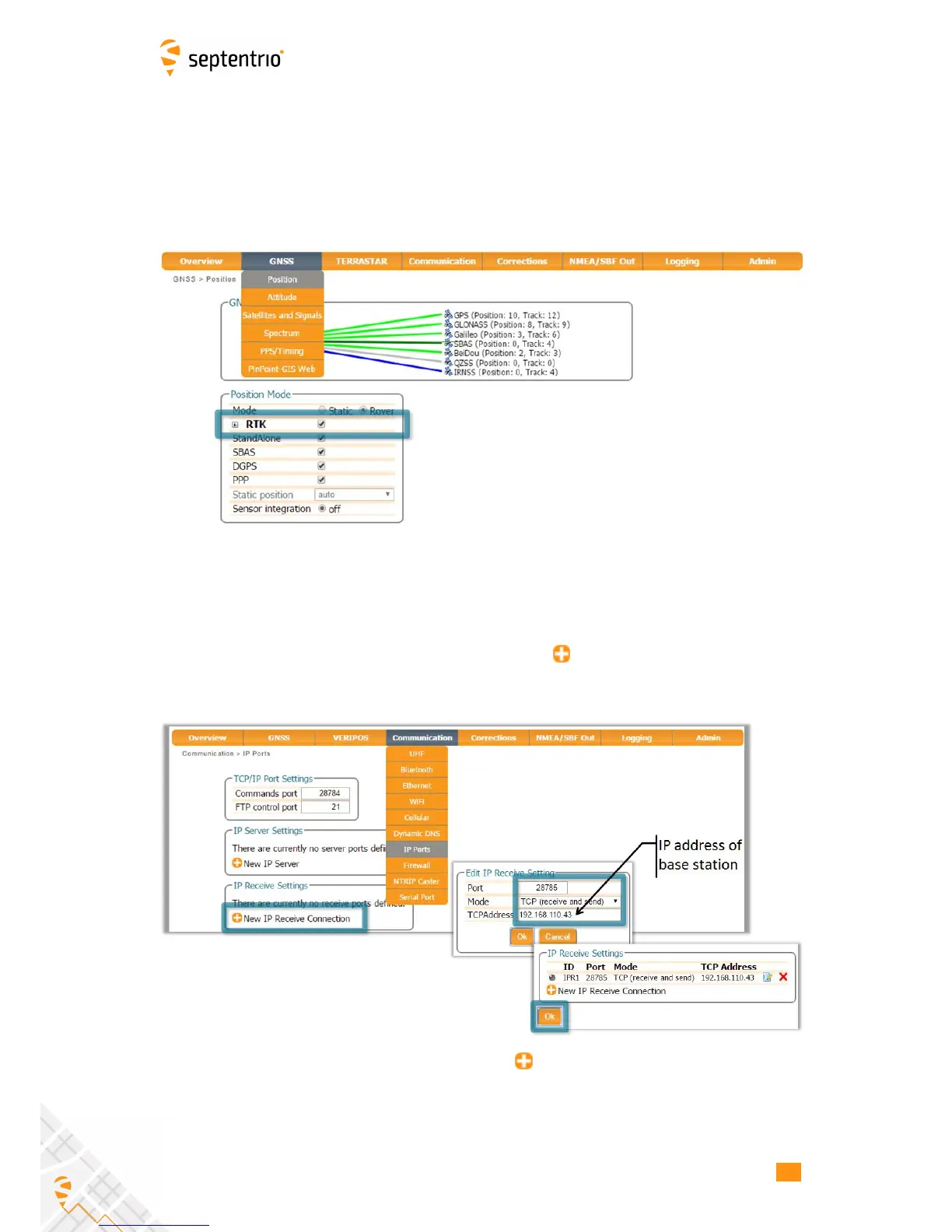
Ensure that RTK is enabled as a positioning mode. This can be done in the GNSS Position tab
by checking the ‘RTK’ box in the ‘Position Mode’ field as shown in Figure 4-11.
Figure 4-11: Ensure that RTK is enabled as a positioning mode
Configure the Ethernet connection of the rover receiver
On the IP Ports window of the rover receiver, click on New IP Receive Connection as
shown in Figure 4-12 to start configuration sequence. The Port and TCPAddress should
match the port and IP address of the Base station receiver.
Figure 4-12: In the IP Ports window, click on New IP Receive Connection to
configure the connection with the base station
40


 To Next Page