Doc# E166703 5-23
5: Communicating with the Meter
Electro Industries/GaugeTech
The Leader In Power Monitoring and Smart Grid Solutions
Electro Industries/GaugeTech
The Leader In Power Monitoring and Smart Grid Solutions
Electro Industries/GaugeTech
The Leader In Power Monitoring and Smart Grid Solutions
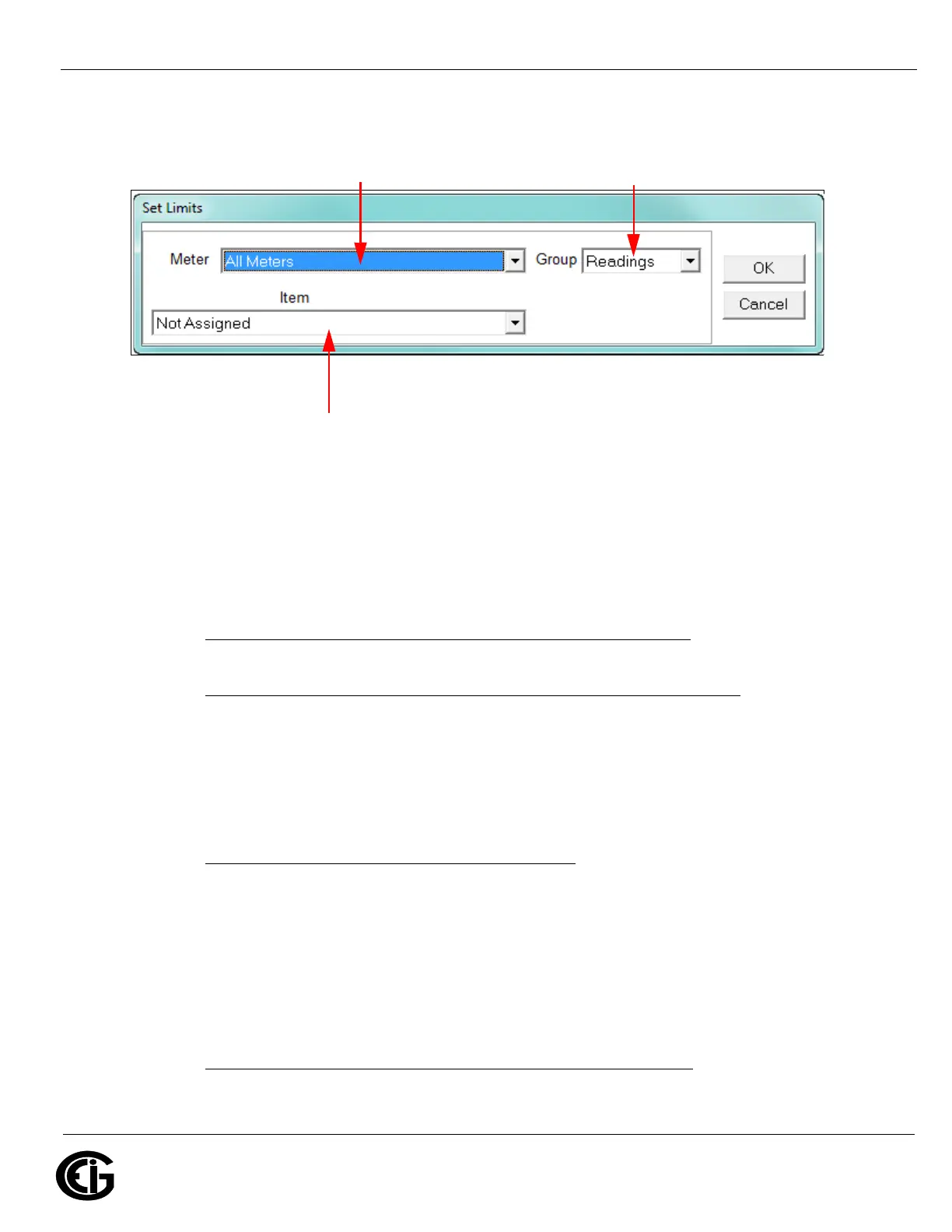
2. You will see the screen shown below.
This screen lets you configure the limits. The settings you can make depend on
your MP200 unit’s configuration:
• For a three phase configuration, you can set up limits from the Readings group’s
items for all meters or any individual meter (select from the Meter pull-down
menu).
The items you can select for Readings limits for All Meters are
: Phase to Neutral
voltage, Phase to Phase Voltage, and Frequency.
The items you can select for Reading limits for individual meters are
: Current
phases A, B, and C, Total Watts, Total VAR, Total VA, Total PF, Current Neutral,
Watts per Phase, VAR per Phase, VA per Phase, and PF per Phase.
The Demand group (select from the Group pull-down menu) can only have limits
set for individual meters (not All Meters).
The items you can select for Demand limits are
: Current phases A, B, and C,
Total +Watts, Total +VAR, Total -Watts, Total -VAR, Total VA, Total +PF, Total -PF,
+Watts per Phase, -Watts per Phase, +VAR per Phase, -VAR per Phase, VA per
Phase, + PF per Phase, and -PF per Phase.
• For a single phase configuration, you can set up limits from the Readings group’s
items for All meters or any individual meter (select from the Meter pull-down
menu).
The Items you can select for Readings limits for All Meters are
: Voltage and Fre-
quency.
Select All Meters or Individual Meter Select Readings or Demand
Select Item to use for Limit


 To Next Page