Troubleshooting
Please make sure you always use the latest firmware version.
If you can't find an answer to your issue, then please send us am email, or ask
help in our community forum!
The web interface can't be opened
Use SharkRF Link to open the web interface.
SharkRF Link does not open the openSPOT4 web
interface
Make sure your web browser device (phone/tablet/computer) is connected to
the exact same Wi-Fi network the openSPOT4 is using.
Check if the openSPOT4 is connected to the Wi-Fi network by looking at its
status LED. Please see the LED states section for possible status LED states. If
the openSPOT4 is not connected to the Wi-Fi network according to the status
LED, see the next troubleshooting question's answer on how to set up the
openSPOT4's Wi-Fi connection.
Also check the Wi-Fi client isolation in your Wi-Fi router's settings. It should be
turned off.
The openSPOT4 can't connect to the Wi-Fi network
Please first check the status LED's color on the device. You can see the list of
LED states on this page. The openSPOT4 can't connect to the Wi-Fi network
only if the status LED is flashing blue for a longer period of time (at least 30
seconds). If you see other status LED colors than blue, then the issue is not with
connecting to the Wi-Fi network.
You can reconfigure the Wi-Fi connection if you enable the openSPOT4's
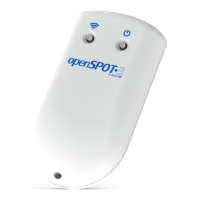
AP (access point) mode by pressing the Wi-Fi button for 3 seconds.
The openSPOT4 will start broadcasting its own Wi-Fi network called
openSPOT4 AP, indicated by white status LED. You can connect to this
network using your browser device (phone/tablet/computer).
Make sure you place your browser device close to the openSPOT4 during
this time.
The initialization setup will pop up, where you can select a Wi-Fi network
for the openSPOT4 to connect to. If the initialization setup won't open
automatically, then you can open it by entering http://192.168.99.1/ into the
web browser while your browser device is connected to the Wi-Fi network
openSPOT4 AP. Note that this address is only active while the
openSPOT4's AP mode is enabled, indicated by white status LED.
Make sure you've entered the Wi-Fi password case sensitive.


 To Next Page