Note that about 3 seconds have to pass after turning off the device before it
can be turned on again.
Press the Power button 3 times quickly and the openSPOT4 will beep the letter
P followed by the currently active profile number and the profile's name in
Morse code. Note that if the Unlink when power button pressed 3 times
setting is enabled on the Settings page, Miscellaneous settings section, then an
unlink will be performed instead of playing back the currently active profile
number and name on the beeper in morse code. Please see the Settings page,
Miscellaneous settings for further details.
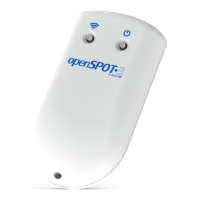
Wi-Fi button
Hold the Wi-Fi button for at least 3 seconds to toggle the openSPOT4's Wi-Fi
access point (AP) mode.
If the openSPOT4 is turned on, then the Wi-Fi LED will blink white while the
Wi-Fi button is held. The blink interval indicates how much time is left until the
Wi-Fi button press is confirmed. Confirmation is indicated by two short white
status LED blinks and an audible beep (if the beeper is enabled).
In AP mode, the openSPOT4 broadcasts its own Wi-Fi network called
openSPOT4 AP. The status LED is flashing white in access point (AP) mode and
steady white if a Wi-Fi client is connected. You can use this mode to set the
openSPOT4's Wi-Fi networks. See the First steps section for more information.
If there's no Wi-Fi network set on the Network page (Wireless settings section)
then the openSPOT4 automatically switches to AP mode.
Hold the Wi-Fi button for 30 seconds to perform a full factory reset. In this
case all configuration profiles will be cleared.


 To Next Page