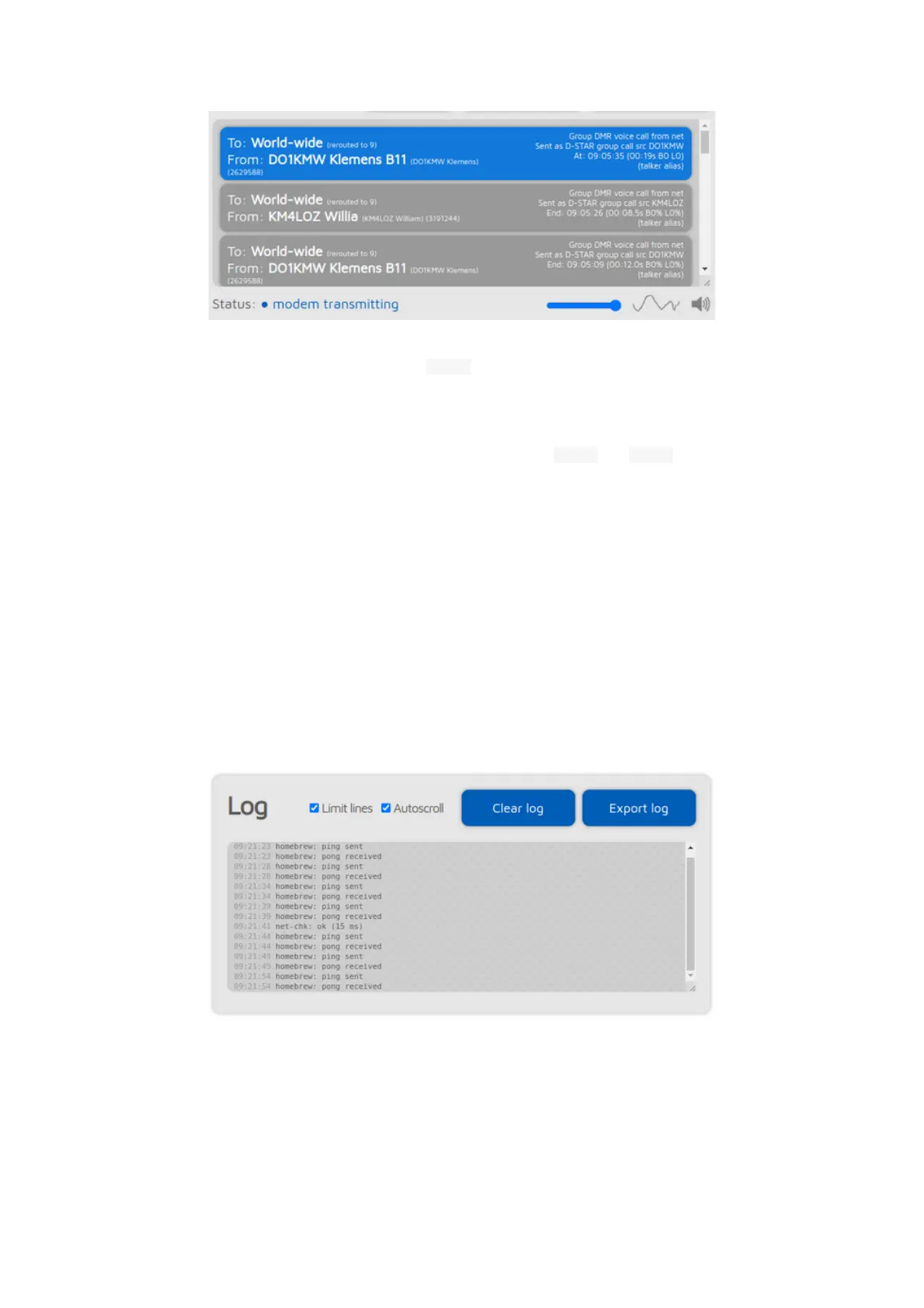
You can toggle call audio playback by clicking on the speaker icon under the call
log, or with the keyboard shortcut Ctrl+M . There's a small oscilloscope view
which shows call audio being played. Note that the oscilloscope view's signal
levels does not actually represent the volume of the played back audio, as the
openSPOT4 uses audio dynamic range compression. You can change the audio
volume with the slider, or with the keyboard shortcuts Ctrl+V and Ctrl+B .
Note that smooth call audio playback requires a Wi-Fi connection with a good
signal quality. If you have issues with call audio playback, then please try using
different browsers and make sure they are updated to the latest version.
Browsers reduce CPU allowance on non-active tabs after a while. The tab of the
web interface must be kept active, otherwise the audio will be garbled. This
browser behavior cannot be changed. If the audio becomes garbled, activate the
tab, and/or reload the web interface to fix it.
You can find the settings for the call audio playback on the Settings page.
P25 and C4FM VW mode call audio playback is not supported.
Log
The device log is only shown if
Advanced mode
is enabled.
You can see all device log messages coming from the openSPOT4 here. You can
also monitor the device log over the USB serial console
If Limit lines is checked (it's checked by default) then only a limited number of
log lines are allowed to be in the log. This is good for limiting the web browser
CPU/memory use.


 To Next Page