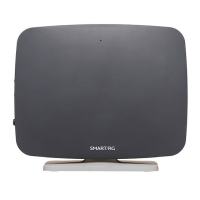
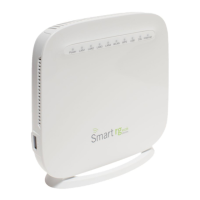
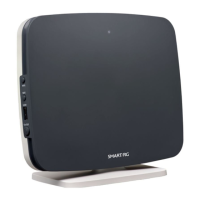
SmartRG™ Residential Gateways
S m a r t R G © 2 0 1 2 C o n f i d e n t i a l P a g e | 15
Logging in to Your SmartRG™ Gateway’s UI
To manually configure the SmartRG access the gateway’s embedded web UI:
1. attach your computer’s RJ45 connection to any of the SmartRG’s LAN ports (1-4)
2. configure your computer’s IP interface to acquire an IP address using DHCP (See the
IMPORTANT note below for instructions on logging in to a SmartRG gateway configured for
“bridge mode” operation.)
3. open a browser and enter the gateway’s default address http://192.168.1.1/admin in the
address bar
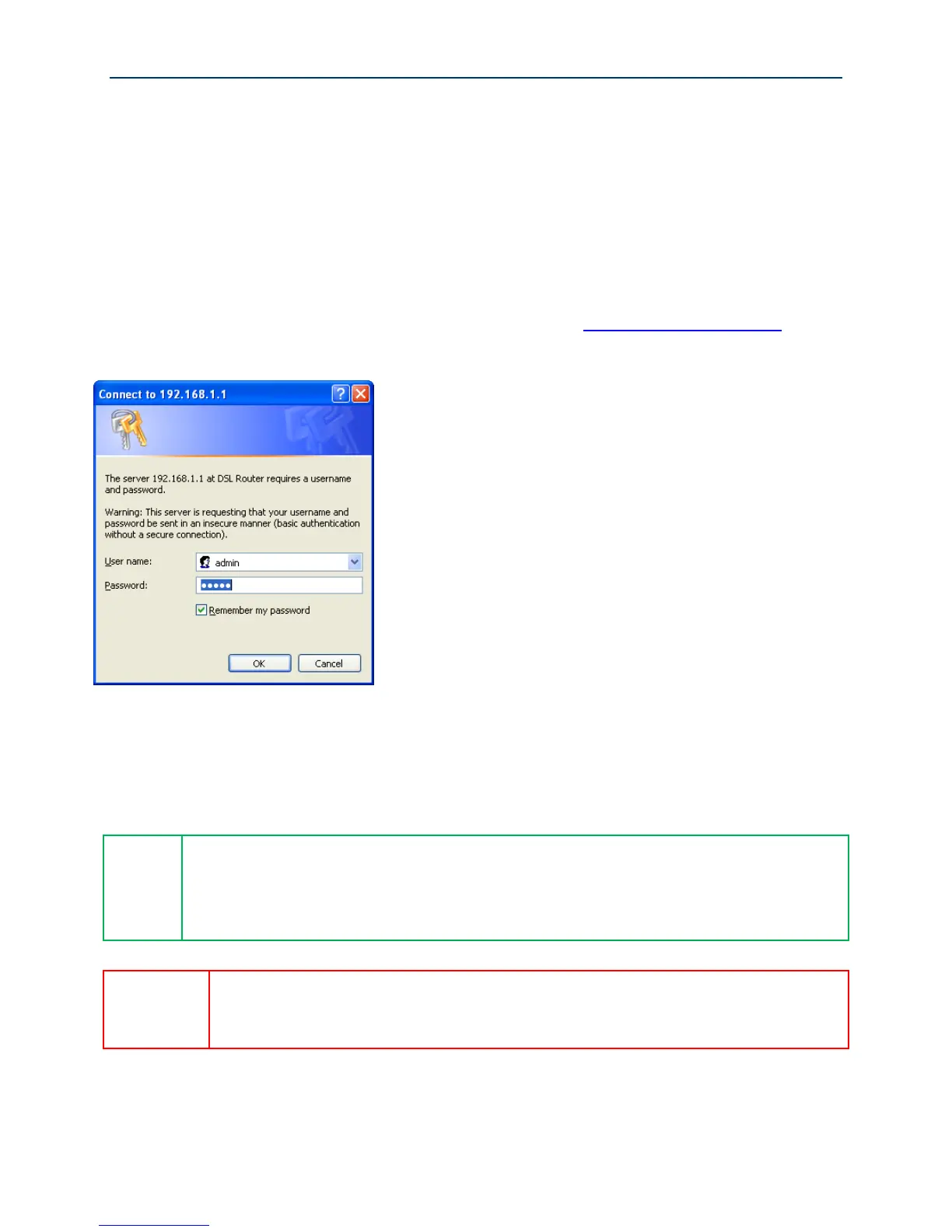
Figure 8 Login Username and Password
4. Enter the default username and password: admin/admin and click OK to display the Device
Info page.
The gateway’s UI can be accessed via the WAN connection by entering the WAN IP
address in your browser’s address bar and entering the default username and password:
support/support. WAN HTTP access MUST be enabled to access the gateway’s UI via the
WAN connection. See the “Configure Access Controls (HTTP, Telnet, SSH, etc.)” section
for instructions on enabling WAN HTTP access.
If your SmartRG gateway is configured for “bridge mode” (modem) operation, your
PC will NOT be able to acquire an address via DHCP. Instead, manually configure
your PC’s interface with an IP address on the default network (e.g. 192.168.1.100).


 To Next Page