Sirius 800 www.snellgroup.com Nucleus Advanced Functions and Upgrades
Issue 1 Rev 1 Page 131 © 2014 Snell Limited
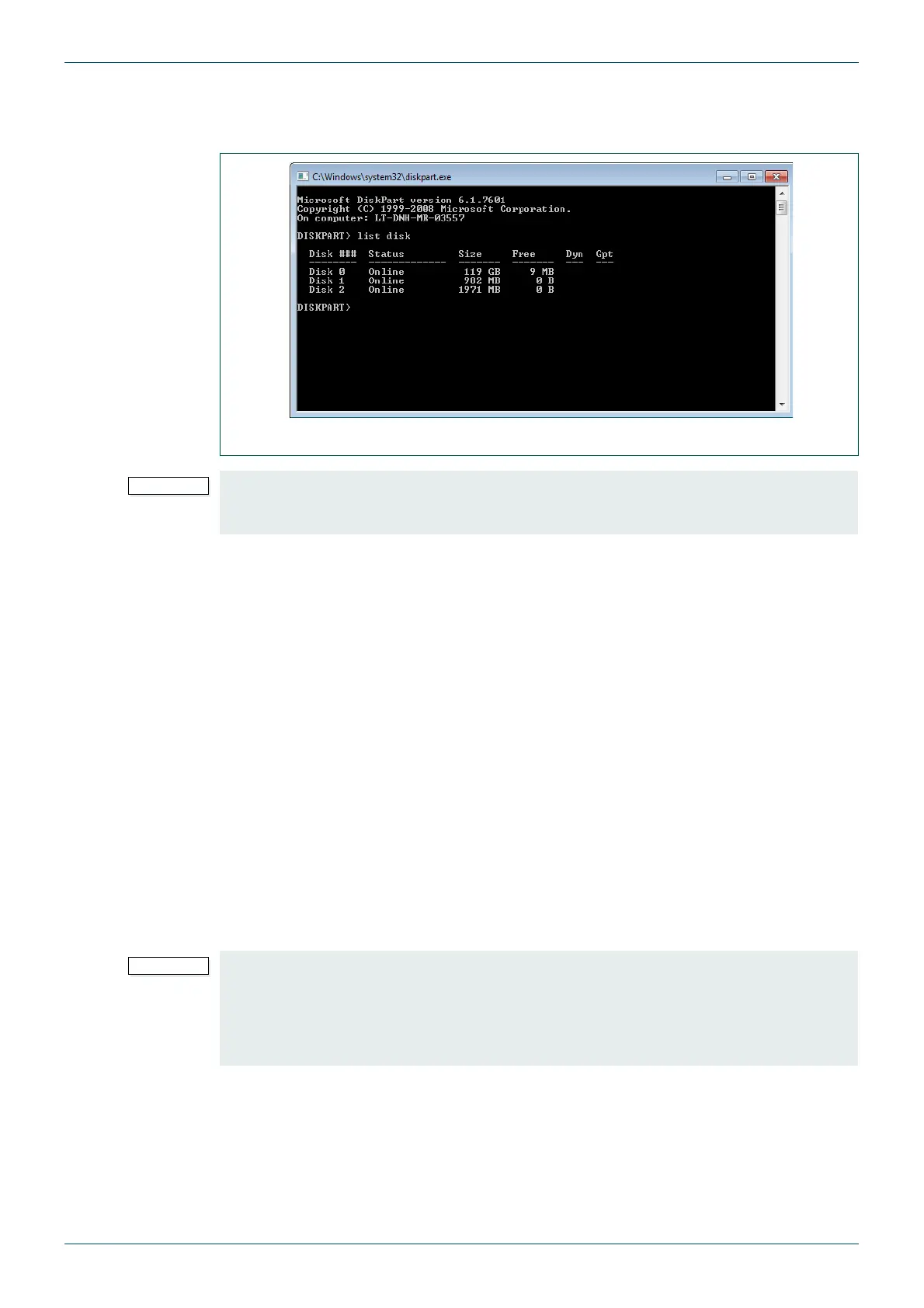
6. Make a note of the Disk number that matches the USB drive that is being made
bootable.
In the example shown in Fig 78. Disk 2 is a 2 Gb USB memory stick.
7. At the Diskpart> prompt type “select disk X” (where X is the Disk Number of the USB
memory stick to be made bootable) followed by the Return key. The following
commands are carried out on this disk.
8. At the Diskpart> prompt type “clean” followed by the Return key.
9. At the Diskpart> prompt type “create partition primary” followed by the Return key.
10. At the Diskpart> prompt type “active” followed by the Return key. This sets the flag
that will make the USB memory stick bootable.
11. At the Diskpart> prompt type “format fs=FAT32 quick” followed by the Return key.
This formats the USB memory stick.
12. At the Diskpart> prompt type “assign” followed by the Return key.
13. At the Diskpart> prompt type “exit” followed by the Return key. This closes the
DiskPart tool.
14. When a drive letter prompt is displayed you can exit the command window in the
usual way by clicking on the X in the top right of the window.
15. The USB memory stick will now be bootable.
16. See section 10.2 for details on how to copy files to the bootable USB memory stick
and update the software on a Nucleus2 controller.
Fig 78. DiskPart List Disks Example
It is extremely important that the correct disk number is identified at this point to avoid
formatting the wrong disk drive.
If you are unsure then it is best not to proceed beyond this point.
• Do not leave the USB memory stick in a computer while the computer is being
rebooted as this can cause the computer to malfunction.
• For this reason it is also recommended that the USB memory stick is removed from
the computer when not in use in case the computer is rebooted accidentally, due to
a power failure or due to automatic updates being installed.


 To Next Page