Sirius 800 www.snellgroup.com Module Maintenance
Issue 1 Rev 1 Page 47 © 2014 Snell Limited
6. Put the SD card into the computer SD card reader.
7. Locate the correct firmware upgrade folder for the module being upgraded, see the
table on page 45 for folder details. If upgrading a 5919 or 5949 module also make
sure the correct version is selected for the license on the module.
8. Open the upgrade folder.
9. Copy all of the files in the upgrade folder to the root of the SD card. Confirm that the
files on the SD card should be overwritten by the new files when prompted.
10. When the files have finished copying to the SD card click on the Safely Remove
Hardware and Eject Media icon in the system tray (or equivalent) and select the SD
card. Remove the SD card when the system confirms it is safe to do so.
11. Open the fan assembly and push the updated SD card into the module SD card slot
until it clicks into place.
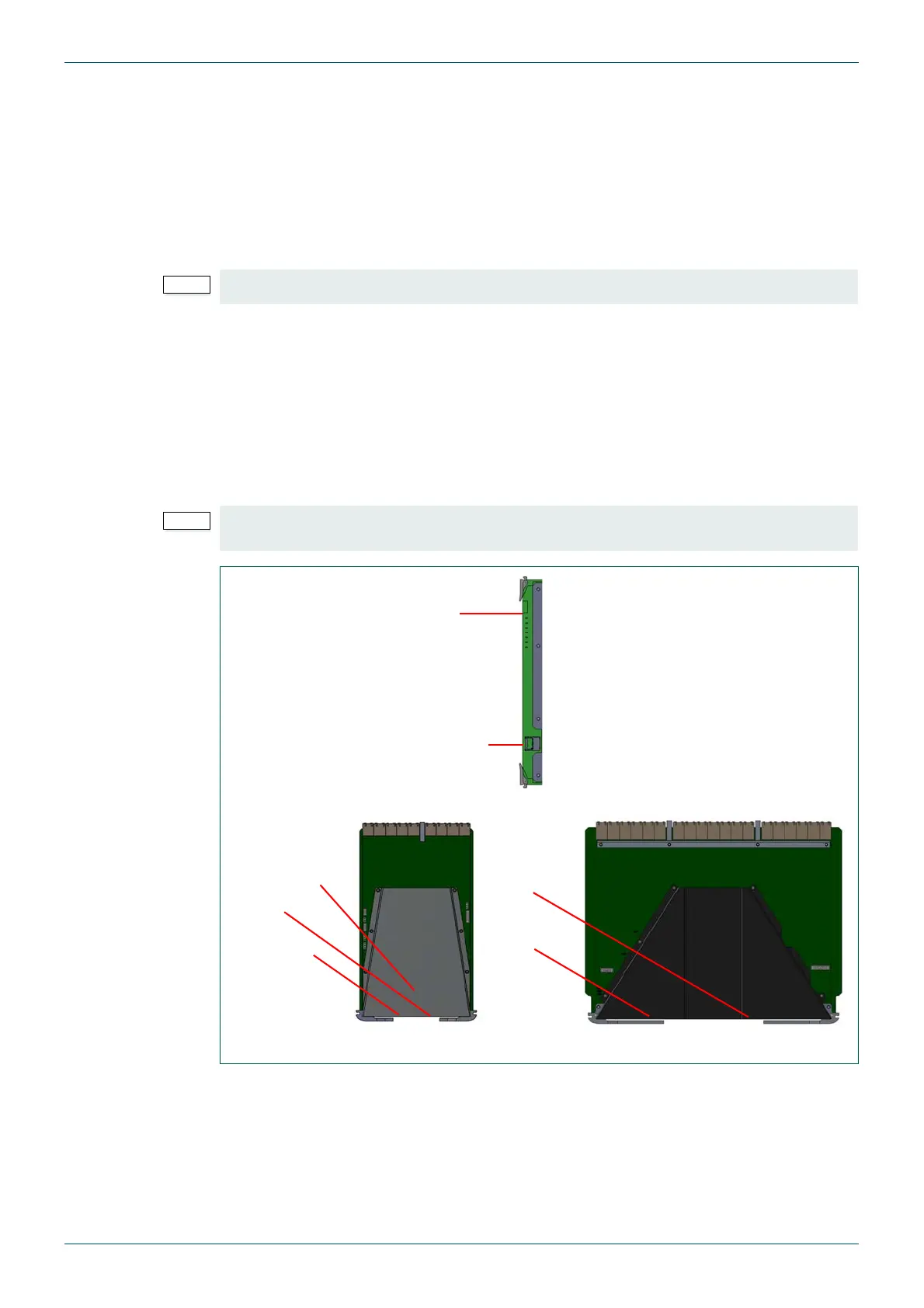
12. The FPGA LEDs on the module will indicate the stage the firmware upgrade has
reached as it is applied to the module (see Fig 17. for FPGA LED locations and Table
13. for LED status).
Do not copy the folder to the SD card, copy the folder contents to the root of the SD card.
Power must not be removed from the router or the module while the module firmware is
being updated as this could corrupt the firmware and make the module inoperable.
Fig 17. LED and SD/SDHC Card Locations
FPGA
LEDs
SD/SDHC
Card
Front Edge of the
module is shown
5905 Video Crosspoint Module
FPGA
LEDs
SD/SDHC
Card
5903 Audio Crosspoint Module
LEDs
SD/SDHC
Card
FPGA LEDs
behind the
Power LED
Input and Output Modules


 To Next Page