21
D712/710 User Manual Getting to Know Your Phone
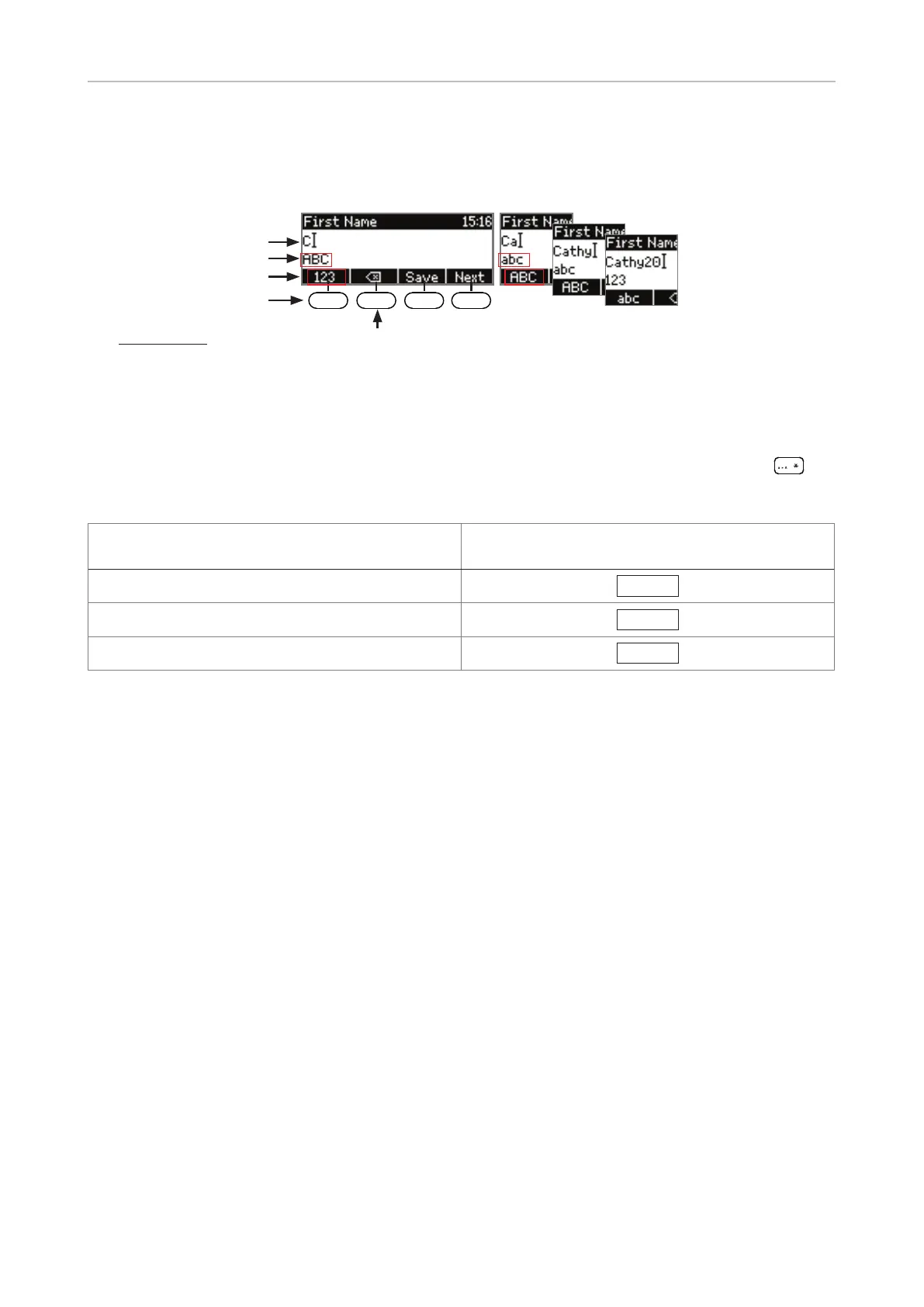
When editing the phone directory etc., the current input mode is indicated in the information line
underneath the cursor line. The next input mode is indicated in the function key line (see "Display
layout" on page 22.
Deleting character to
the left of the cursor:
Next input mode:
Current input mode:
Input modes:
123: Numerals
abc: Small letters
ABC: Capital letters
Cursor:
Press the left function key underneath the display to switch to the input mode indicated by the symbol
directly above it in the function key line. The order of the input modes is numerals → small (lower
key) letters → capital (upper key) letters → numerals etc. Alternatively, you can also press
for
two to three seconds to change the input mode.
Text in information line
= current input mode
Press function key to switch to input mode
indicated by symbol in Function Key Line
123
abc
abc
ABC
ABC
123
Entering numerals, letters, special characters, and symbols
When entering characters in letter mode, pause briefly after each character until the cursor moves
forward. Pausing is not necessary when entering numerals in numeral mode.
Numerals. In numeral mode press the key to type the large number or symbol printed on the key. In
letter mode, keep pressing the key with the desired numeral quickly until you see the numeral on the
display.
Letters. Switch to input mode small or capital letters. To type one of the small letters printed on a
key, press the key one, two, three, or four times quickly to type the first, second, third, or fourth letter
printed on the key. In small letter mode, for example, press the "2" key once to type an "a", twice to
type a "b", and three times to type a "c".
Letters with accents and umlauts. Switch to input mode small or capital letters. Keep pressing the
key with the basic form of the letter quickly until you see the letter with the accent or umlaut on the
display. Pause briefly after each letter. Available letters with accents and umlauts depend on the
phone's language setting.
Example - input mode small letters: If the phone language is German, press key "2" four
times to type "ä". If the phone language is French, press key "2" four times to type "à".
Special characters and symbols. Switch to input mode small or capital letters. Press key "0" or "1"
one or more times quickly, as indicated below. Pause briefly after each character or symbol.



 To Next Page