51
D712/710 User Manual Using the Phone
Blind transfer
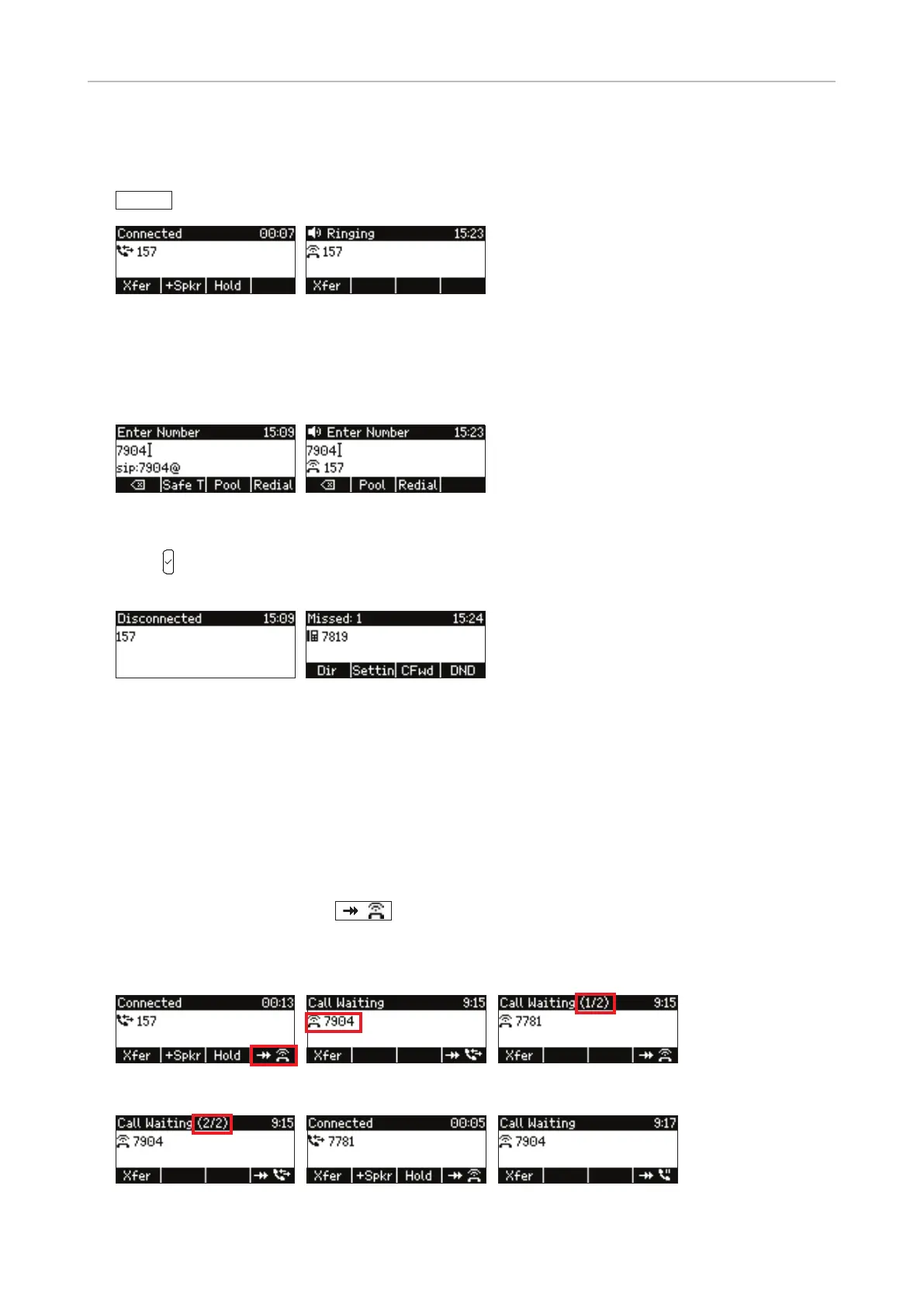
1. When you have a call on the line (Fig. 1) or when a call is ringing on the idle phone (Fig. 2), press
Xfer
.
Fig. 1 Fig. 2
2. Dial the number of the third party you intend to transfer the call to - with call on line (Fig. 3) or
ringing (Fig. 4). You can enter the number manually or select one from a directory or list in the
"Pool" submenu.
Fig. 3 Fig. 4
3. Press . The transferred call you were connected to is briefly shown as disconnected (Fig. 5); the
transferred ringing call is listed as a missed call (Fig. 6).
Fig. 5 Fig. 6
Call waiting
The default setting is acoustic and visual announcement of calls waiting. Call waiting can be switched
to visual or acoustic announcement only or turned o completely for each configured identity on the
phone’s web interface, Configuration Identity # > SIP tab > Call Waiting Indication. See also "Call
waiting" on page 78.
Default setting: When you are in a call, incoming calls will be announced acoustically by the sound of
a double beep and visually by the
symbol (Fig. 1) in the lower right corner.
Note: Any action you take, e.g., accepting or denying a call etc., will always aect the
on-screen call.
Fig. 1 Fig. 2 Fig. 3
Fig. 4 Fig. 5 Fig. 6



 To Next Page