67
D712/710 User Manual Customizing the Phone Settings
Adjusting the display
Contrast
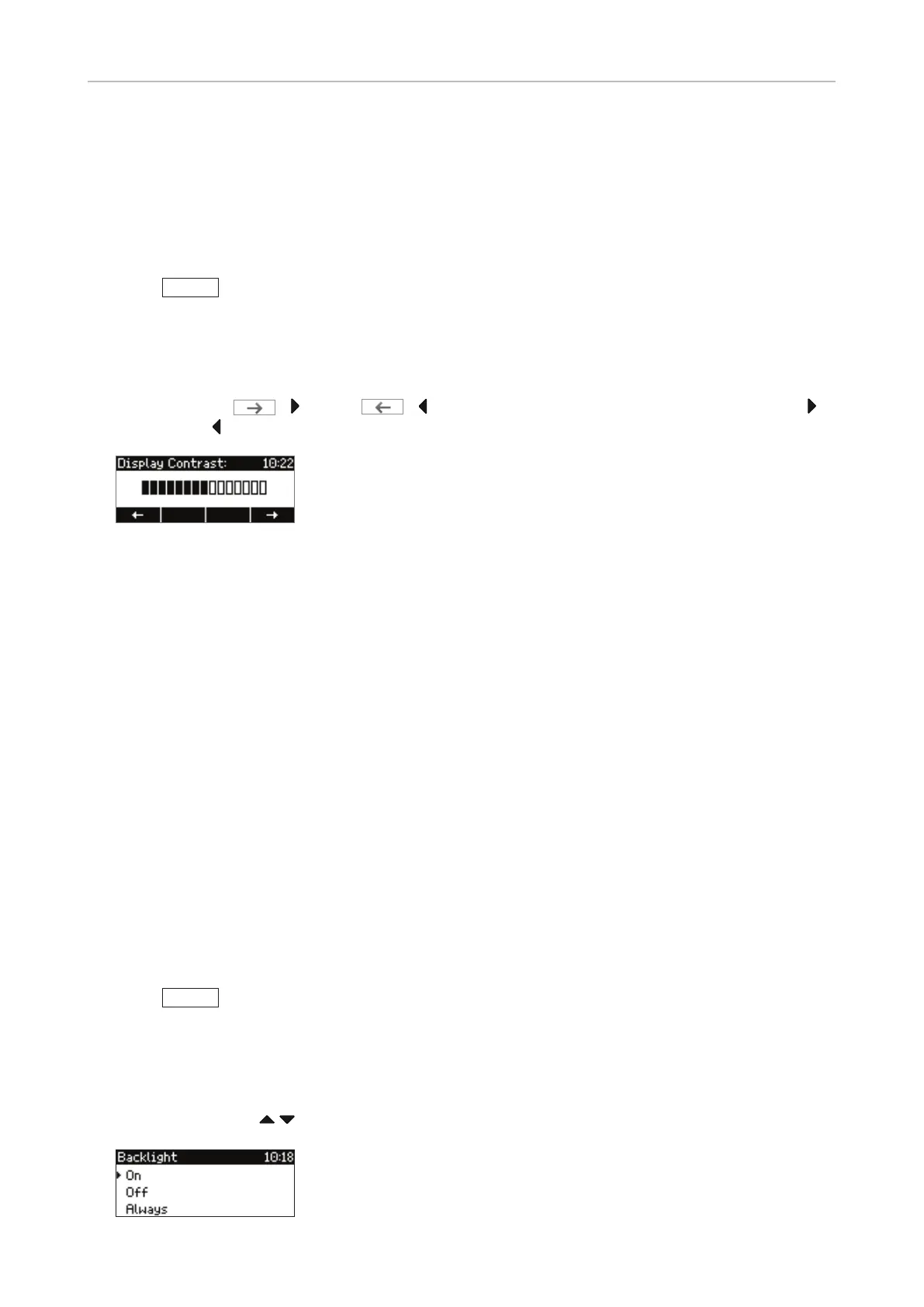
Increasing and decreasing display contrast:
1. Press
Settin
.
2. Press 1 Preferences.
3. Press 5 Display.
4. Press 1 Contrast.
5. Press the right (
/ ) or left ( / ) arrow (function key or navigation key) to increase ( )
or decrease ( ) the display's contrast.
Backlight
The available settings are on, o, and always. The default setting is "on".
• Setting "On": The backlight will dim when there has been no activity on the phone for the number
of seconds specified on the phone's web interface. The default setting is 20 seconds.
Changing the number of seconds after which the phone will dim the backlight to the idle screen
setting (applicable to backlight setting "on" only):
1. Open the phone's web interface (see "Opening the web interface" on page 29).
2. Click on "Preferences" (see "How the web interface works" on page 30).
3. Enter the number of seconds in the text field of "Dim after (in seconds)" (in the section
"General Information". The default is 20 seconds.
4. Click on "Apply" and "Save".
• Setting "Always": The backlight is permanently on; it will not be dimmed when the phone is idle.
• Settings "O": The backlight is permanently o.
Selecting the setting:
1. Press
Settin
.
2. Press 1 Preferences.
3. Press 5 Display.
4. Press 2 Backlight.
5. Press the up/down
arrows on the navigation key to switch between the settings.



 To Next Page