Paramount GEM User Guide
124 | P a g e
How to Configure the Mount Settings Using a Bisque TCS File
Use the procedure below to open a previously saved Bisque TCS parameters file and save these parameters to the
mount:
1. From TheSky Pro, choose the Connect command from the Telescope menu to connect to the mount.
2. Choose the Bisque TCS command from the Telescope menu.
3. On the Parameters tab, choose the Open command from the Commands pop-up menu.
4. Navigate to and highlight the file that contains the Bisque TCS parameters report and click Open. All the
Bisque TCS parameters on the Parameters tab are not set based on the contents of the parameters file
but need to be saved to the mount to make them permanent.
5. Choose the Save All Parameters to Mount command from the Commands pop-up menu to save the
parameters to the mount’s permanent flash memory.
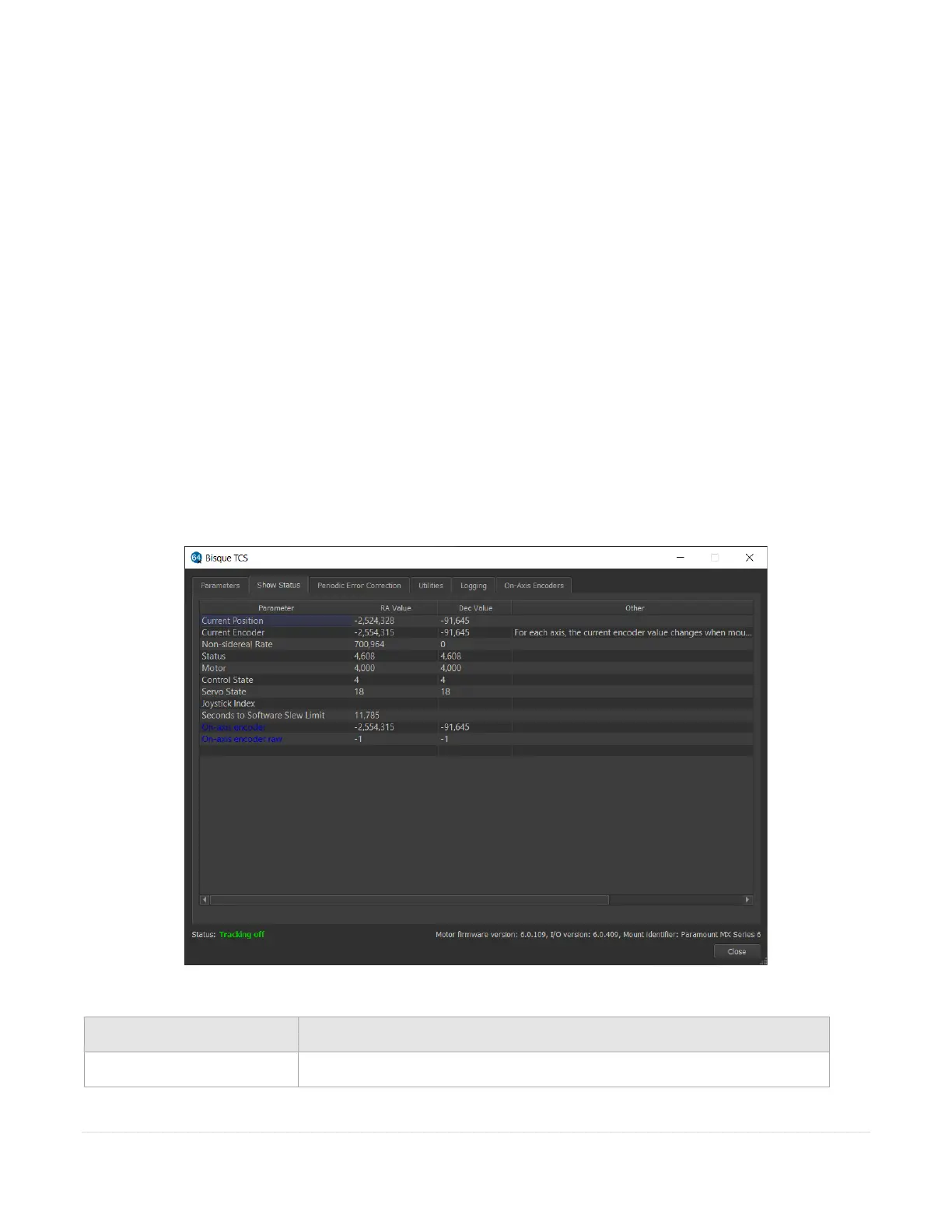
Show Status Tab
The spreadsheet on the top of Status tab shows the current control system and motor status values for both the
hour angle and declination axes. These values are useful for verifying the current tracking rate, slew limit
conditions and other control system settings.
Figure 58: The Show Status tab on the Bisque TCS window.



 To Next Page