Sonos Controller for Mac or PC
A-3
2. Turn off any 2.4GHz cordless phones
Some 2.4GHz cordless telephones can cause wireless interference. If turning off your 2.4GHz cordless phone resolves the
problem, you should consider switching to a 5.8Ghz or 900Mhz phone (or change the wireless channel your Sonos system is
operating on - see the instructions below).
3. Put 108 Mbps wireless routers into 54 Mbps mode
Sonos cannot function properly when a router is operating in turbo mode. To double the speed from 54 Mbps to 108 Mbps,
the router goes into a wide bandwidth mode which uses most of the 2.4 GHz spectrum that the FCC has set aside for
802.11b/g devices. This means that interference (RF noise) will occur with any other 2.4 GHz device that is not operating on
the same channel as the 108 Mbps device (usually channel 6). While it is possible to put all of your wireless devices on
channel 6, it is unwise. The devices will have to compete for available bandwidth, and your entire wireless network will
become sluggish.
4. Change the wireless channel your Sonos system is operating on
• Using a handheld Sonos controller: From the Settings menu, touch Advanced Settings, and then Wireless Channel.
Choose another wireless channel from the list.
• Using the Sonos Controller for PC: Select Settings -> Advanced from the Manage menu. On the General tab, select
another wireless channel from the list.
• Using the Sonos Controller for Mac: Select Preferences -> Advanced from the Sonos menu. On the General tab, select
another wireless channel from the list.
It may take several seconds for the switch to take effect. If you have music playing, a short music dropout will occur during
the wireless channel change.
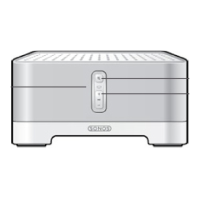
Sonos component isn’t operating properly
• If the white status indicator is not lit and no sound is produced when the unit is plugged in, check the insertion of the
power cord.
• Check to ensure that the Status indicator on the front of the Sonos component is illuminated and solid white. If it is
flashing or solid amber, see "Sonos component has stopped playing music" on page A-4.
• Check to ensure that the green link light is lit on the Ethernet switch on the rear panel of the Sonos component wired
to your network.
• Move the controller closer to the unit.
• Check to ensure there are no obstacles to impede wireless operation.
• Check your network connections.
• The Sonos component may need to be reset. Disconnect the power cord for 5 seconds, and then reconnect. Wait for
the Sonos component to restart.
Status indicator lit, but no sound
• Make sure speakers are connected securely.
• Make sure volume is set to a suitable level.
• Make sure MUTE is not on.


 To Next Page
 Loading...