SPACE s.r.l.
Soc.a socio unico
PFB035 SERIES – PFB040 SERIES
PFB045 SERIES – PFB060 SERIES
SPRT102/4 SERIES – SPRT102/5 SERIES
SPRT102/6 SERIES – SPRT102/7 SERIES
Code M0247 - Ver.1.4
(09/2016)
SPACE s.r.l. – 10090 TRANA (TO) Via Sangano, 48
Tel. (+39) 011/ 934 40 300 – Fax (+39) 011/ 933 88 64
e-mail: info@spacetest.it - www.spacetest.com
6. MCTCNet 2 PROGRAM (ONLY for MCTC-Net2 in Italy).
Referring to D.D. 3986 of the 11/8/2009 and S.M.I. for vehicle with total weight ≤ 3,5t it is possible
to choose:
The connection configuration type “RETE” to share the files, between the Personal Computer of
the workshop and the Personal Computer of the brake tester.
In this case must set the directory where is possible to find the file MCTC.INI on the Reservation PC (par. 1000005
– see the Service Manual reserved to the authorized assistance center to access the parameters).
The configuration “DIR” where the software module to manage the brake cycle is installed directly
on the PC Station.
In this case must set the local directory where reside the executable programs, usually C:/MCTC – main folder,
C:/MCTC/DIR_PFR – brake folder (par. 1000008, 1000009 - see the Service Manual reserved to the authorized
assistance center to access the parameters).
It’s necessary, for both the RETE and DIR configurations, to set the input and output directory for the WEBCAM
file and also the directory for the environmental files METEO.MET (par. 1000006, 1000007, 1000018).
In both cases, the tests that can be executed, coming from the PC Station, must respond to NET2
and so be files with the extension “.AC2”.
6.1. RETE mode
To start the appliance and the program, turn the master switch (on the rear of the console) to
position I.
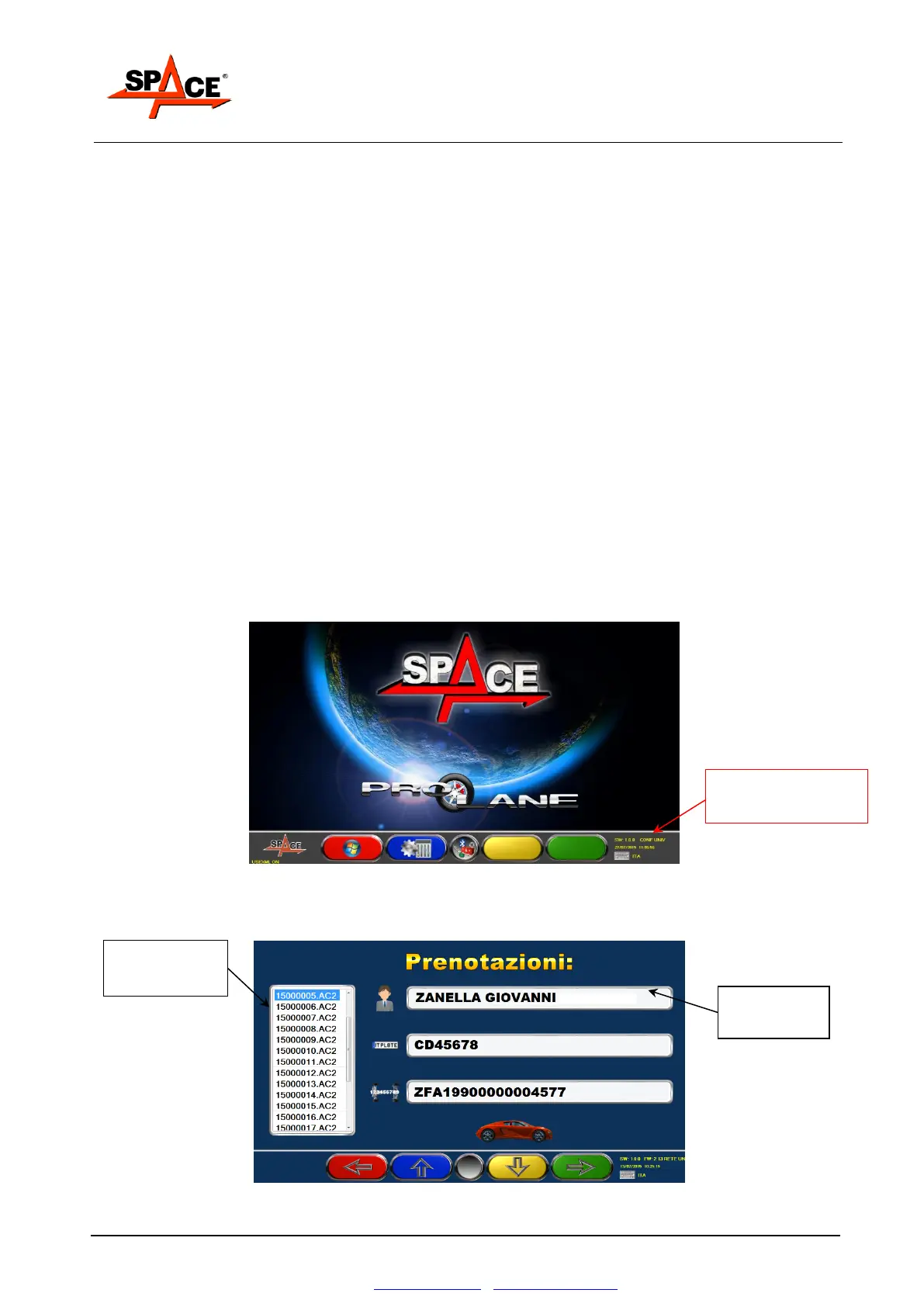
Wait for the operating program to load, until the logo shown in Figure 40 appears.
Figure 40
Press START/F4, appears the list of the reservations approved by the PC Station. See Figure 41.
Move the pointer on the requested vehicle with F2/F3.
Figure 41
IDENTIFICATION
Software MCTC-NET
Mode RETE


 To Next Page