Chapter 2: Installation and Setup
Procedure 8: Set the IP Address
46 | SmartBits 600x/6000x Installation Guide
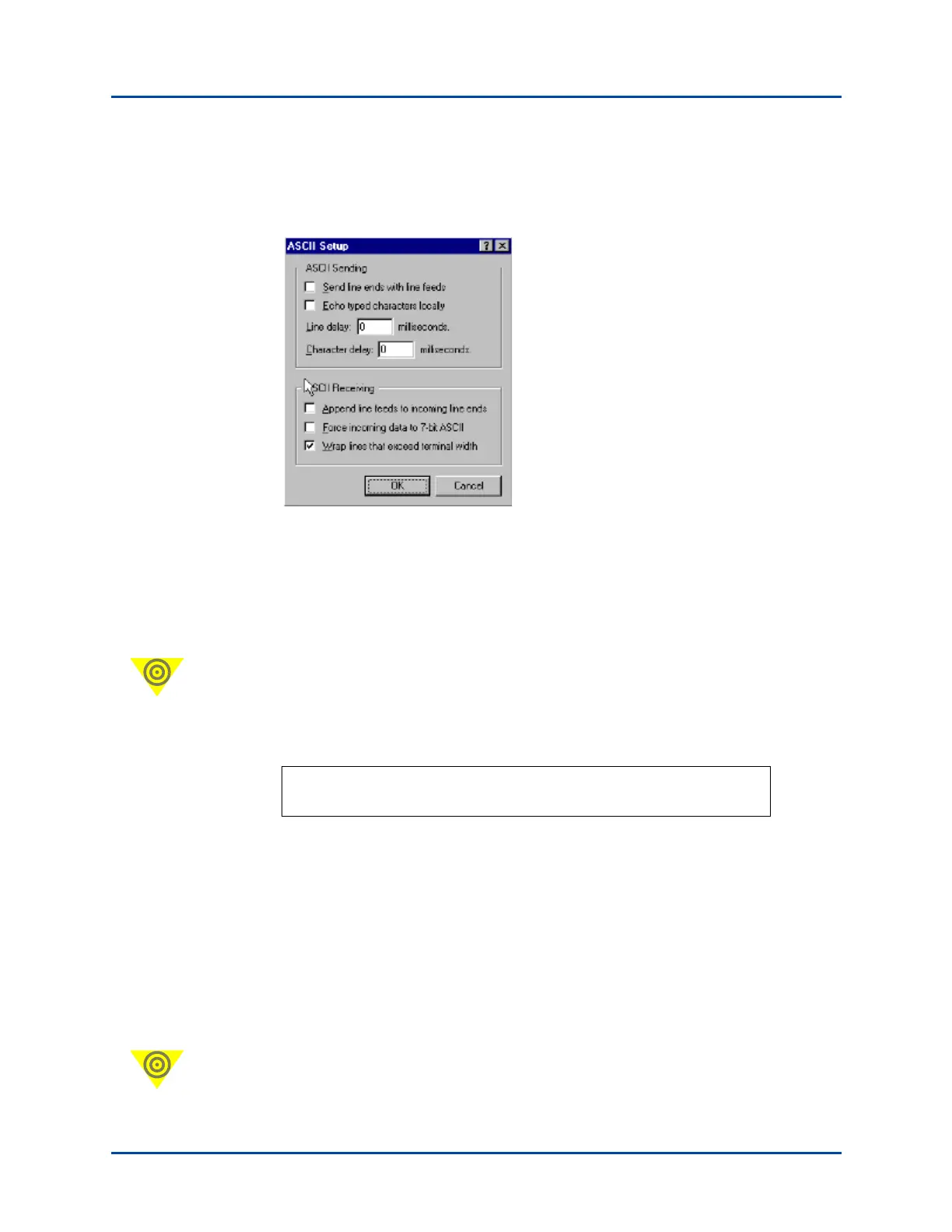
8 Click the ASCII Setup button. To enable local echo (which allows characters to
appear in the terminal window), make sure the Echo typed characters locally box is
unchecked. Click OK.
9 Save your settings by using the File menu Save or Save As command in the
HyperTerminal Console Command window.
10 Close HyperTerminal and then reopen HyperTerminal with the saved configuration
(for the settings to take effect).
If you receive garbled characters, check your settings shown in the Properties window
in Step 5 on page 44.
Important: If the chassis has already completed its startup before HyperTerminal is
open, press Esc for a menu prompt.
11 To display the current or default IP address, enter
ipaddr, and then press Return.
The terminal window will look similar to the following screen:
12 Set the IP address after you have checked with your system or network administrator
for the correct IP address. For example, to set the IP address to 192.169.100.19, you
would enter
ipaddr 192.169.100.19.
13 Assign the Gateway and Netmask values for the chassis. (See Appendix D, “Serial
Port and Telnet Commands.”)
14 When you have finished, you can check to be sure the IP address was entered
correctly by entering
ipaddr and then press Return.
15 Save the configuration setup using the SAVE command.
16 Power off the SmartBits chassis and then power it back on.
Important: You must reset (power cycle) the SmartBits chassis to implement the IP
address change.
>>ipaddr
Unmodified IP Address is: 192.169.100.27.
Artisan Technology Group - Quality Instrumentation ... Guaranteed | (888) 88-SOURCE | www.artisantg.com



 To Next Page