Chapter 2: Installation and Setup
Procedure 11: Connect SmartBits to an Application
SmartBits 600x/6000x Installation Guide | 65
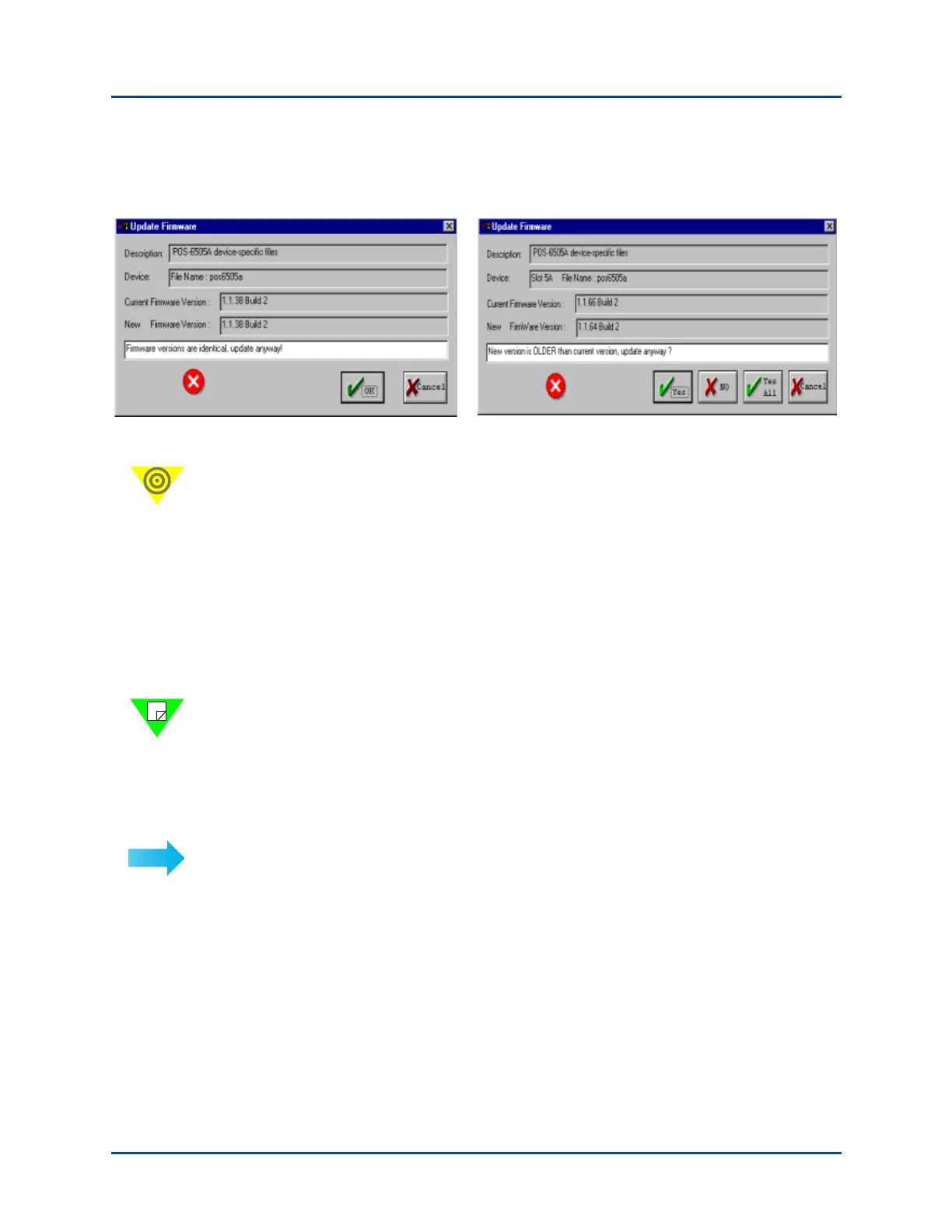
If the version of the firmware that you are downloading is older or the same as the
version you already are using, you will see one of the following windows:
5 Click the Download button to download the .rpm file(s).
Important: When conducting a Restart, all modules that have been reserved will restart.
Therefore, be careful which modules you reserve (.e.g., do not reserve a module that is in
the middle of a test). The chassis and any other modules that are not reserved will not be
restarted.
Procedure 11: Connect SmartBits to an Application
After the SmartBits IP address is set up via the serial console port, make sure that the PC
is connected to the SmartBits chassis using the Ethernet cable (see “Procedure 9: Confirm
the Ethernet Link” on page 51). Then you may proceed with configuration and testing.
Notes: • The procedure detailed in this section is for installing SmartWindow. The
installation of other applications may vary slightly. Refer to each
application’s specific user documentation and Release Notes for details.
• The serial cable cannot be used to connect any of the SmartBits software
applications to the SmartBits 600x/6000x chassis. This feature is only
available with the SmartBits 200/2000 chassis.
To connect a SmartBits application to a specific SmartBits chassis for the first time:
1 Check that you have:
• Installed the application on your PC.
• Connected the PC to SmartBits with the Ethernet cable.
• Set the IP address for the SmartBits chassis.
• Power up the SmartBits chassis.
2 Enter the application by selecting Start > Programs > SmartBits Applications >
<APPLICATIONname>.
Artisan Technology Group - Quality Instrumentation ... Guaranteed | (888) 88-SOURCE | www.artisantg.com



 To Next Page