Chapter 2: Installation and Setup
Procedure 8: Set the IP Address
48 | SmartBits 600x/6000x Installation Guide
Setting the IP Address via SmartWindow
To set the IP Address using SmartWindow, you can use the Serial CONSOLE port or the
10/100BASE-T Ethernet port for a point-to-point connection from your SmartBits chassis
to your PC. This configuration is used to set up the SmartBits IP address for the first time,
and can be used to run applications as well.
Notes: • You must have SmartWindow 6.53 Build 19 or later to use this feature, and
you must be Offline to access Connection Setup.
• The Serial CONSOLE port is used for making a point-to-point connection
only. To run SmartWindow, you must use the 10/100BASE-T port.
Make sure the SmartBits chassis is connected to the PC with the white Ethernet (RJ-45)
crossover cable.
Setting or Changing the IP Address via SmartWindow
You can launch the program in two ways:
• Double-click on the SmartWindow icon on your desktop.
• Use the Start button on the task bar. Select Start > Programs > SmartBits Systems
Applications > SmartWindow.
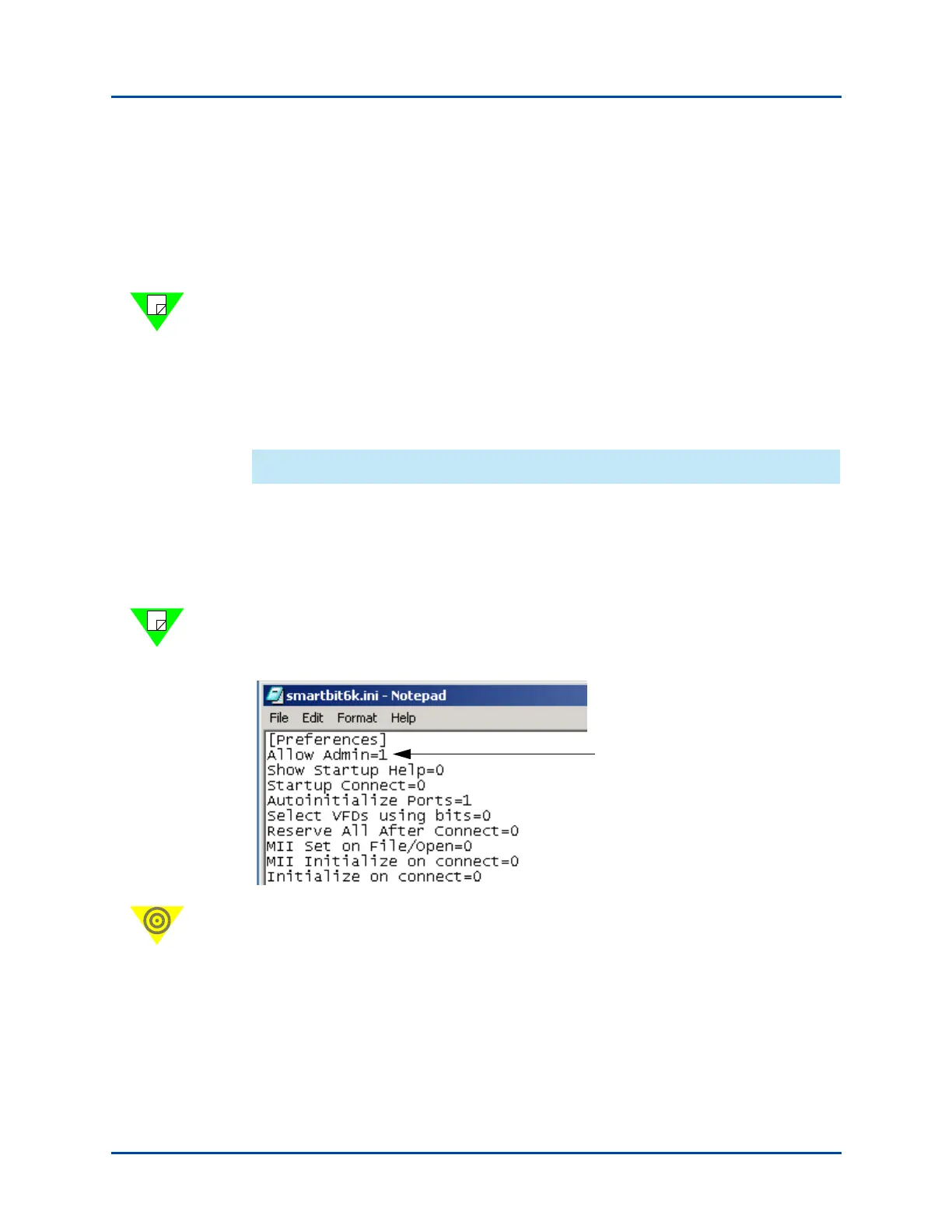
Note: Before you proceed any further, you must add Allow Admin=1 to the Smartbit6k.ini
file. To do this, open the SmartBit.ini file
C:\WINNT\Smartbit6k.ini file, and add
Allow Admin=1 as follows:
Important: After making the change to the Smartbit6k.ini file, reset the SmartBits
chassis by closing and then reopening SmartWindow to enable the option.
Add Line
Artisan Technology Group - Quality Instrumentation ... Guaranteed | (888) 88-SOURCE | www.artisantg.com



 To Next Page