Chapter 2: Installation and Setup
Procedure 12: Connect to the DUT and Check Cabling
SmartBits 600x/6000x Installation Guide | 67
Procedure 12: Connect to the DUT and Check Cabling
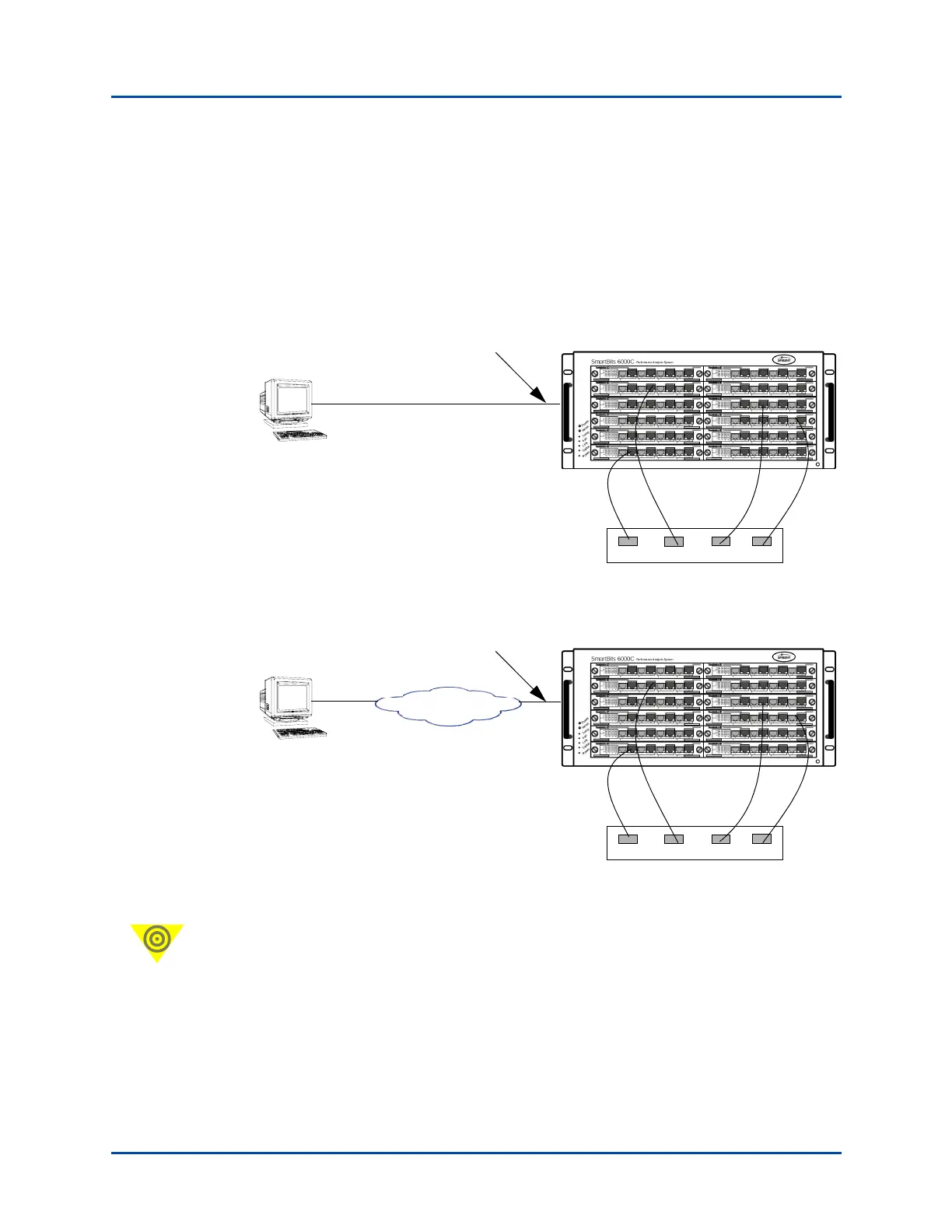
To connect the SmartBits chassis either to your PC or to the network to which your PC is
connected, use the SmartBits 600x/6000x chassis Ethernet port labeled 10/100BASE-T
located on the backplane.
Connect the SmartBits chassis to the desired device(s) or network to be tested via one of
the following methods:
Figure 2-7. Connecting the PC Directly to the Chassis and to the DUT/SUT
Figure 2-8. Connecting the PC via a WAN/LAN to the Chassis and to the DUT/SUT
Important: • You must position and install the provided ferrite block onto the Ethernet
cable (at the SmartBits end) that attaches the SmartBits chassis to your
network. The ferrite block reduces potential EMI interference. Refer to
“Procedure 5: Install the Ferrite Block” on page 36 for details on
connecting the ferrite block.
DUT/SUT
Connect to the Ethernet port on
the chassis backplane
DUT/SUT
WAN/LAN
Connect to the Ethernet port
on the chassis backplane
Artisan Technology Group - Quality Instrumentation ... Guaranteed | (888) 88-SOURCE | www.artisantg.com



 To Next Page