28 EN
1. Folders
2. Device icons
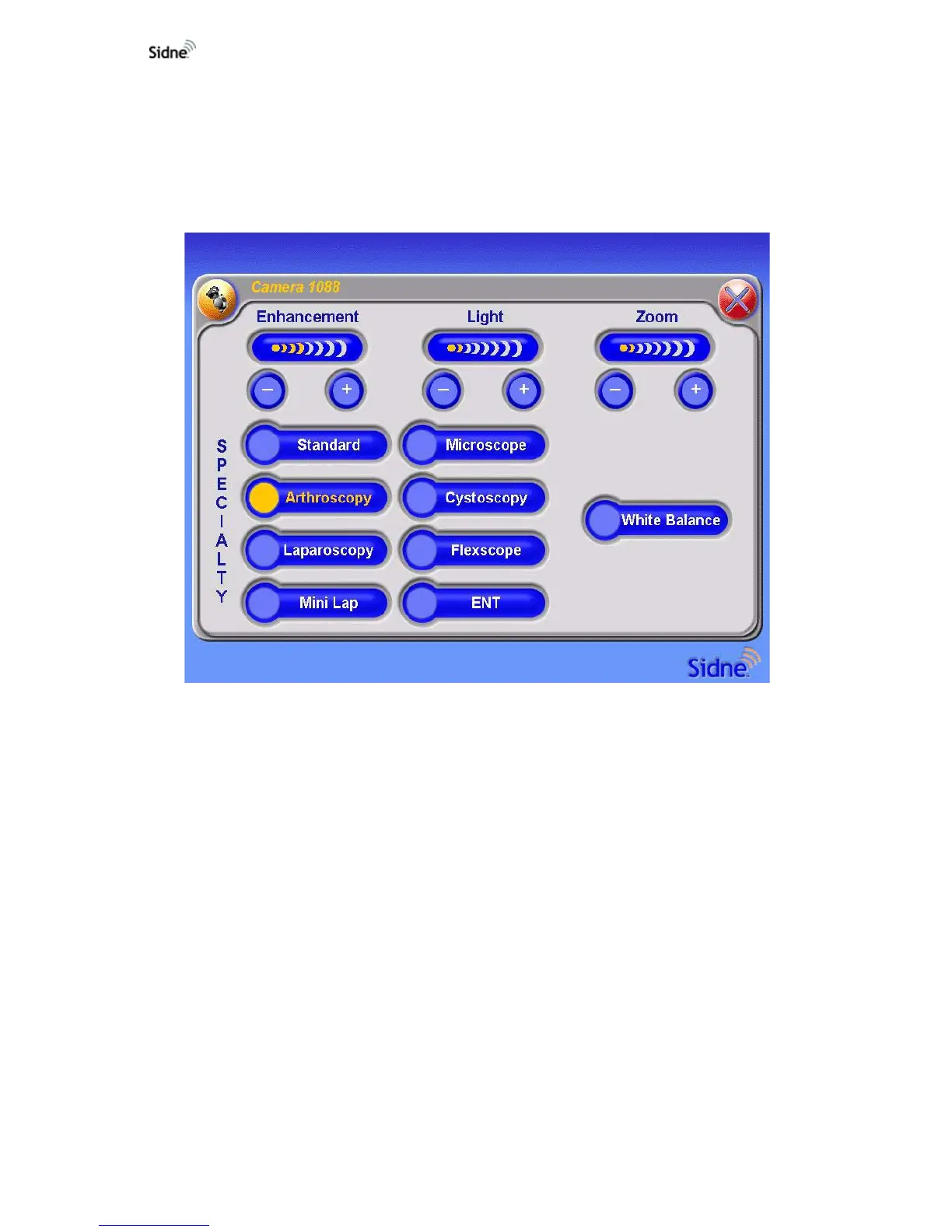
Touching a device icon brings up a device-specific option menu that
displays the same controls found on the actual device. For example, the
camera option menu offers controls for light, enhancement, zoom, white
balance, and specialty (see
Figure 14 below).
Figure 14: The camera option menu
The device shown on the tablet screen can be controlled by touching the
options displayed on the screen.
• Press any icon once to activate that feature. For example, to
select the arthroscopy setting for the surgical camera, press the
“Arthroscopy” icon once. Selected options are displayed in
orange lettering; available options are displayed in white
lettering; unavailable options are displayed in gray lettering.
• Press any “+” or “-” icon once to adjust by one increment.
For example, pressing the “+” icon beneath the zoom status bar
advances the zoom one step. The status bar located above the
“+” and “-” buttons will reflect the change.
• Press and hold any “+” or “-” icon to adjust at a steady
rate. For example, holding the “+” icon beneath the zoom
status bar advances the zoom gradually. The status bar located
above the “+” and “-” buttons will reflect the change.






 To Next Page