6 Electrical Connection User Manual
48
6.5 Communication Connection
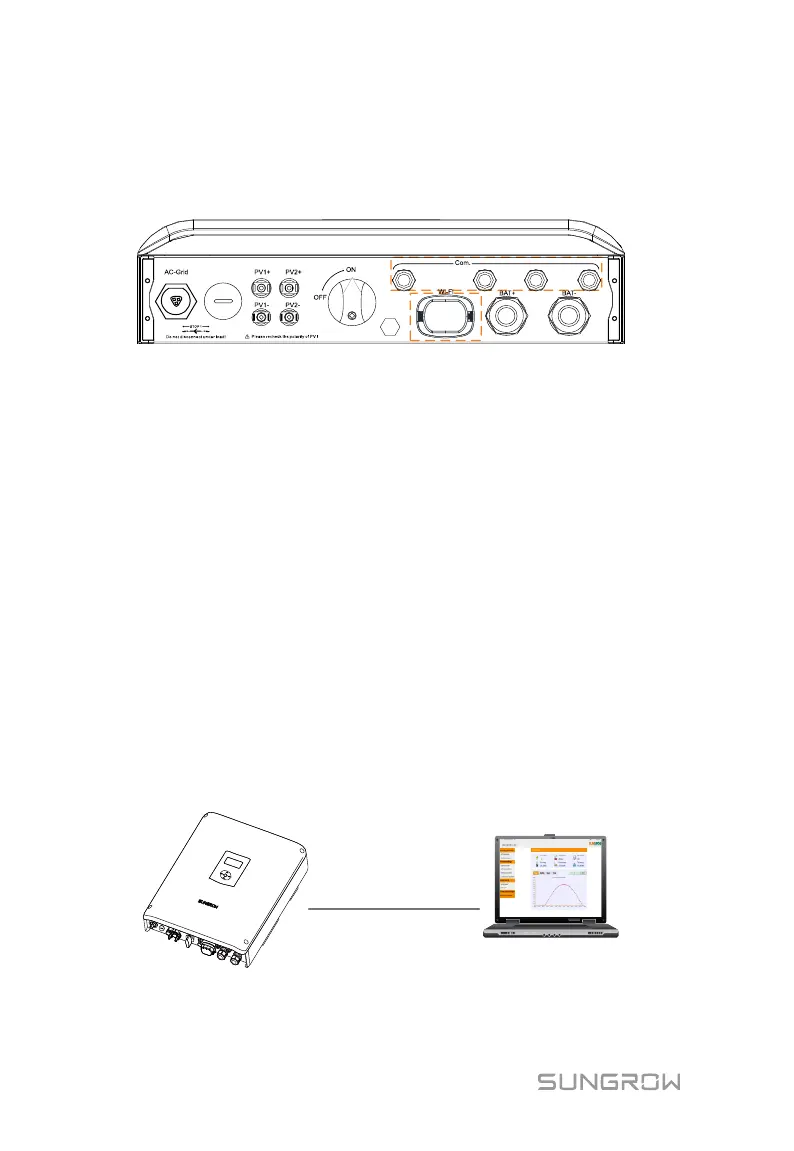
There are four ports and a Wi-Fi terminal on the bottom of the inverter, as
shown in the following figure.
Fig. 6-3 Communication Ports and Terminal
Ethernet function:
Through the Modbus TCP/IP protocol, the EMS or the Control Box from the
third party can fully control the on/off, derating, charging and discharging of
the inverter.
The inverter operation information can be transferred via Ethernet port to
the iSolarCloud Web. Use the iSolarCloud App or the iSolarCloud Web to
access the information.
Users can also visit Webserver to view the inverter operation information
Wi-Fi function:
With the Wi-Fi module installed, use iSolarCloud App or iSolarCloud Web to
view the information.
6.5.1 Ethernet Connection
Connect the inverter to the PC through the Ethernet port to set up the Ethernet
communication. The following figure shows the Ethernet connection without a
router using the Browser.


 To Next Page