Table 11-2
Steps for recovering the appliance from a hardware failure
(continued)
DescriptionActionStep
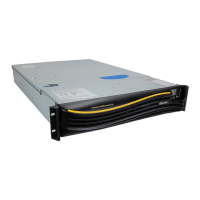
Once you have determined the hardware that needs
replacement, remove the faulty hardware and
replace with a new unit.
User-replaceable hardware includes:
■ Power supplies
■ Hard disks
See “Removing and replacing NetBackup 5230
disk drives” on page 101.
For more detailed procedures not covered in this
Guide, see the "Removing and replacing hardware"
chapter of the Symantec NetBackup™ 5230
Appliance Hardware Troubleshooting and Parts
Replacement Guide.
Note: If you find that non-user replaceable
hardware is faulty, contact Symantec Technical
Support for further assistance.
Replace the faulty hardware.Step 3
Perform the following actions to verify the status of
the new hardware:
■ Use the LED status indicators on the appliance
to help determine if the hard disks and power
supplies are functioning correctly.
See “Troubleshooting system status LED
issues” on page 98.
■ Run the Appliance Diagnostics Center from
the NetBackup Appliance Web Console, then
choose Perform a hardware health check.
See “Troubleshooting and tuning Appliance from
the Appliance Diagnostics Center” on page 31.
Verify that the hardware
replacement is successful.
Step 4
Once you have verified that the status of the
appliance hardware is healthy, check to make sure
that all NetBackup services have resumed. All
backup jobs resume once the appliance is turned
on.
Note: If a backup was in process when the power
interruption occurred, the backup job likely failed.
Verify that all NetBackup
services have started.
Step 5
121Disaster Recovery
Disaster recovery scenarios


 To Next Page