Maintenance & Troubleshooting 11-5
Four Slot Spare Battery Charger
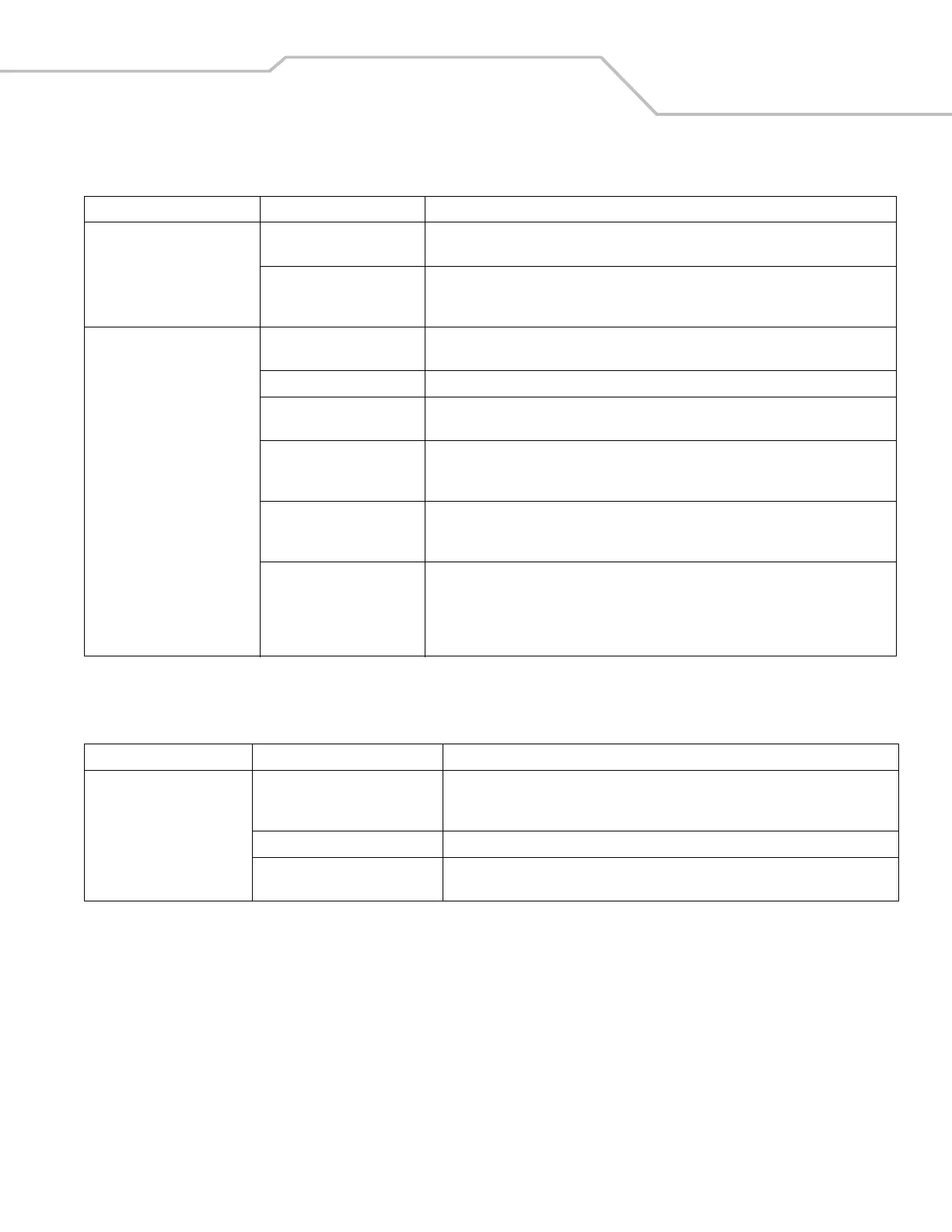
A message appears stating that
the mobile computer memory is
full.
Too many files stored on the
mobile computer.
Delete unused memos and records. If necessary, save these records on the host computer.
Too many applications
installed on the mobile
computer.
Remove unused installed applications from the mobile computer to recover memory.
Select Start - Settings - System tab and tap the Remove Programs icon. Select the unused
program and tap Remove.
The mobile computer does not
accept scan input.
(Doesnot apply to camera
configurations.)
Scanning application is not
loaded.
Verify that the mobile computer is loaded with a scanning application. See the System
Administrator.
Unreadable bar code. Ensure the symbol is not defaced.
Distance between exit window
and bar code is incorrect.
Ensure mobile computer is within proper scanning range.
Mobile computer is not
programmed for the bar code
type.
Ensure the mobile computer is programmed to accept the type of bar code scanned.
Mobile computer is not
programmed to generate a
beep.
If a beep on a good decode is expected and a beep is not heard, check that the application is
set to generate a beep on good decode.
Battery is low. If the scanner stops emitting a laser beam or aiming pattern upon a trigger press, check the
battery level. When the battery is low, the scanner shuts off before the mobile computer low
battery condition notification.
Note: If the scanner is still not reading symbols, contact the distributor or Symbol
Technologies.
Table 11-2. Troubleshooting the Four Slot Spare Battery Charger
Symptom Possible Cause Action
Battery not charging. Battery was removed from the
charger or charger was unplugged
from AC power too soon.
Re-insert the battery in the charger or re-connect the charger’s power supply.
Battery is faulty. Verify that other batteries charge properly. If so, replace the faulty battery.
Battery contacts not connected to
charger.
Verify that the battery is seated in the battery well correctly with the contacts facing
down.
Table 11-1. Troubleshooting the Mobile Computer (Continued)
Problem Cause Solution


 To Next Page