WLAN Configuration 8-19
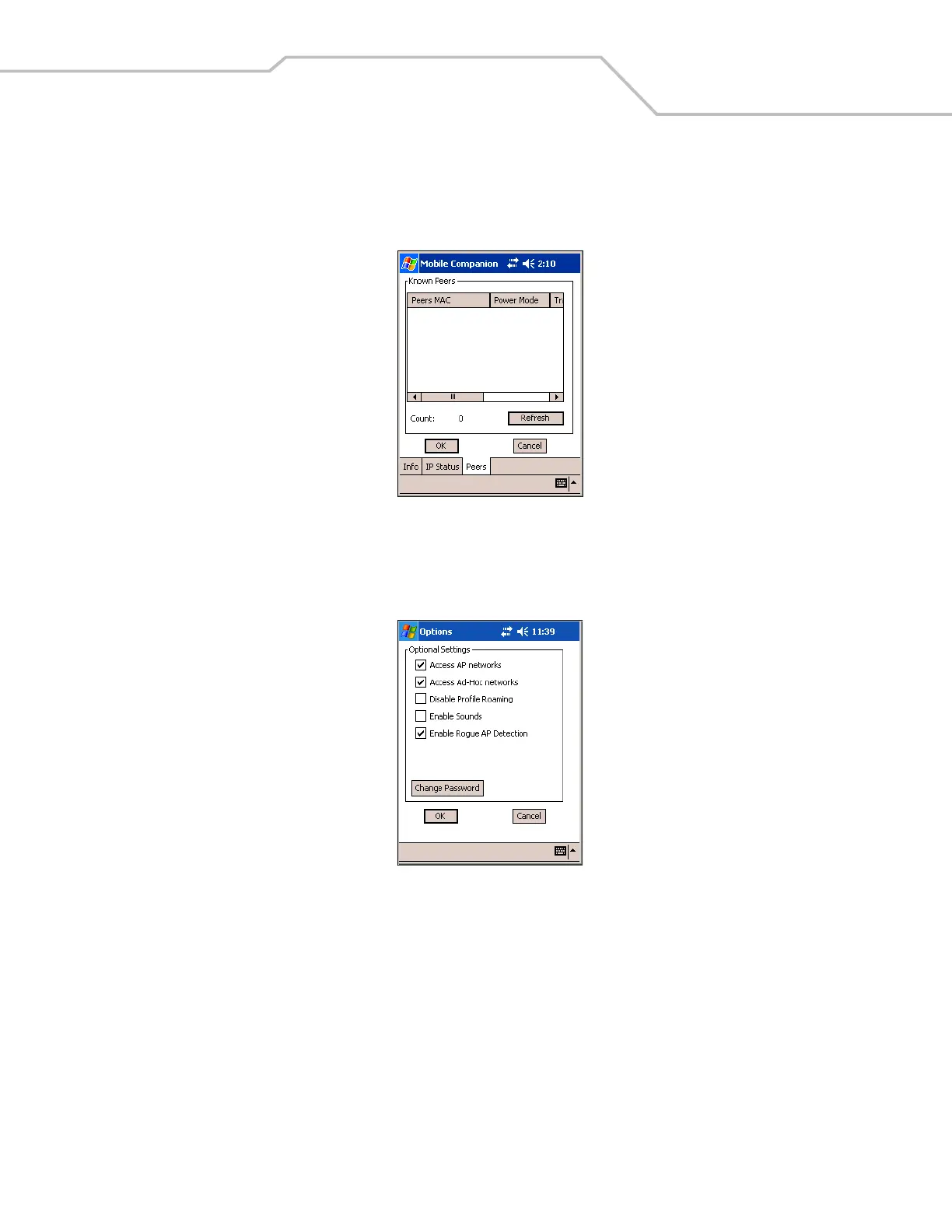
11. If the mobile computer is in Ad Hoc mode, select the Peers tab to display the BSSID or MAC addresses of the other mobile
computers in the network, their operating mode (PSP or CAM), their transmit rate, their supported data rate, and the length
of time an adapter was out of the Ad Hoc network. Tap Refresh to update the Peers tab to the latest Ad Hoc network
performance and mobile computer membership data.
Figure 8-24. Mobile Companion - Peers Tab
Setting Options
Select Options from the Mobile Companion menu to access AP and Ad-Hoc networks, disable profile roaming, and enable system
sounds.
Figure 8-25. Mobile Companion - Option Settings
1. Select the Access AP networks check box to display available AP networks and their signal strength within the Available
WLAN Networks (see Finding WLANs on page 8-4). These are the APs available to the mobile computer profile for
association. If this option was previously disabled, refresh the Available WLAN Networks window to display the AP
networks available to the mobile computer.
2. Select the Access Ad-Hoc networks check box to display available peer (adapter) networks and their signal strength within
the Available WLAN Networks. These are peer networks available to the mobile computer profile for association. If this
option was previously disabled, refresh the Available WLAN Networks window to display the Ad Hoc networks available to
the mobile computer.
3. Select the Disable Profile Roaming check box to configure the adapter WLAN profile not to roam to the next available WLAN
profile when the mobile computer moves out of range of the current WLAN profile.


 To Next Page