MC50 Integrator Guide8-4
Mobile Companion
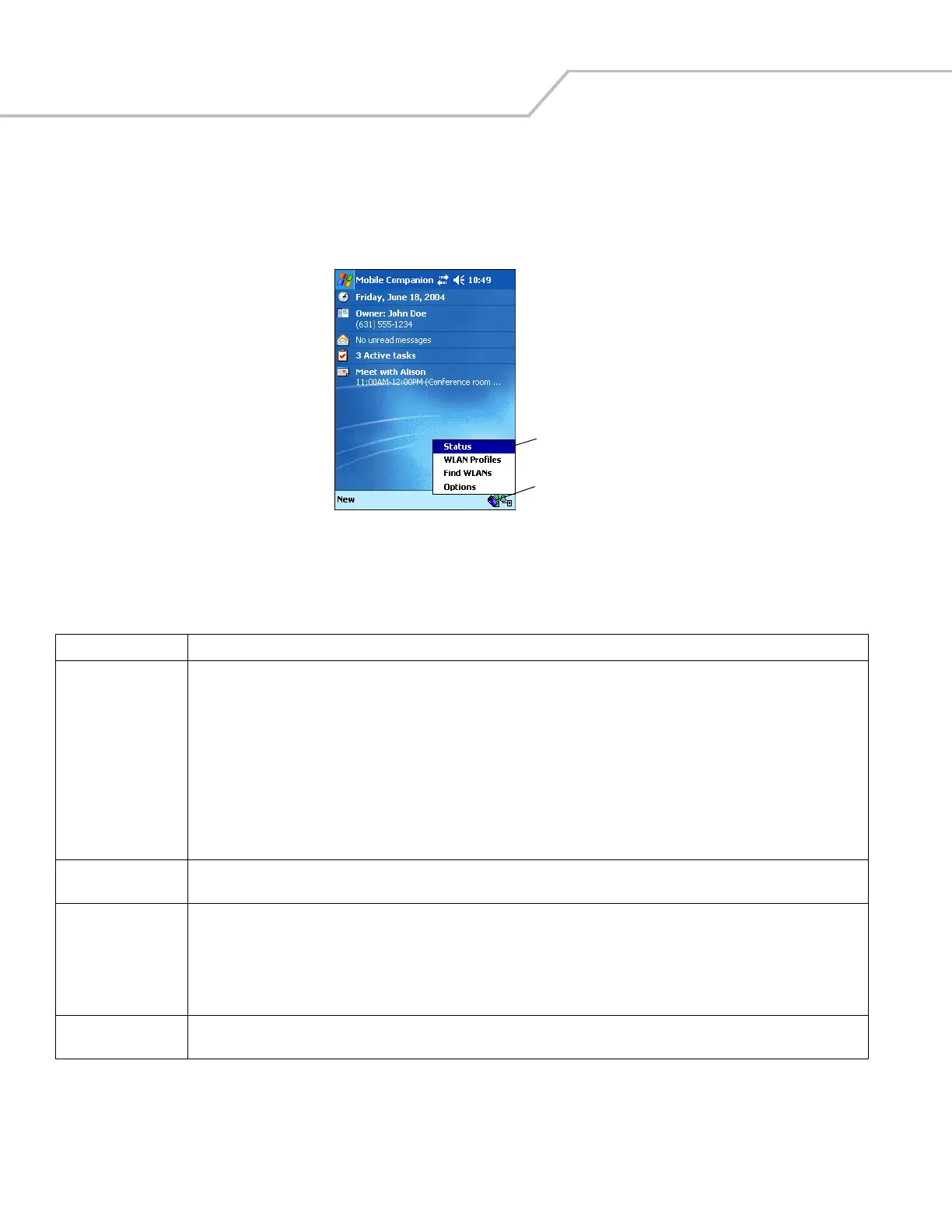
Use the Mobile Companion utility to configure the mobile computer’s wireless network settings. The Mobile Companion utility
appears as an icon on the task tray. The status icon changes in real-time to reflect the signal strength and availability of the adapter
and the wireless network. Tap the icon on the task tray to open the Mobile Companion menu.
Figure 8-1. Mobile Companion Menu
When the menu opens, select Status, WLAN Profiles, Find WLANs, or Options from the menu.
Finding WLANs
A completed profile is a set of mobile computer configuration settings used in different locations to connect to a network. Create
different profiles to have pre-defined mobile computer operating parameters available for use in various network environments.
Table 8-1. Mobile Companion Menu Descriptions
Menu Item Description
Status Displays the current status and information for the wireless connection. (See Status on page 8-15 for more information.)
Signal tab - displays radio signal transmission strength from the adapter (using its current profile) to the associated AP.
Info tab - displays mobile computer’s software, driver, firmware, and hardware versions, as well as country information for the current
WLAN profile.
IP Status tab - displays network address information.
Ping tab - displays signal strength data and data rate, and conducts data transmission tests between the mobile computer and
associated AP or client.
APs tab - displays APs with the same ESSID within the current WLAN profile.
Peers tab - displays the BSSIDs, power modes, transmit rates, and data rates of other networked clients within the Ad Hoc (peer-to-
peer) network. When in Ad Hoc operating mode, the Peers tab appears instead of the APs tab.
WLAN Profiles Displays the current profiles and allows adding, editing, and deleting profiles.
(See Changing Profiles on page 8-21 for more information.)
Find WLANs Displays a list of wireless networks (APs and networked peers) available to the mobile computer for association. The networks are
listed by ESSID. To the right of each network is a signal strength icon. Networks with a signal strength of Good (three green bars out
of five) or better should be considered for connection. Tap a network and tap Connect to interoperate with the AP representing that
network. Once connected, the Mode, Authentication, Encryption, IP Config, and Power tabs display the ESSID, security settings,
network address information, and power consumption level set for that network. (See Finding WLANs on page 8-4 for more
information.)
Options Displays settings for system sounds, AP and mobile computer association capabilities, profile roaming options, and the password
protecting the Mobile Companion utility. (See Setting Options on page 8-19 for more information.)
Mobile Companion icon
Mobile Companion menu


 To Next Page