ActiveSync 3-7
Setting up a Partnership
After installing ActiveSync, the ActiveSync Setup Wizard sets up a partnership to synchronize information between the mobile
computer and host computer, and customizes synchronization settings.
To set up a partnership:
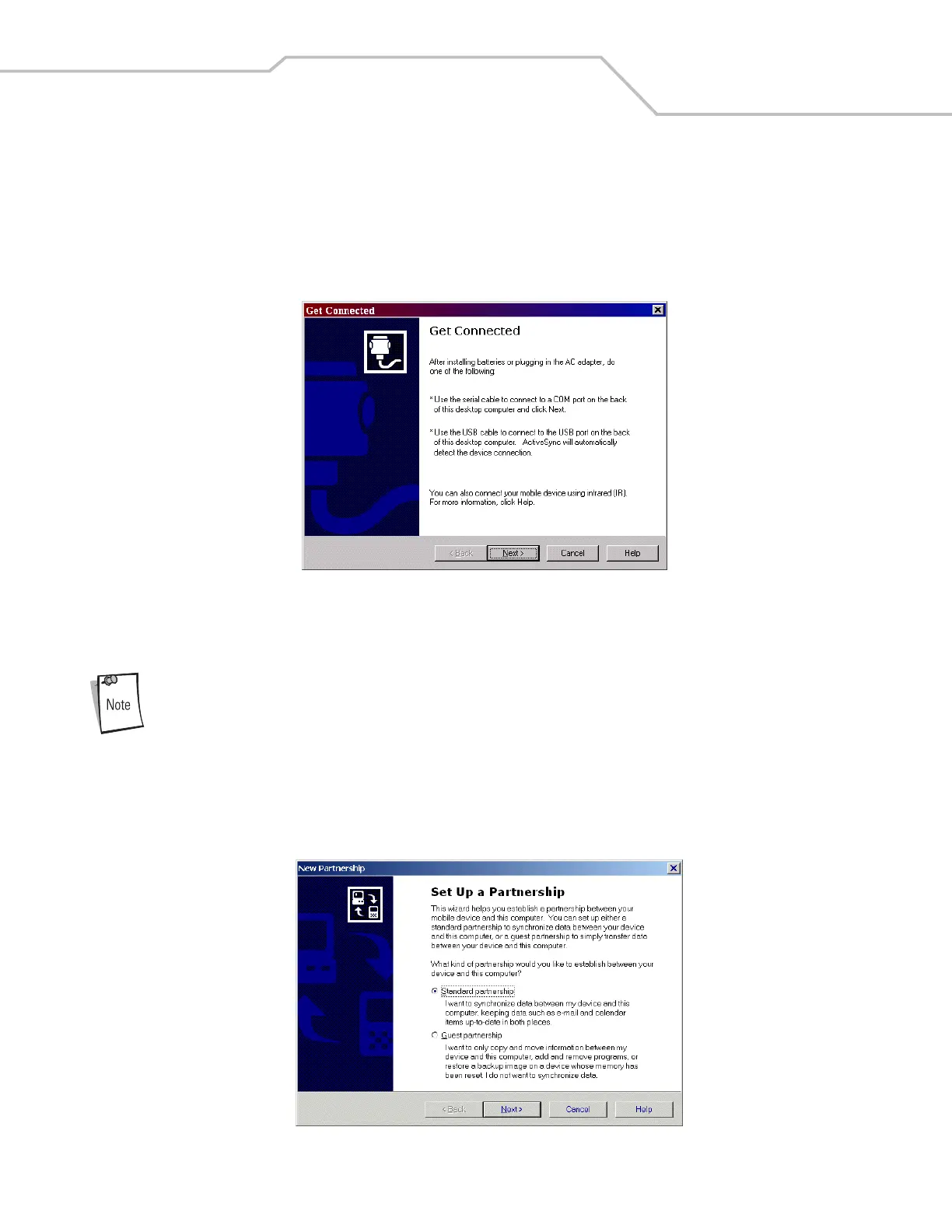
1. Select Start - Programs - Microsoft ActiveSync - File - Get Connected.
Figure 3-6. Get Connected Window
2. Connect the communication accessory to the host computer and to the appropriate power source (see Chapter 2, Accessories
for connection information).
The accessory requires a dedicated port. It cannot share a port with any other device. Refer to the host
computer user manual supplied to locate the USB ports.
3. Connect the mobile computer to the accessory.
4. Power on the mobile computer.
5. On the host computer, select Next in the Get Connected window. The host computer and the mobile computer attempt to
synchronize. The New Partnership window appears.
Figure 3-7. New Partnership Window


 To Next Page