MC50 Integrator Guide6-14
3. Choose Automatic or select the partition to download, then select OK.
If the platform or application partition sizes change, first download a new partition table.
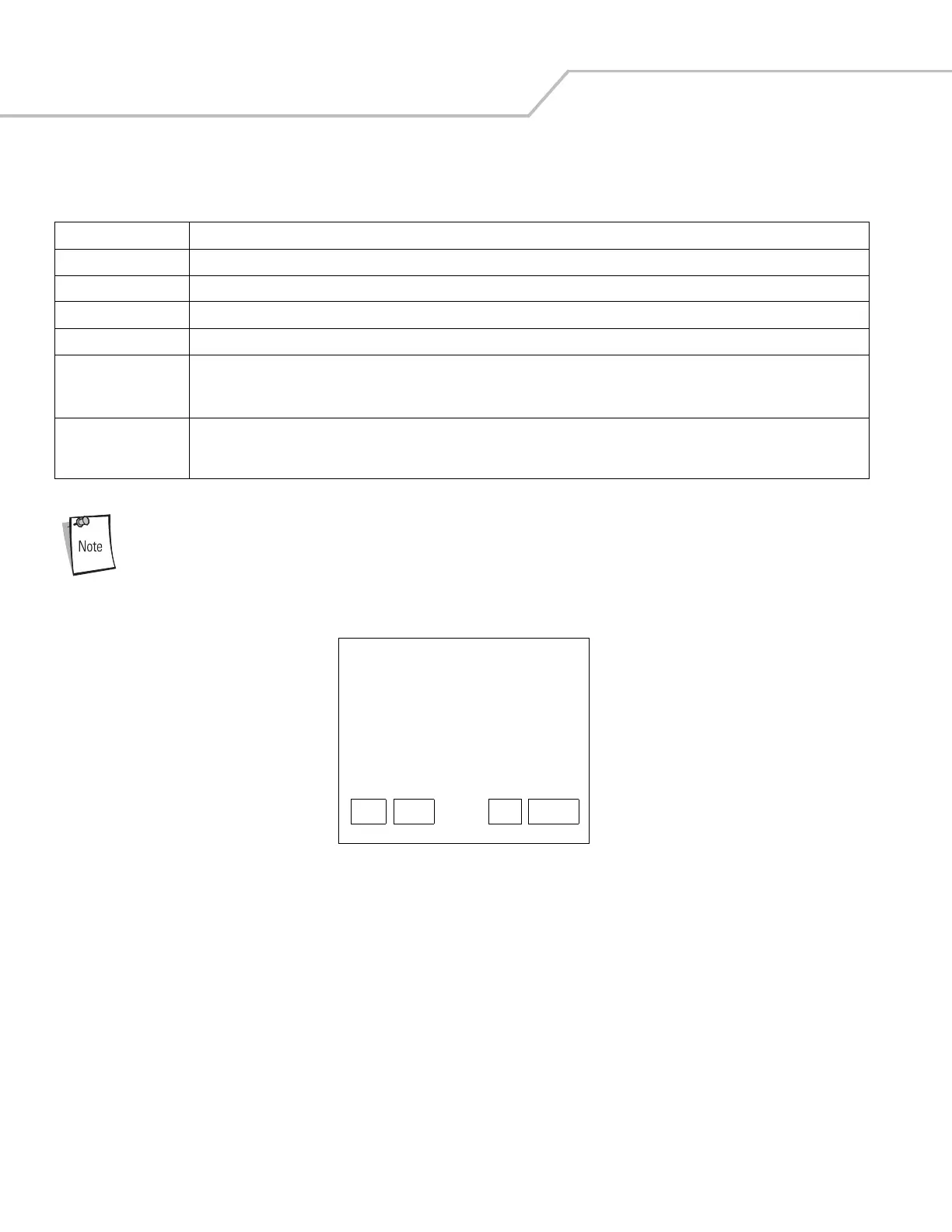
The following window appears:
Figure 6-13. Waiting SD Card Insert Window
4. Insert the card in the mobile computer SD/MMC card slot, then select OK on the Waiting for SD/MMC Card Insert window.
5. The Downloading window on mobile computer displays the Device Status and a progress bar. When complete, Device Status
displays Result was Success, or in the case of an error, the cause of the error. Press Enter to return to the IPL menu to select
the next partition to download.
6. To exit IPL, select the System Reset item from the IPL menu (see Figure 6-12 on page 6-13).
Table 6-3. IPL Menu Partitions
Partition Name Description
Windows CE Contains the operating system for the mobile computer.
Application Contains the files in the Application folder.
Platform Contains the files in the Platform folder.
IPL Contains the latest IPL version.
Partition Table Contains the partition information for all other partitions.
Note: The partition table should only need changing if the sizes of the platform and application images change within TCM. If this is
done, load the new partition table first, then platform and application in any order.
Automatic Select this item to download one or more files without having to manually select the destination. (The content of the downloaded files
directs the file to the correct destination.) For technical reasons, Auto Select cannot be used to download Monitor, Power Micro, or
Partition Table. These items must be selected.
Symbol Technologies Inc.
IPL Version XXXXXXXX
SD/MMC
Select File:
Waiting SD Card insert.......
OK Back Up Down


 To Next Page