28 Addressable Fire Panel IRIS - Installation and Programming Manual
Loop Controller LOOP TTE
The loop controller LOOP TTE automatically recognizes the types of devices in the loop. In addition
the installer denes the temperature class and the sensitivity level of the SensoIRIS devices according their
type - see also the Appendix C - SensoIRIS device types.
The “SAVE” button can be used for fast conguration of the device. Following this command, the panel sets
up all detected loop and periphery devices by default. New devices only are congured under this command.
The “RESTORE DEFAULTS” command deletes all system parameters.
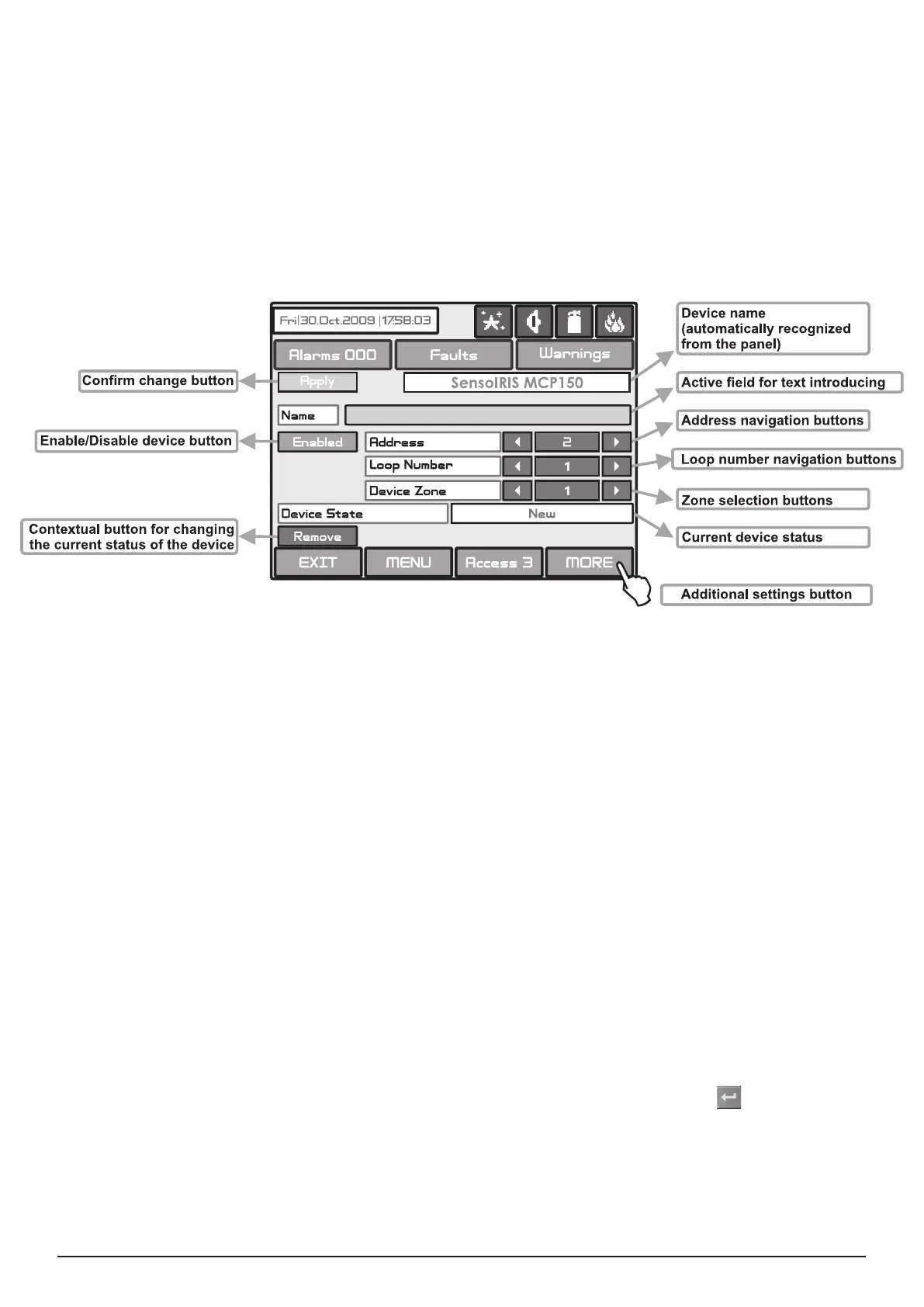
On Fig. Screen 12 is given the general view of the submenu for new loop Teletek Electronics devices for
LOOP TTE (SensoIRIS MCP150 in the example).
Fig. Screen 12
Description of the button functions (Fig. Screen 12):
• Conrm Change Button - Saves changes in the permanent memory.
• Button to enable/disable a device - Button for Enabling / Disabling devices.
• Address Navigation Button - This button helps to scroll (in sequence or directly) the devices of one and the same
loop.
• Loop Number Navigation Button - These keys alternate the loop (in sequence or directly) of the screened devices.
• Zone Selection Button - These keys alternate the zone (in sequence or directly) to which the device belongs.
• Current Device Status - The current device status varies according to the device type.
- new device found in the system. You can save it by pressing the “Apply” button.
- the device is working properly.
- the device is not responding. You can delete it by pressing the “REMOVE” button.
- the device has been saved with a different type.
- there is no device on the current address.
• Button for Removing a device - Pressing the button deletes the device from the system conguration.
• Change Device Type Button - Press this button for the panel to provide a compatibility device list of which to choose
the most suitable one. The “SELECT NEW DEVICE TYPE” message will be portrayed Fig. Screen 9.
• Active Field for Text Introduction - Choosing this eld accesses the text introduction mode. The text must not exceed
40 digits together with the spaces - Fig. Screen 10. Entered information is conrmed with button
.
• Additional Settings Button - The additional adjustments vary according to the type of device - see the Fig. Screen13a
- 13d.


 To Next Page