UVITEC – Cambridge
159/225
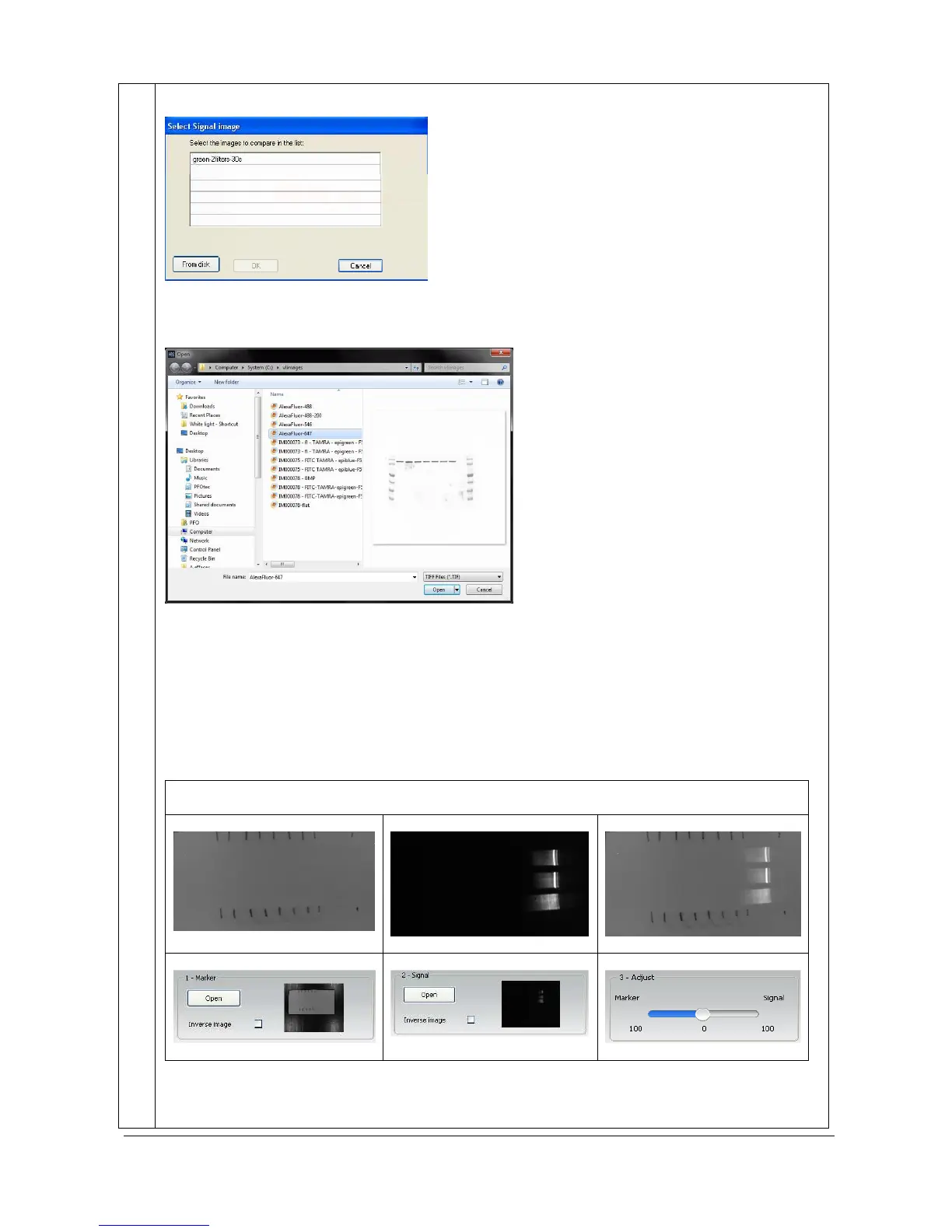
pop-up window displays the following menu:
A list displays the image already opened.
You can also add an image to the list by opening an image from your computer. To proceed, click on
the “From disk” button. A pop-up window displays the following menu:
Browse to specify the image directory
Double click on the image name you want to load
A new composite image appears in the main windows, gathering the marker and the signal images.
3- Adjust the weight you want to give to each image
You can adjust the proportion of the marker and of the signals images in the composite image.
Example:
Case 1: weight of 50% for each mage


 To Next Page