UVITEC – Cambridge
195/225
The Good Laboratory Practice (GLP) file is made to track all the image treatments performed with the
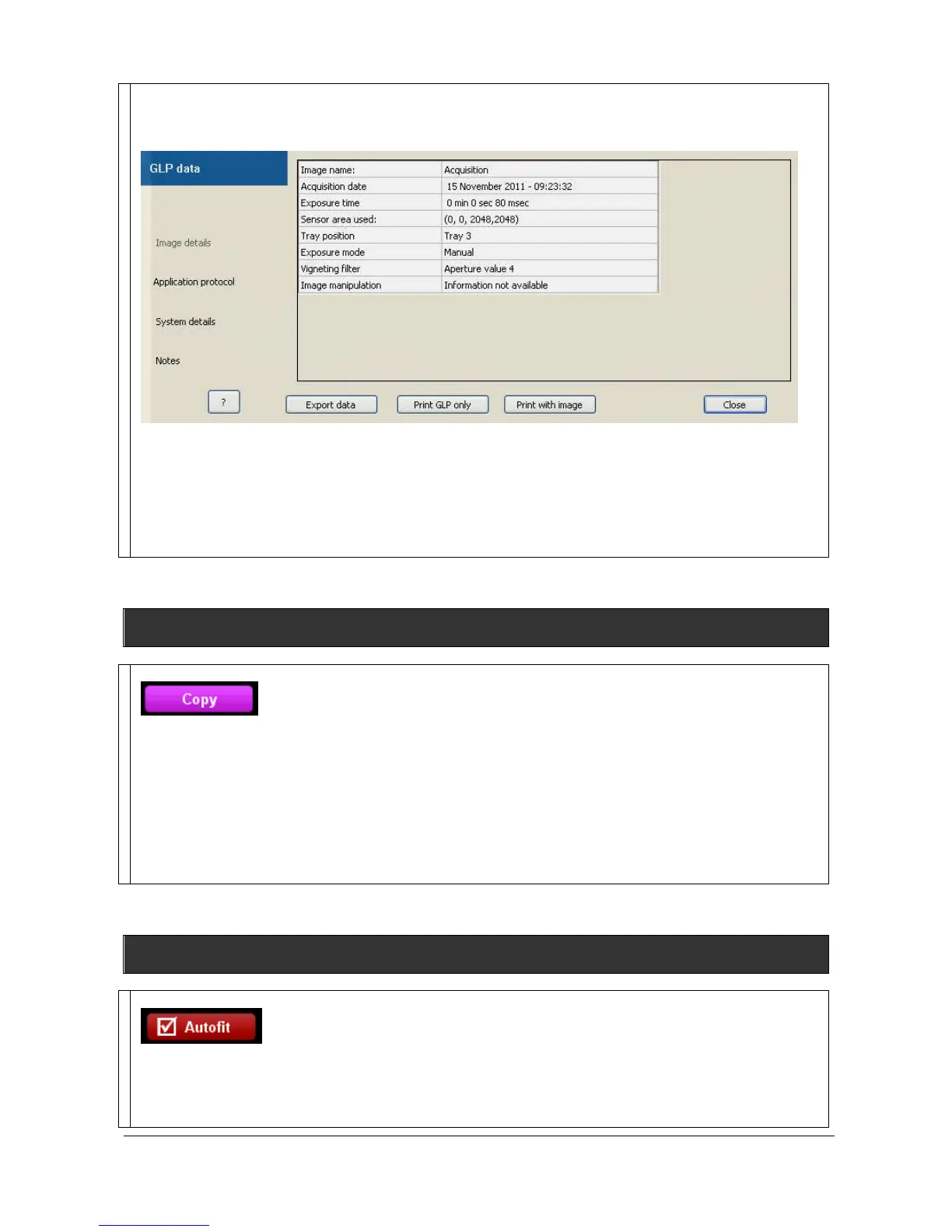
software. Click on the “GLP” icon. A pop-up window displays the following menu:
The GLP file has 4 different topics:
- the Image details which provide information on the way the image has been taken;
- the Application protocol which provide information on the Application protocol used to take the image;
- the System details which provide details on the system used to take the image;
- the Notes which provide you space to add information to your image.
Copy
This function copies an image, a table or a graph onto the clipboard for insertion into another program.
This option is identical to the Windows® [Ctrl C] command.
To proceed, click on the Copy to clipboard icon. The image, the table or the graph is now ready to be
pasted into another application.
Open the application that you want to paste the image into, and select from the available pasting options
([Ctrl V] command for Windows® software).
Autofit
Click on the “Autofit” to resize the image to fit the size of the monitor.
The full resolution of the acquired may be larger than the screen resolution. The navigation requires the
Windows scroll bar. The Autofit allows you to view the whole image, regardless of the window size.


 To Next Page