UVITEC – Cambridge
20/225
Windows XP and Vista warning
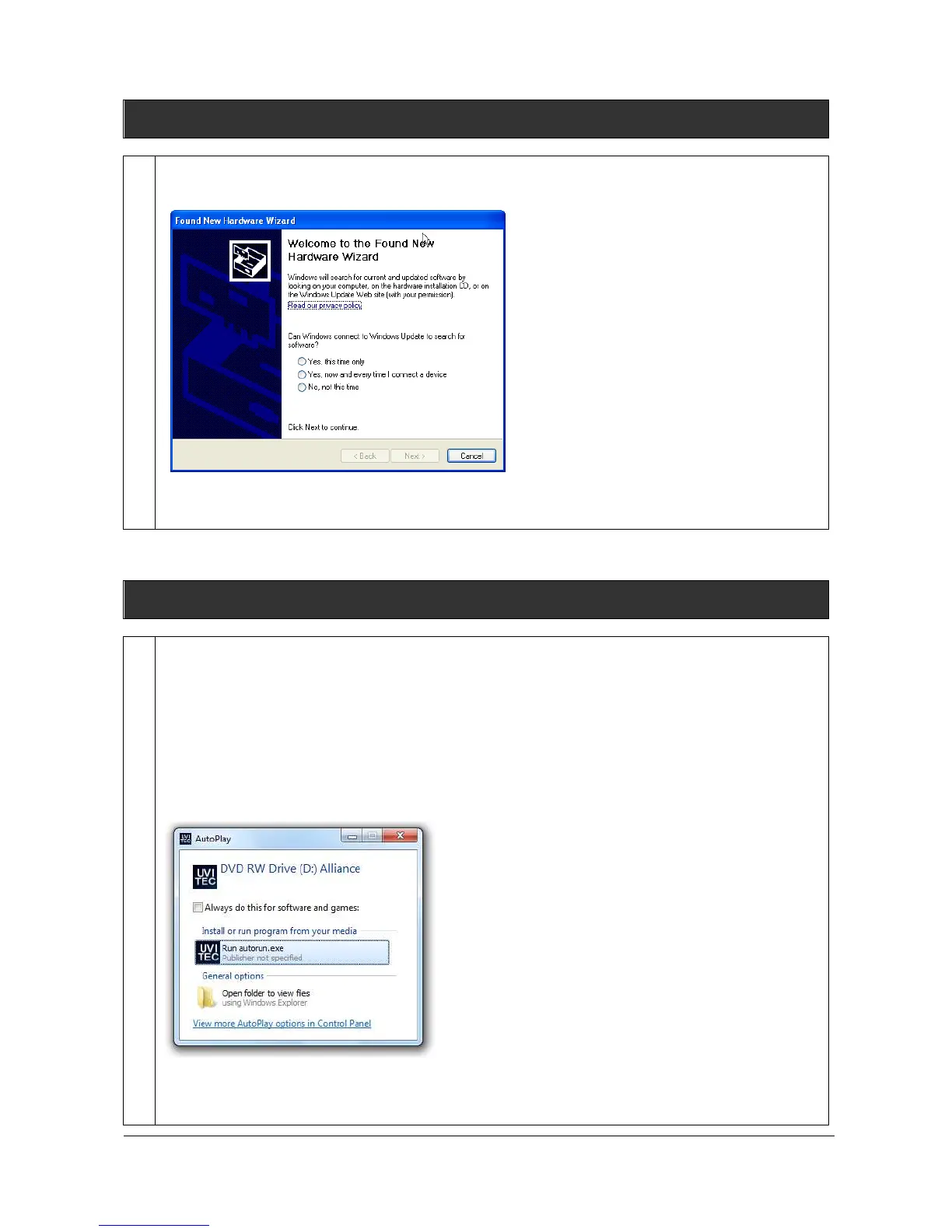
At computer startup, Windows pop-ups the “found new hardware wizard” box.
Press “Cancel” button before starting the installation.
Software installation
Please ensure the FireReader system is switched-off before the software installation. Do not switch
on the system before the installation is fully completed.
Step 1
Insert the CD-ROM in the CD-ROM drive
Ensure that all other application programs are closed. Windows XP, Vista and Windows 7 users
should also ensure that they are logged on with administrator privileges.
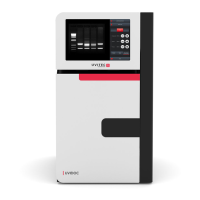
If the Autorun option is set on your computer, the installation automatically starts. If not, double
click on the Autorun.exe file to start the installation of the software.
Please click on the run autorun.exe icon. The FireReader Setup window will appear, welcoming
you to the Install Wizard for FireReader 1D Setup.


 To Next Page