DE35-ST Operating Instructions
D292469I 33
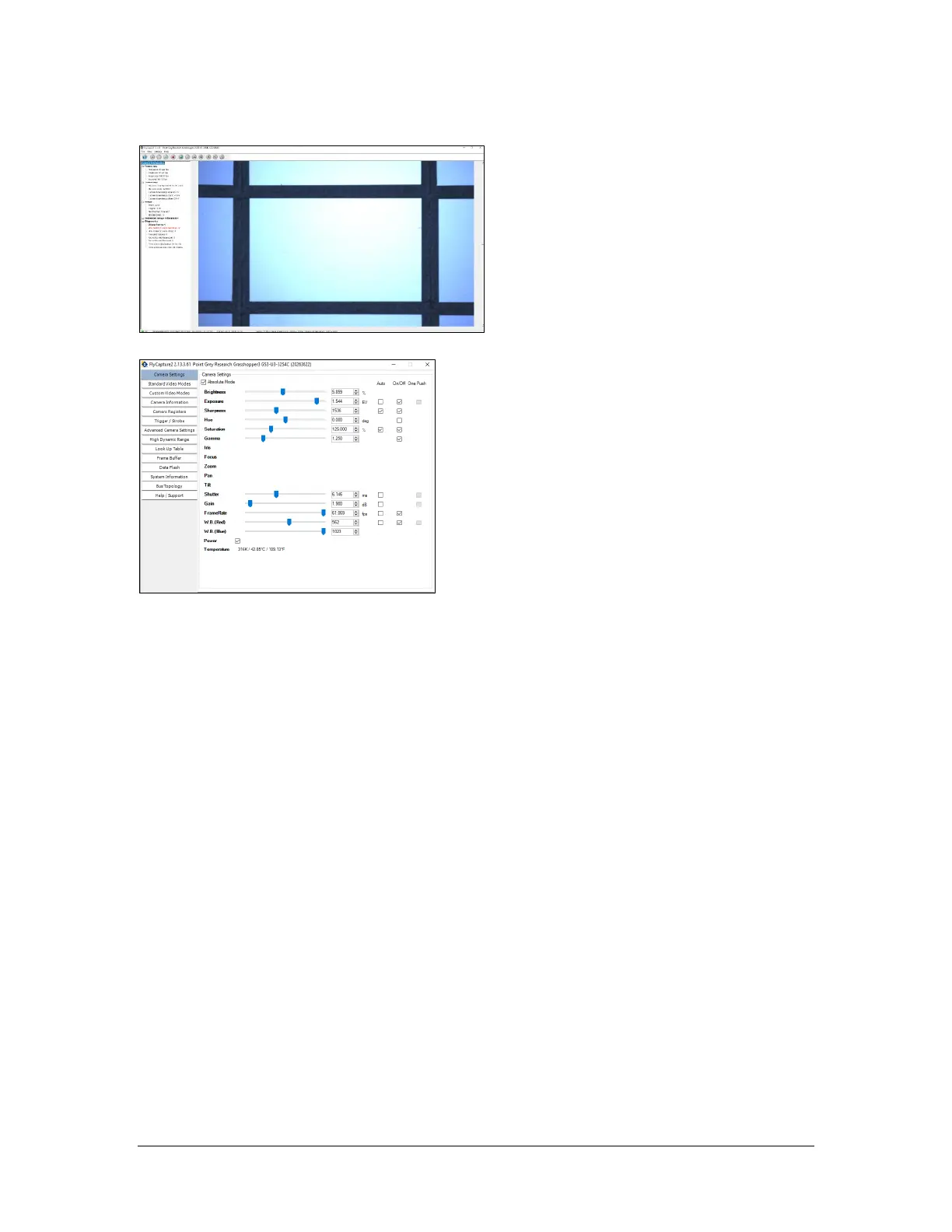
Next you will see a window showing the live image from the selected camera.
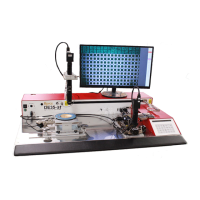
From the Settings menu, select Toggle Camera Control Dialog to open the camera settings.
Adjust relevant camera settings in the Camera Settings tab and see the effect of changes on the
live camera image screen. Shutter and gain are most helpful to adjust improve image quality.
It is highly recommended that all Auto values be unchecked. If the camera auto adjusts during
the run as it will when neighboring die are picked or near the perimeter of the wafer, then the
vision parameters set earlier may no longer be valid. In addition, as the arm moves in front of
the camera during operation, if auto is checked, it will cause the settings to be adjusted, so
again, they will no longer be valid.
IMPORTANT: Changes to settings must be saved otherwise the settings will revert back to their
prior values.
To Save Settings:
Ensure that the section Advanced Camera Settings is selected in the left pane.
At the bottom of the screen, under Memory Channels, ensure that Channel 1 is selected.
Click Save.
Close settings window.
Close live image window.
NOTE: You must exit FlyCap2 prior to relaunching Royce Technical Video software.


 To Next Page