EasyManua.ls Logo

Vaisala AviMet WID511 - User Manual

Vaisala AviMet WID511
102 pages
Print Icon
To Next Page IconTo Next Page
Loading...
M211109EN-L
User Guide
Vaisala AviMet
â
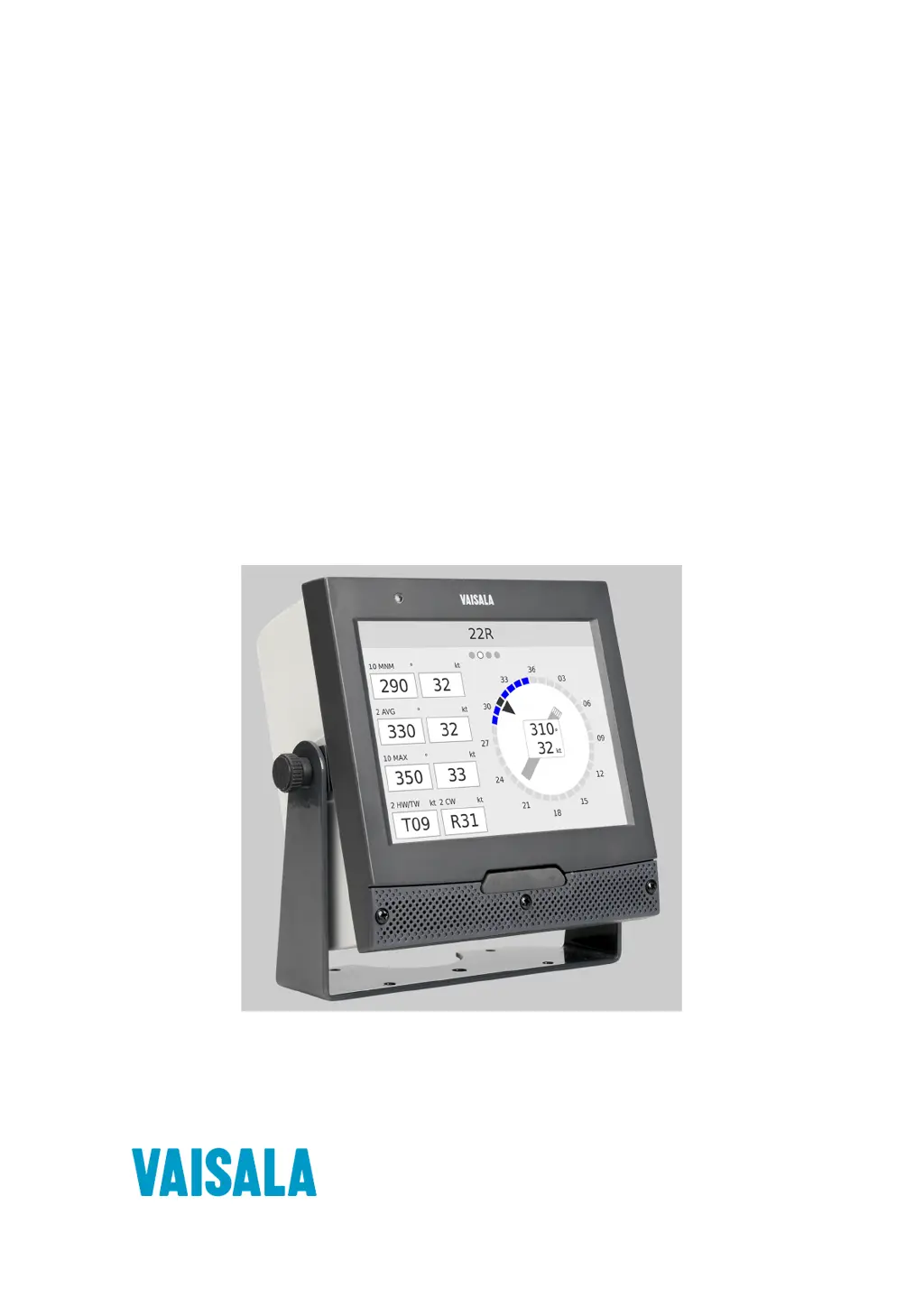
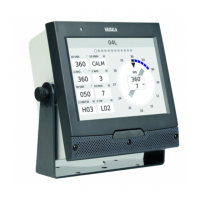
Wind Panel Display
WID511

Table of Contents

Questions and Answers

  • C
    Cheryl CarrAug 19, 2025
    Why is nothing showing on my Vaisala Weather Station display?
    • H
      hansenandrewAug 19, 2025
      If nothing is visible on the Vaisala Weather Station display, first, ensure the power source is properly connected and the power cable is in good condition. If the power is fine, the display brightness might be too low. Try pressing the front panel button (+) to increase the brightness. If the problem persists, the power supply itself may be faulty and require replacement. If the power supply is OK, the display may have a hardware failure. Contact Vaisala.
  • L
    Laura JohnstonAug 21, 2025
    How to improve the visibility of values on my Vaisala Weather Station screen?
    • D
      donaldscottAug 21, 2025
      If the values on the Vaisala Weather Station screen are not clear, try the following: * Adjust the brightness of the screen. * Clean the display surface. * Change the color scheme.
  • W
    Wesley PenaAug 23, 2025
    What to do if Vaisala Weather Station shows incorrect measurement data?
    • J
      Jennifer LeeAug 23, 2025
      If you are getting incorrect measurement data on your Vaisala Weather Station, the issue might be due to a sensor or configuration error. Check the sensor and configuration settings to ensure they are correct.
  • M
    Mr. Juan ChapmanAug 26, 2025
    Why is my Vaisala Weather Station displaying slash marks instead of data?
    • N
      Nathan NewmanAug 26, 2025
      If you see slash marks (///) in the data fields of your Vaisala Weather Station instead of actual data, this could be due to several reasons: 1. The system might have just started and hasn't collected enough data yet. Wait for 10 minutes. 2. Data could be missing because of sensor or communication problems. Check the connections (serial or Ethernet) and sensors. 3. The network cable may be disconnected. Check the text on the network information page: Cable connected. Network up or Cable not connected. Network down.
  • F
    Francisco RussellAug 28, 2025
    How to fix Vaisala Weather Station display that does not respond to touch correctly?
    • T
      teresaperezAug 28, 2025
      If the display of your Vaisala Weather Station does not respond to touch correctly, the position accuracy of the screen may have been compromised, possibly due to moving the display. Recalibrate the screen to fix this issue.
  • S
    Steven AndersonAug 30, 2025
    What to do if Vaisala Weather Station display does not respond?
    • V
      vbrownAug 30, 2025
      If the Vaisala Weather Station display is not responding, the uploaded software version might not be compatible with the configuration version. To restore the default configuration, press both front panel buttons at the same time and hold them down for 10 seconds until the message Restoring configuration is displayed.
  • B
    Brandy BentleySep 1, 2025
    Why is my Vaisala Weather Station showing wind missing data?
    • A
      Alejandro FloresSep 1, 2025
      If your Vaisala Weather Station is showing wind missing data, the display is not receiving valid wind data from the sensor, possibly due to a timeout. Check the sensor or its connection.
  • D
    dillondukeSep 3, 2025
    How to fix Vaisala Weather Station alarms that cannot be heard?
    • R
      Rachel KaiserSep 3, 2025
      If you cannot hear alarms on your Vaisala Weather Station, the volume may be muted. Adjust the volume level to resolve this.
  • C
    christopherjonesSep 5, 2025
    What causes an invalid wind direction reading on my Vaisala Weather Station?
    • S
      stacyjenningsSep 5, 2025
      If your Vaisala Weather Station shows an invalid wind direction, the wind direction value in the wind sensor message received from the sensor is missing. Check the sensor or its connection.
  • S
    Sara TerrellSep 7, 2025
    Why is my Vaisala Weather Station showing an invalid wind speed?
    • J
      johnmartinSep 7, 2025
      If your Vaisala Weather Station displays an invalid wind speed, it means the wind speed value in the wind sensor message received from the sensor is missing. Check the sensor or its connection to resolve this.

Summary

About this document

Version Information

Details about different document versions and their applicability.

Documentation Conventions

Explanation of symbols, warnings, and notes used in the documentation.

Trademarks

Lists registered trademarks of Vaisala and other mentioned companies.

Product Overview

Introduction to Vaisala Panel Display

Overview of the WID511's design, purpose, and features for aviation.

Safety Precautions

General safety warnings and precautions for using the product.

ESD Protection

Instructions to prevent damage from electrostatic discharge.

Regulatory Compliance

Lists applicable directives and compliance statements.

FCC Part 15 Compliance Statement

Details the equipment's compliance with FCC Part 15 rules.

Functional Description

Operating Principle

Explains how the WID511 receives and processes wind sensor data.

Data Sources

Lists supported Vaisala wind sensors and message formats.

Interfaces

Describes the physical ports for serial, Ethernet, and USB connections.

Installation

Installation Overview

Lists the sequence of steps for installing the display unit.

Installation Safety

Provides safety guidelines specific to the installation process.

Selecting Location and Mounting

Guidance on choosing a location, dimensions, and mounting methods.

Unpacking and Cover Removal

Instructions for unpacking the unit and removing front/back covers.

Connecting Cables and Grounding

Details on connecting serial, Ethernet, and power cables, plus grounding.

Connector Plate (optional)

Information regarding the optional connector plate for connections.

Installing the Display

Procedures for mounting the display on a stand or as a panel display.

Powering, Verification, and Calibration

Steps for powering the unit, verifying installation, and calibrating.

Operation

Getting Started

Initial steps and behavior after powering on the display.

Using Touch Screen

How to interact with the display's touch interface.

Operating Modes

Description of Observation, Navigation, and Maintenance modes.

Observation Mode Details

Explains how to use Observation mode, including pages and data fields.

Navigation Mode Usage

How to navigate between pages, toggle display modes, and view alarms.

Basic Settings in Maintenance Mode

Entering and Exiting Maintenance Mode

Steps to enter and exit basic maintenance settings.

Adjusting Volume and Brightness

How to adjust audio volume and screen brightness.

Screen Cleaning and Touch Calibration

Procedures for cleaning the screen and calibrating the touch input.

Changing Units and Setting Alerts

How to modify units for wind data and configure alert limits.

Viewing Software and License Information

How to access and view the device's software and license details.

Advanced Settings in Maintenance Mode

Introduction and Entering Advanced Settings

Overview of advanced settings and how to access them.

Exiting and Interface Buttons

How to exit advanced mode and description of available buttons.

Configuration File Management

Steps for using the typing pad and managing configuration files.

Exporting and Importing Configuration Files

Procedures for backing up and restoring configuration via USB.

Network Settings and Status

Viewing network information and changing IP addressing.

Data Page and Message Configuration

Selecting displayed data pages and configuring messages.

COM Port Configuration and Data Viewing

Settings for serial COM ports and viewing incoming data.

NET Connection Configuration and Data Viewing

Settings for Ethernet NET ports and viewing incoming data.

Station Settings and Time Configuration

Configuring station settings like declination and device time.

Troubleshooting

Opening and Closing Display Panels

Procedures for accessing internal components for troubleshooting.

Possible Problem Situations

Lists common issues and their solutions for troubleshooting.

The Display Does Not Respond

Solution for when the display is unresponsive.

Nothing is Seen on the Display

Troubleshooting steps when the display shows no image.

Text Starting... is Constantly Displayed

Solution for the device stuck on the starting screen.

Display Logo is Constantly Displayed

Troubleshooting steps if only the display logo is shown.

Slash Marks (;;;) in Data Fields

Explanation for slash marks appearing instead of data.

Incorrect Measurement Data

Steps to resolve issues with inaccurate measurement data.

Display Does Not Respond to Touch Correctly

Troubleshooting for touch screen input accuracy problems.

Values on Screen Cannot Be Seen Clearly

Solutions for visibility issues with screen content.

Alarms Cannot Be Heard

Troubleshooting steps for when alarm sounds are not audible.

No Navigation Indicator on Data Page

Steps to resolve the absence of the navigation indicator.

Navigation Indicator Shows Fewer Pages

Troubleshooting for an incorrect number of pages shown in the indicator.

LED Indicators

Explanation of the device's status indicator LEDs.

Error Messages

Lists and explains potential error messages displayed by the device.

Technical Data

Specifications Overview

Details on operating environment, inputs/outputs, user interface, and compliance.

Mechanical Specifications

Information on housing material, mounting options, and dimensions.

Accessories

List of available accessories for the display unit.

Appendix A: Message Formats

Wind Message Formats

Overview of different wind data message formats supported.

MWV Message Format

Detailed description of the MWV message format.

WMT700 Data Message 24

Detailed description of the WMT700 data message format.

WAT11 Message

Detailed description of the WAT11 message format.

Appendix B: Sensor Wiring

Connecting Sensor to Display

Instructions for connecting sensors to the display unit.

Connecting WMT700

Specific wiring instructions for connecting the WMT700 sensor.

Warranty Information

Technical Support

Recycling Guidelines

Vaisala AviMet WID511 Specifications

General IconGeneral
BrandVaisala
ModelAviMet WID511
CategoryWeather Station
LanguageEnglish

Related product manuals