Vertiv | SmartCabinet | User Manual 140
General Maintenance
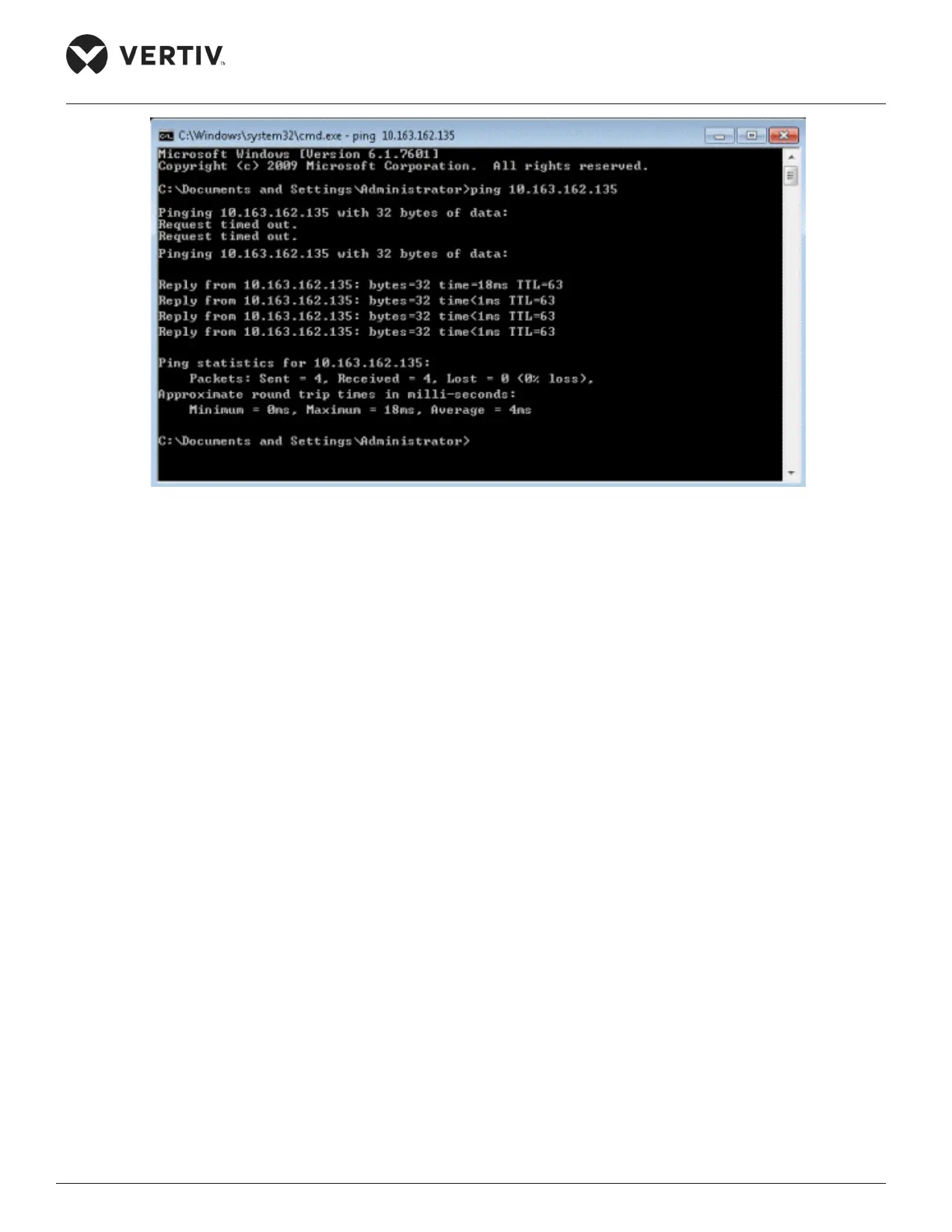
Figure 5-2 Pinging the IP Address
3. If the preceding steps are not able to resolve the issue, use the jumper cap to reset and restore the default
IP.
Q3> You chose the Ocean Blue Theme but the page still adopts the Crystal blue theme, how to resolve it?
A> Click the [User] Logout button to return to the Login page. Click the icon to choose the ocean blue them
and then log into the system again.
Q4>AnalarmisgeneratedbutthereisnonoticationbySMSorEmail.Alternatively,thealarmdoesn’tnish,
theEmailorSMSnoticationislessthanthreetimes.Howtoresolvetheissue?
A> There are three ways to deal with this
» CheckiftheSMSandEmailservercongurationiscorrect,refertotheAlarmManagementsection,
i.e.Figure4-73SMS&EmailServerCongurationandthesubsequentexplanationforthedetails.
» Check the phone is functional and not out of service due to non payment or some other functional
issue.
» Query the History Log and check for errors or any noted failures in sending the emails. Also check if
the network is busy or if the email server communication is busy.
Q5.> How to form a network of several SmartCabinets and perform centralized monitoring?
A> The SmartCabinet supports connection to the RDU-M centralized monitoring platform of Vertiv Co.
Check the networking mode of several SmartCabinets by referring to the following Network schematic
diagram:



 To Next Page