Instructions for use
VF1807090083 EN revision 50
Connect the USB flash drive to the instrument using the USB connector (see Chapter 4.3.1).
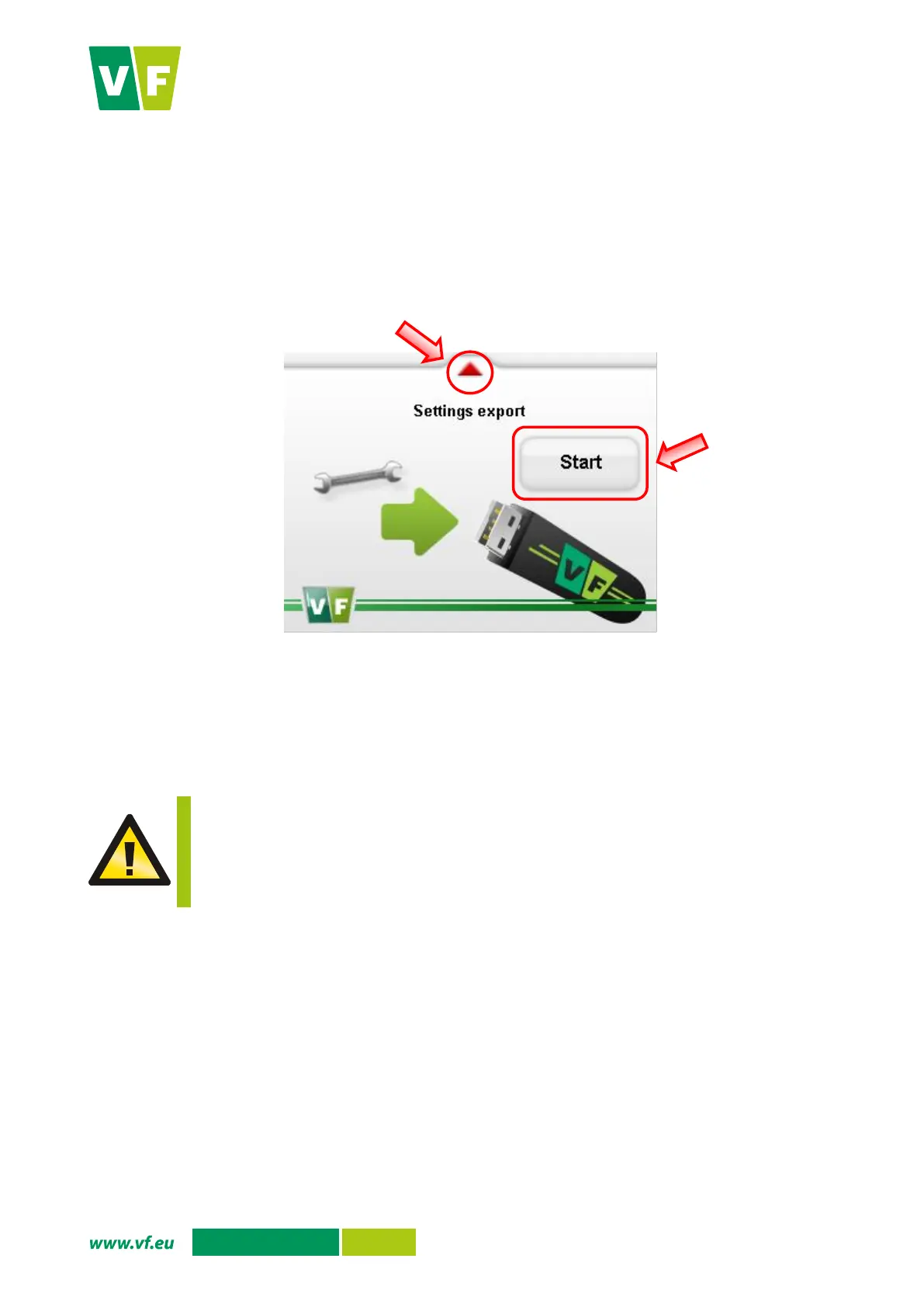
Press the Configuration export option in the service menu. The configuration file export screen
appears on the display (Fig. 37).
The configuration file export to the USB flash drive is started by pressing the button Start.
Successful export is confirmed by „
Saved to config.xml“
.
You are returned to the service menu by pressing the red arrow in the upper part of the screen.
Fig. 37 Display – Configuration export
6.5.4 Configuration import
You can import the configuration file "config.xml" (Annex E) with new settings from the USB flash drive using
the Configuration import option.
WARNING, a change to the configuration file can result in changing the instrument settings.
Configuration file change or import shall be performed by the manufacturer, service
organization trained by the manufacturer, or user's staff trained by the manufacturer.
The USB flash drive must be formatted as FAT32 and its maximum capacity is limited to 4 GB.
Connect the USB flash drive to the instrument using the USB connector (see Chapter 4.3.1).
Press the Configuration import option in the service menu. The configuration import screen is
displayed on the display (Fig. 38).
Press the Start button to start importing the configuration file from the USB flash drive. Successful
import is confirmed by
„Configuration from config.xml has been imported“
.
You are returned to the service menu by pressing the red arrow in the upper part of the screen.


 To Next Page