The connection to DentalCNC may fail for the
following reasons:
n
The start of DentalCNC is delayed because of
Windows
®
updates.
n
The CAM computer encountered a hardware/
software problem.
n
The CAM computer is not correctly configured.
To (re-)establish the connection, you can do the
following:
1.
Try to access the CAM computer via a remote
desktop connection (
Ž
Accessing Windows® on the
CAM computer using a Remote Desktop connection
–
on page21
).
2.
If you cannot establish a remote desktop con-
nection, access the CAM computer by con-
necting additional hardware to it (
Ž
Accessing the
CAM computer via hardware
– on page22
).
3.
Check if Windows
®
is installing updates. In this
case, wait until the updates have been installed.
4.
If DentalCNC is no longer running properly,
restart Windows
®
.
DentalCNC should automatically launch shortly
after Windows
®
startup and establish the con-
nection to the machine.
5.
If Windows
®
is no longer running properly, do the
following:
a.
Switch off the machine at the main power
switch.
b.
Wait 10 seconds.
c.
Switch on the machine at the main power
switch.
6.
If Windows
®
and DentalCNC seem to be running
fine, check if the network configuration and
CAD/CAM integration is set up according to the
installation instructions (
Ž
CAD computer net-
work integration
– on page19
).
7.
If the problem persists, contact customer service.
Opening closing the working
chamber door
NOTICE
Damaging of the machine by operating the
working chamber door inappropriately
The working chamber door is operated by electricity.
If you manually open or close the working chamber
door, you can damage the machine.
Manually open or close the working chamber door
only in case of an emergency.
Before
you manually open or close the working
chamber door, read the respective information in
the chapter Operation: Executing jobs.
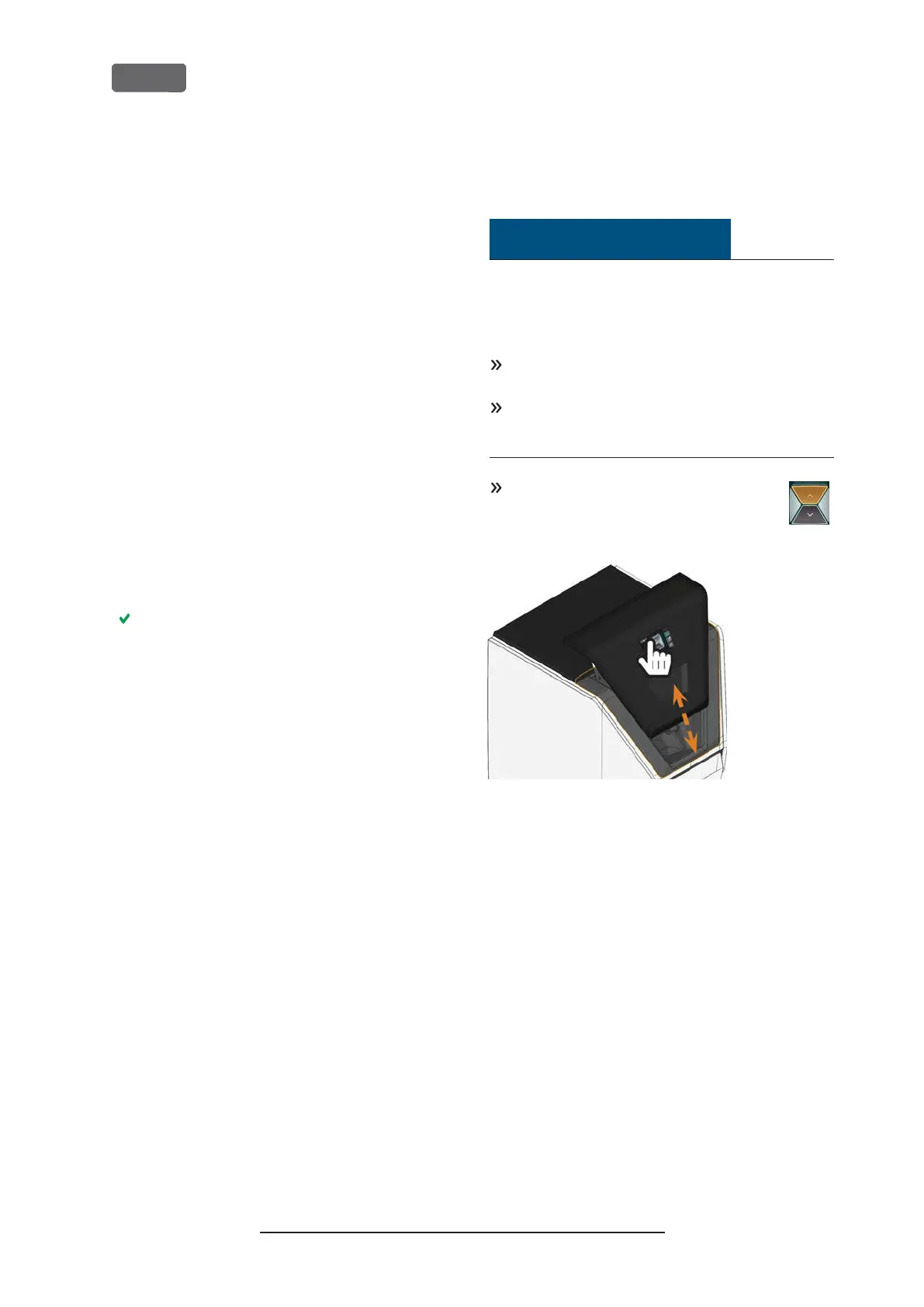
To open or close the working chamber
door, select the upper arrow of the depic-
ted icon on the touchscreen.
F
IG
. 30 – O
PENING
CLOSING THE WORKING CHAMBER DOOR
Original Operating Instructions:Z4
Version: 12/5/2018
Z4 – Operation: Preparing jobs
EN 34



 To Next Page