2.
Access the CAM computer via the Remote
Desktop application or direct hardware con-
nection.
3.
Configure Windows
®
on the CAM computer for
WiFi connectivity:
a.
Open the Windows
®
network settings.
b.
Activate WiFi for the corresponding
adapter.
c.
Select a WiFi network which can be
accessed by the CAD and the CAM com-
puter.
d.
Configure the WiFi connection as required.
4.
If you used the Remote Desktop application to
configure the CAM computer, do the following:
a.
Reactivate WiFi access on your CAD com-
puter.
b.
Remove the Ethernet cable that connects
your CAD computer with the machine.
Integrating the CAD with the CAM/ CNC
software
The integration details depend on the used CAD
application. In addition, you must prepare the internal
CAM computer accordingly.
In the following, we assume that your
computers are not part of a Windows
®
domain.
If they are, you need to take this into consid-
eration when following the instructions.
Preparing the CAM computer
The following instructions apply independently of the
used CAD application.
1.
Access Windows
®
on the CAM computer (
Ž
Accessing Windows® on the CAM computer using a
Remote Desktop connection
– on page21
).
2.
Switch to DentalCNC.
3.
Open the DentalCNC
Application settings
. For
this, select the following icon in the main icon
bar:
4.
Open the
Machine data
view. For this, select the
following icon in the lower icon bar:
5.
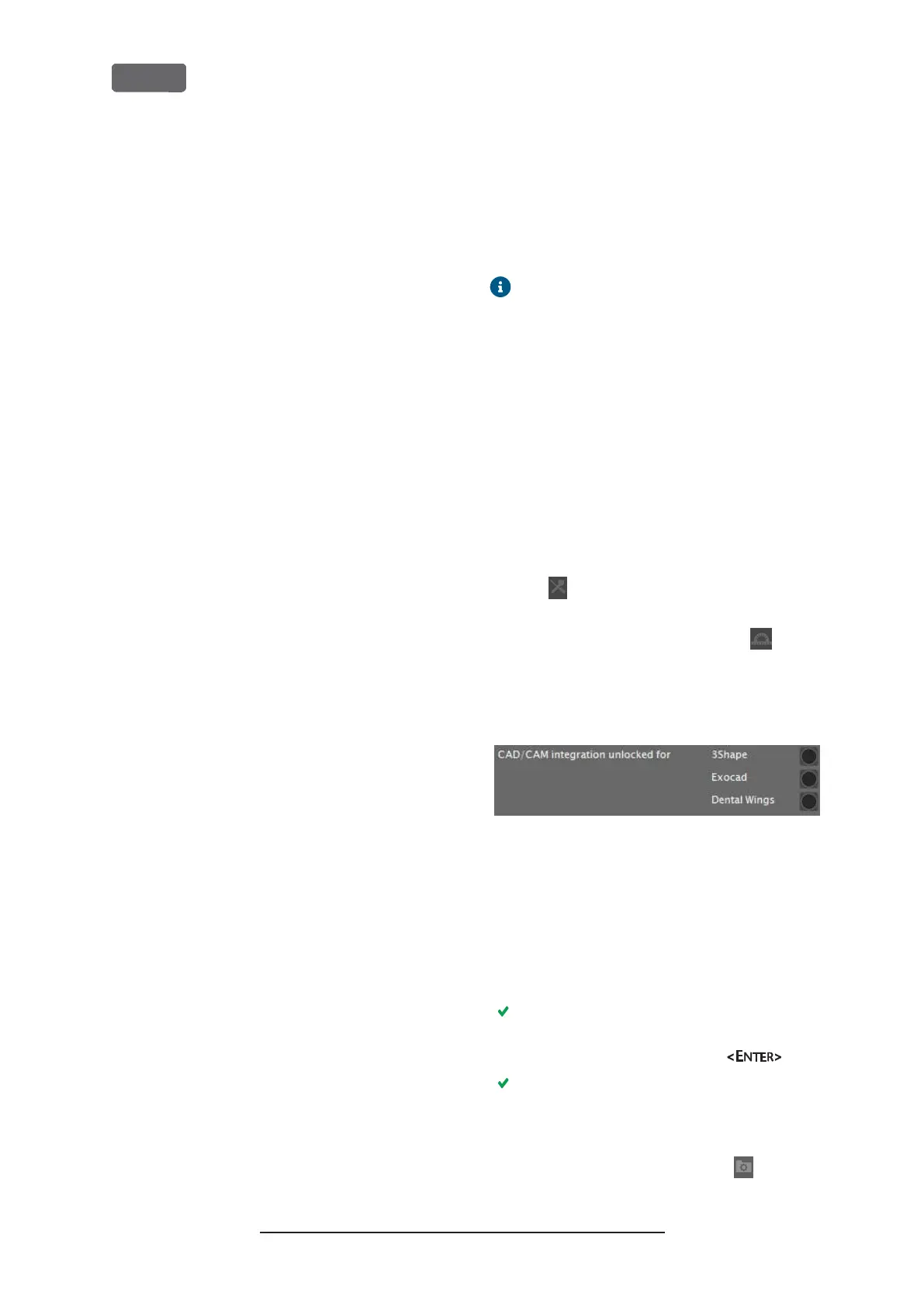
Locate the
CAD/CAM integration unlocked for
label. To the right of this label, you will find a list
of the supported CAD applications.
F
IG
. 16 – T
HE OPTIONS FOR UNLOCKING THE
CAD/ CAM
INTEGRATIONS
6.
Have the unlock code that you received for your
CAD application readily available. If the unlock
code is missing, contact customer service of the
machine.
7.
Activate the option for the desired CAD applic-
ation.
A window opens. You are prompted to enter the
unlock code for the selected CAD application.
8.
Enter the unlock code and press .
The current window closes. If the code was valid,
the integration for the selected CAD application
is unlocked.
9.
Open the
General settings
. For this, select the fol-
lowing icon in the lower icon bar:
Original Operating Instructions:Z4
Version: 12/5/2018
Z4 – Installing the machine
EN 24



 To Next Page