3.
Activate the interface of the CAM computer with
the connected input device (e.g. mouse, key-
board, touch display).
You are prompted to enter the login credentials.
4.
Enter the following login credentials:
n
User:
camcomputer
n
Password:
camcomputer
5.
Press .
The desktop of the CAM computer displays on
the connected display. You can access files and
start applications on the CAM computer.
Accessing the DentalCAM DentalCNC
installation folder
You can access the DentalCAM DentalCNC install-
ation folder via Windows
®
Explorer as follows:
1.
Start Windows
®
Explorer on the CAD com-
puter.
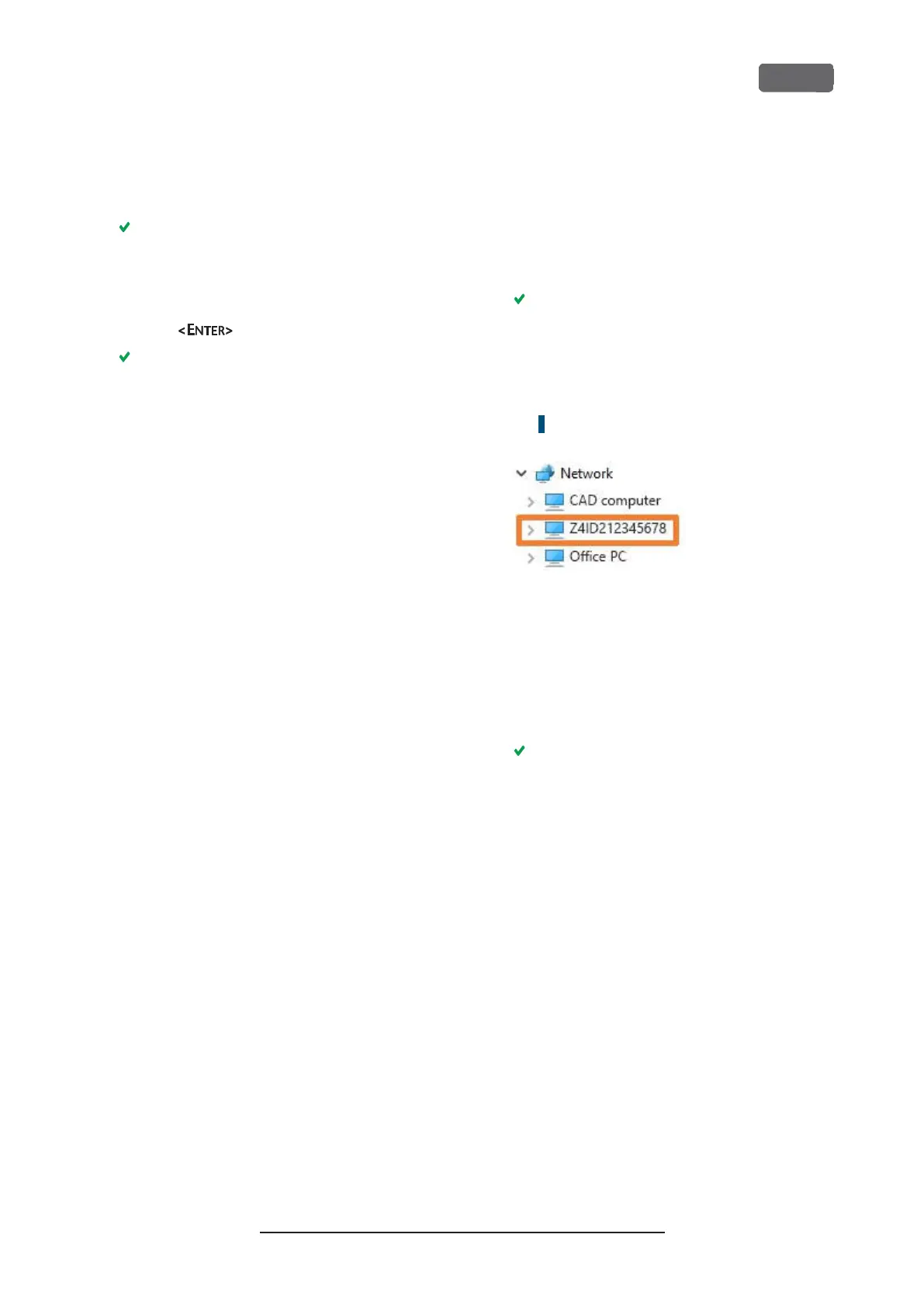
In the folder and device list in the left column,
the CAM computer name displays under the
Network
node. The name is identical to the
serial number of the machine (
Ž
Location of
the identification plate serial number
– on
page13
).
Example:Z4ID212345678
F
IG
. 15 – T
HE
CAM
COMPUTER NAME DISPLAYS IN
W
INDOWS
®
E
XPLORER
2.
If there is no entry for the CAM computer,
check whether the CAD computer is correctly
integrated into the same network as the CAM
computer.
3.
Select the entry for the CAM computer.
You are prompted to enter the login cre-
dentials.
4.
Enter the following login credentials:
n
User:
cnctransfer
n
Password:
cnctransfer
5.
Activate the
Save login credentials
option.
6.
Access the files on the CAM computer as you
would with any other device.
Configuring the WiFi connection
The machine uses a pre-installed WiFi device to
connect to your access point.
1.
Ensure the following:
n
Your WiFi access point is operational.
n
You have fully prepared your CAD com-
puter and the machine as described above
(
Ž
Preparing the machine and CADcomputer
– on page19
).
Z4 – Installing the machine
EN 23
Original Operating Instructions:Z4
Version: 12/5/2018



 To Next Page