You are prompted to enter the login credentials.
4.
Enter the following login credentials:
n
User:
camcomputer
n
Password:
camcomputer
If a different default user name displays that you
cannot change, do the following:
a.
Select
More choices
.
Additional options display.
b.
Select
Use a different account
.
You can enter the user name given above.
5.
Select
[OK]
.
The desktop of the CAM computer displays in
the remote desktop application window.
Through it you can access files and start applic-
ations on the CAM computer.
Accessing the CAM computer via hardware
You can directly connect a monitor and/ or USB
devices to the CAM computer.
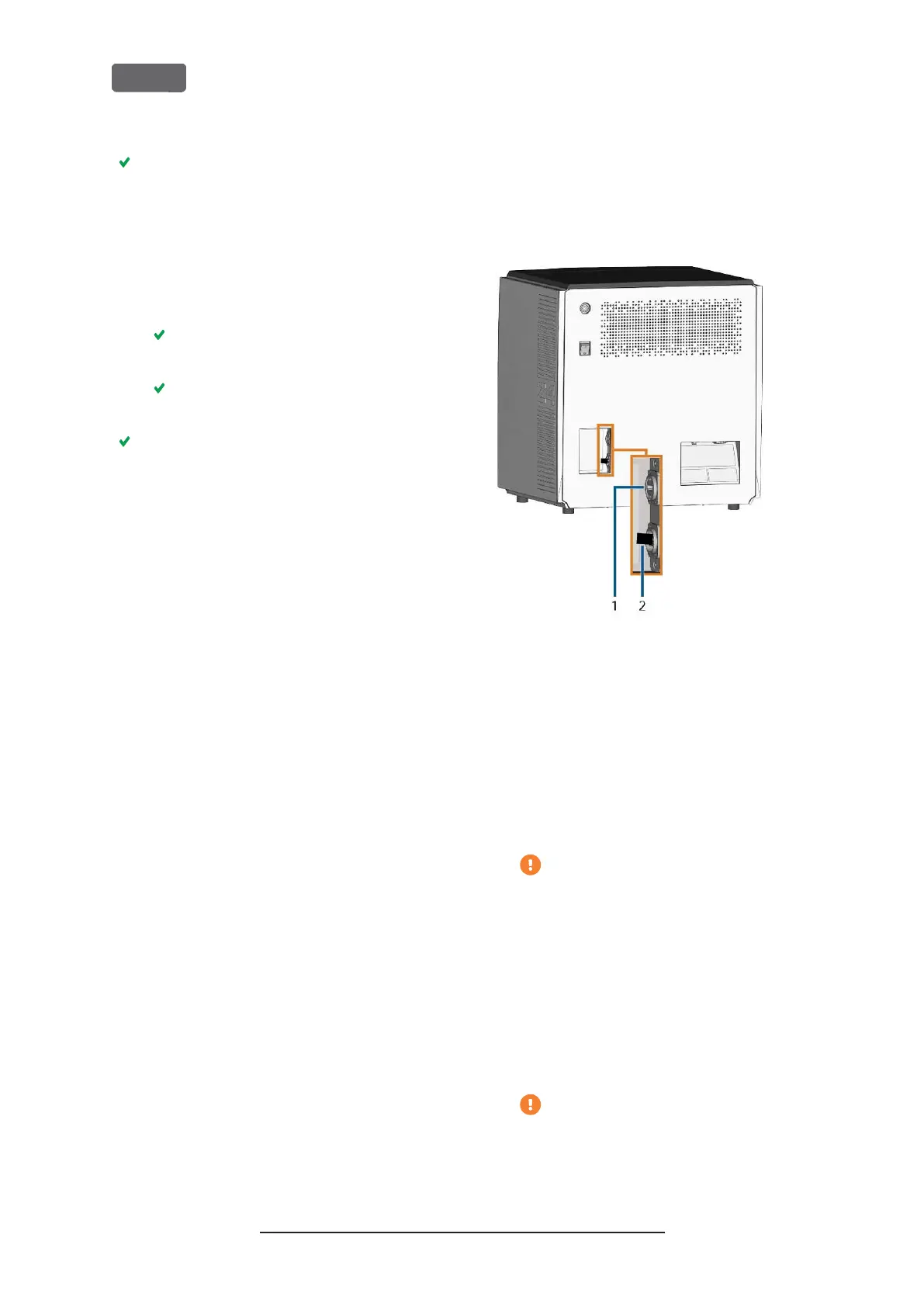
Use the ports of the CAM computer panel for this:
F
IG
. 14 – CAM
COMPUTER PANEL
1.
HDMI 1.4b port
2.
USB 2.0 port with WiFi device
You can connect hardware to the internal CAM
computer as follows:
1.
Connect the monitor to the HDMI connector of
the machine. If your monitor isnt equipped with
an HDMI cable, use an adapter.
Do not connect a laptop/ tablet or similar
to the HDMI port; only connect a monitor
to the port.
2.
If you want to install USB devices to the CAM com-
puter, do as follows:
a.
Remove the WiFi device from the USB port.
b.
(Optional)Connect a USB hub to the USB
port.
c.
Connect the desired USB devices to the
USB port or USB hub.
You must reconnect the WiFi device to the
USB port after removing the other
devices.
Original Operating Instructions:Z4
Version: 12/5/2018
Z4 – Installing the machine
EN 22



 To Next Page