The user interface on the touch-
screen
With the touchscreen, you can operate the main func-
tions of the machine:
n
Controlling basic machine functions
n
Managing and executing jobs
n
Viewing the progress of the current job
n
Managing tools
n
Handling maintenance tasks
Functions of the user interface may be added
or changed via software and firmware
updates. If some functions are not available on
your machine, you may need to update
DentalCAM DentalCNC and/ or the firm-
ware (
Ž
Updating the software and firmware
–
on page68
).
Visit dentalportal.info for information on
new or updated features.
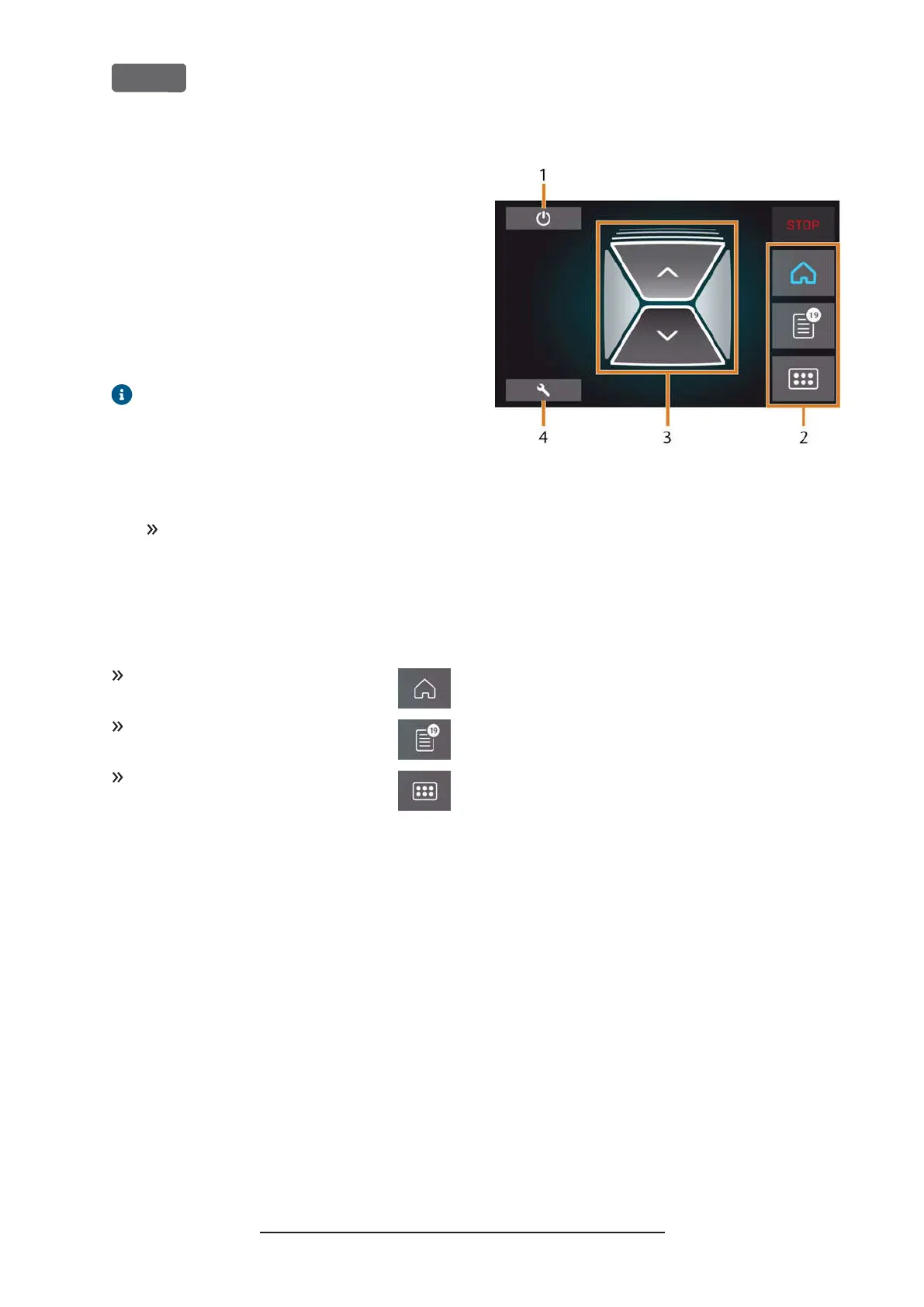
The sections of the touchscreen
The user interface is divided into the 3 main sections
Home
,
Jobs
and
Tools
which you can select via a menu
at the right display border.
To open the
Home
section, select the
depicted icon.
To open the
Jobs
section, select the
depicted icon.
To open the
Tools
section, select the
depicted icon.
The Home section of the touchscreen
The
Home
section has 2 modes which display
depending on whether the machine is processing or
not.
Mode 1
displays when the machine is not processing:
F
IG
. 32 – H
OME SECTION IN
M
ODE
1
1.
Icon for shutting down the machine
2.
Menu for selecting the individual user interface sec-
tions
3.
Icons for operating the working chamber door and
multi-purpose drawer
4.
Icon for opening the
Maintenance
section
Mode 2
displays during processing:
Original Operating Instructions:Z4
Version: 12/5/2018
Z4 – Operation: Preparing jobs
EN 36



 To Next Page