7 Operation: Executing
jobs
Overview
NOTICE
Damaging of the machine when using
damaged tools or blanks
If tools or blanks are damaged, parts can break off and
damage the machine during job execution.
Check the blanks and tools
thoroughly
for dam-
age before every job execution.
When you have prepared your jobs and your machine,
you can start machining. Machining is a fully auto-
mated process and only requires your attention in case
of unexpected events.
Do not move the machine during job execu-
tion, otherwise the results may become impre-
cise.
1.
Ensure the following:
n
You created a job on your CAD computer. It
has been transferred to the machine.
n
The correct tool magazine is inserted into
the working chamber.
n
All required tools are in the right positions in
the tool magazine and are neither worn nor
damaged.
n
The required blank is mounted.
n
There is enough cooling liquid in the cool-
ing liquid tank.
2.
Close the working chamber door.
3.
Start machining via the touchscreen.
Starting jobs via the touchscreen
Following you find the workflow for selecting,
checking and executing jobs.
1.
To open the
Jobs
section, select the
depicted icon.
The
Jobs
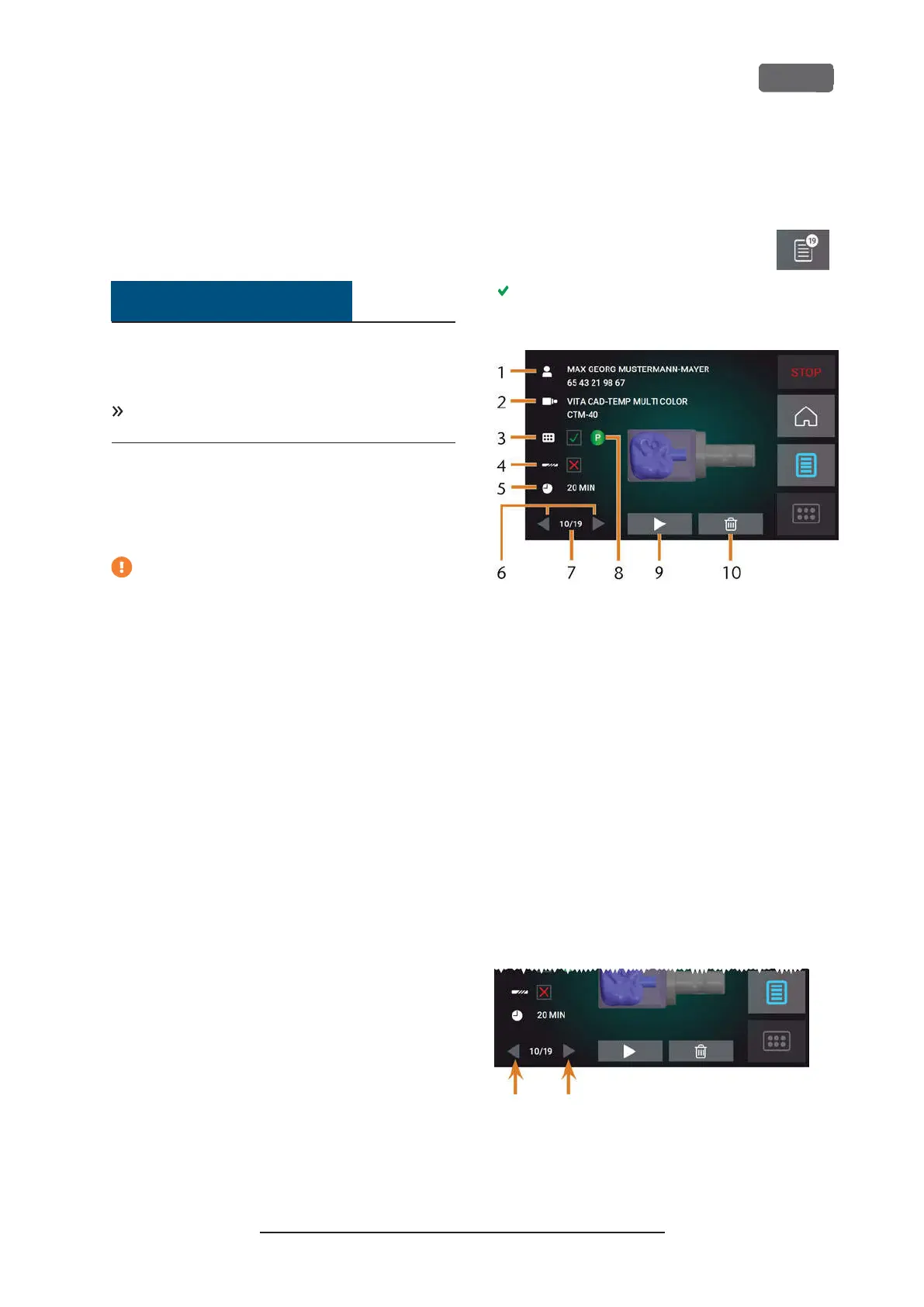
section displays. The details of the next
queued job display.
F
IG
. 56 – J
OBS SECTION
1.
Job details and patient information
2.
Required blank type
3.
Check box for the required tool magazine
4.
Check box for the tool life values
5.
Prospective job duration
6.
Arrows to browse through the available jobs
7.
Number of current job/ number of available jobs
8.
Color code of the required tool magazine
9.
Icon for starting the current job
10.
Icon for deleting the current job
2.
Use the arrows in the left bottom corner to select
the desired job.
F
IG
. 57 – T
HE ARROWS TO SWITCH BETWEEN JOBS
Z4 – Operation: Executing jobs
EN 47
Original Operating Instructions:Z4
Version: 12/5/2018



 To Next Page