3.
Verify that the elements [2], [3], [4] display as
required:
a.
Ensure that the mounted blank corresponds
to [2] (if not:
Ž
Mounting removing blanks
– on page46
).
b.
If displays in [3], mount the correct tool
magazine (
Ž
Mounting exchanging tool
magazines
– on page43
).
c.
If displays in [4], replace all worn tools
(
Ž
Managing tools
– on page41
).
4.
To start machining, select the depic-
ted icon.
The following happens:
a.
If required, the working chamber door
closes.
b.
The machine starts processing.
c.
The working chamber is illuminated in blue.
d.
The remaining machining duration displays
on the touchscreen.
If you are prompted that a firmware
update exists:
Ž
Updating the firmware of
the machine
– on page68
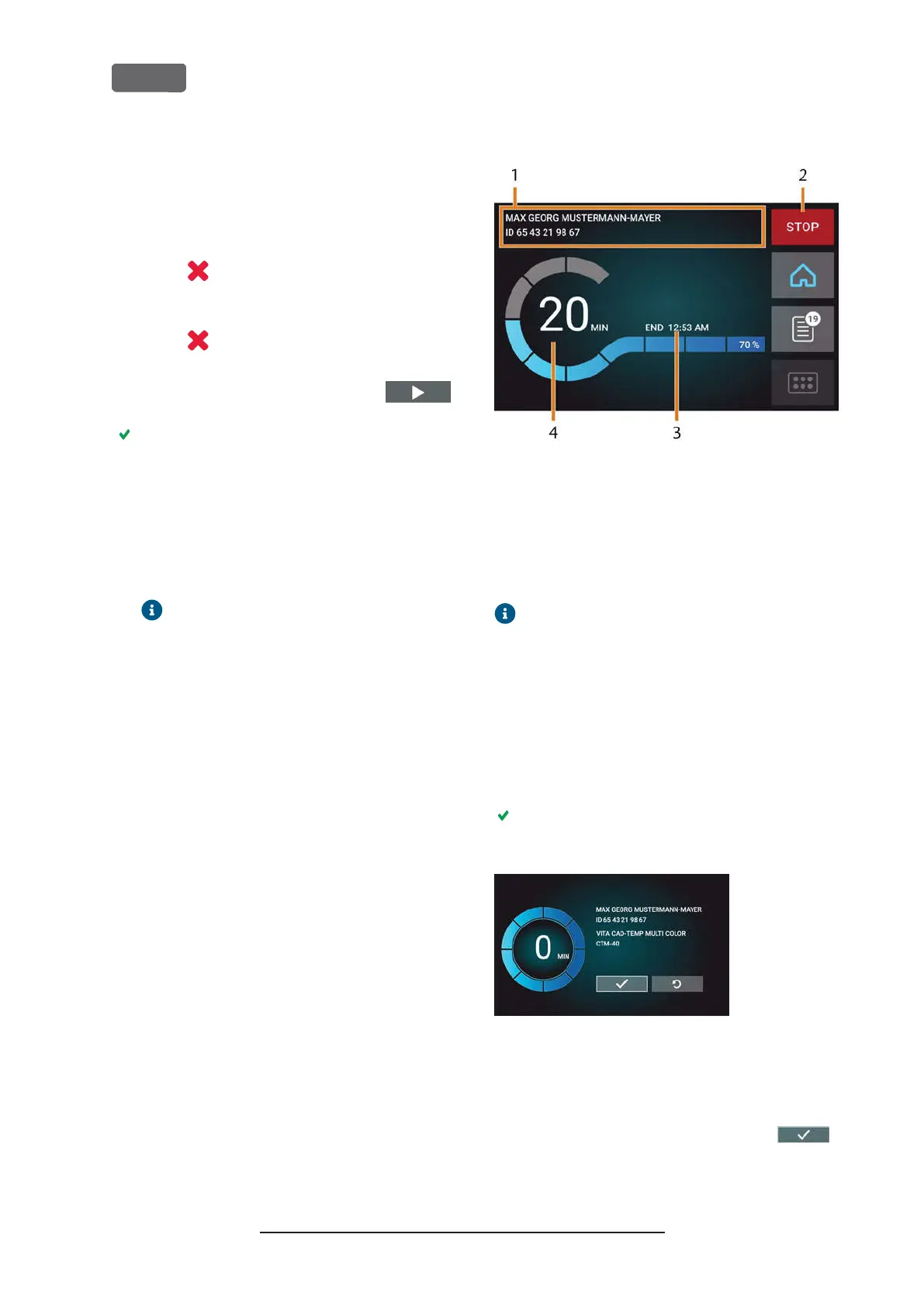
F
IG
. 58 – H
OME SECTION IN
M
ODE
2
1.
Job details and patient information
2.
Icon for aborting the job
3.
Job end time
4.
Prospective remaining job duration
The remaining job duration is an estim-
ation based on a self-learning function.
5.
If using exocad ChairsideCAD, do not shut down
your CAD computer or disconnect it from the net-
work until machining has finished. Otherwise,
you may have to restart your machine and the
job.
6.
Wait until the machine has finished.
The working chamber door opens. The following
dialog displays on the touchscreen.
F
IG
. 59 – T
HE DIALOG AFTER A JOB HAS BEEN FINISHED
7.
Remove the blank from the working chamber
and check whether the job has been executed
correctly.
8.
If you are satisfied, select the depicted
icon on the touchscreen.
Original Operating Instructions:Z4
Version: 12/5/2018
Z4 – Operation: Executing jobs
EN 48



 To Next Page