Overview CAM computer access data
Following you find the access data for the internal
CAM computer as a quick reference.
n
Computer name: Serial number of the machine
*
n
IP address: None specified, DHCP activated
*
Ž
Location of the identification plate serial number
–
on page13
Administrator user with auto sign-in at Windows
®
startup:
n
User:
camcomputer
n
Password:
camcomputer
Standard user for accessing the DentalCAM
DentalCNC installation folder, which is shared by
default:
n
User:
cnctransfer
n
Password:
cnctransfer
When you disconnect from the CAM
computer, never sign-out or shut down the
CAM computer. If you do, the machine will not
be operational until you restart it.
Accessing Windows
®
on the CAM computer
using a Remote Desktop connection
Microsoft
®
Remote Desktop allows you to work with
the CAM computer from another computer as if you
were using the CAM computer directly.
1.
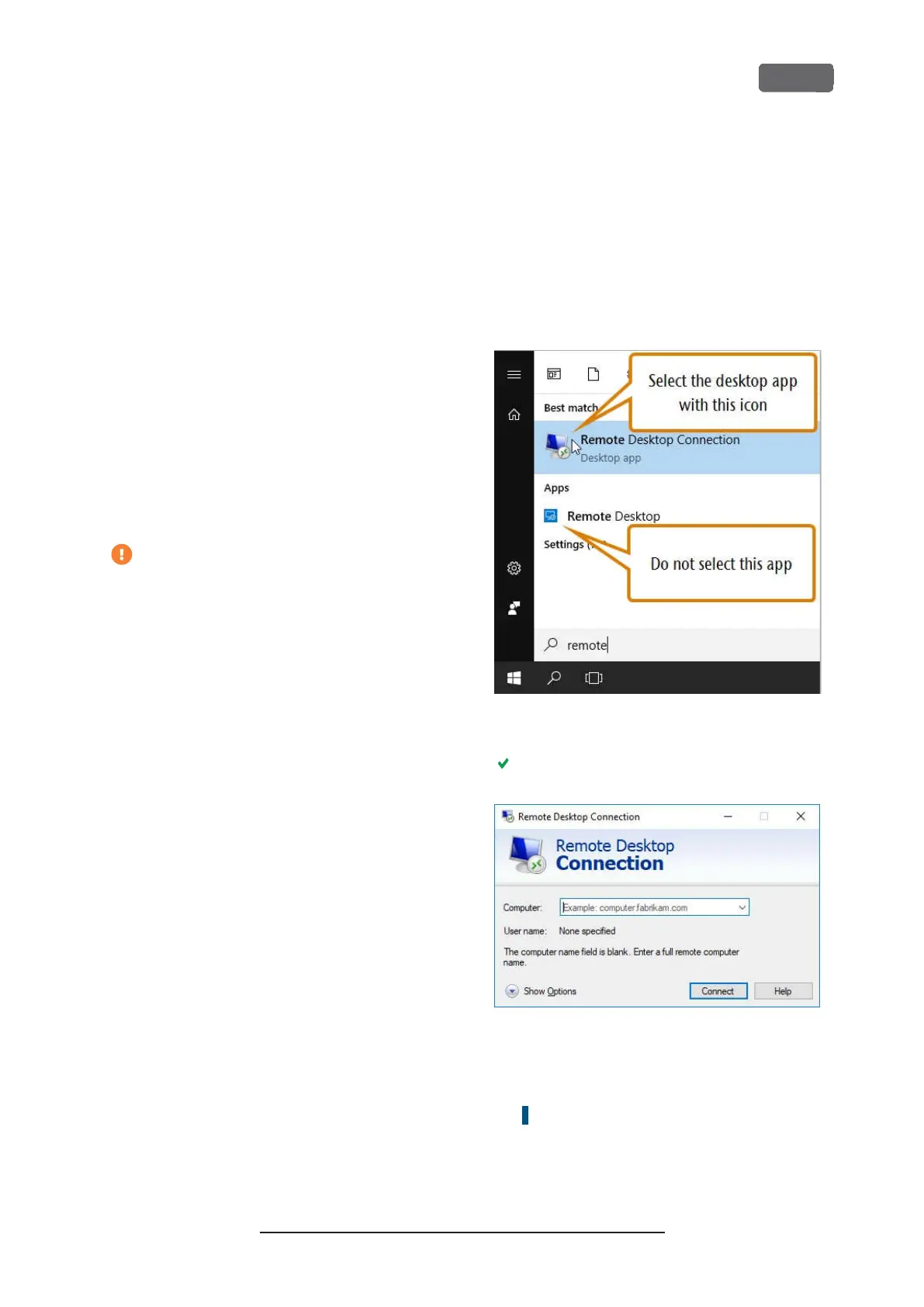
Start the
Remote Desktop Connection
desktop
application. Do not start the Windows
®
store app
Remote Desktop
.
F
IG
. 12 – S
TARTING THE
R
EMOTE
D
ESKTOP
C
ONNECTION
APPLICATION
The
Remote Desktop Connection
window opens.
F
IG
. 13 – T
HE
R
EMOTE
D
ESKTOP
C
ONNECTION APPLICATION
2.
Enter the following into the
Computer
combo
box:
Machine serial number
Example:
Z4ID212345678
3.
Select
[Connect]
.
Z4 – Installing the machine
EN 21
Original Operating Instructions:Z4
Version: 12/5/2018



 To Next Page