48
Visionix EyeRefract User Guide
48
Overview of the Software
Chart layout
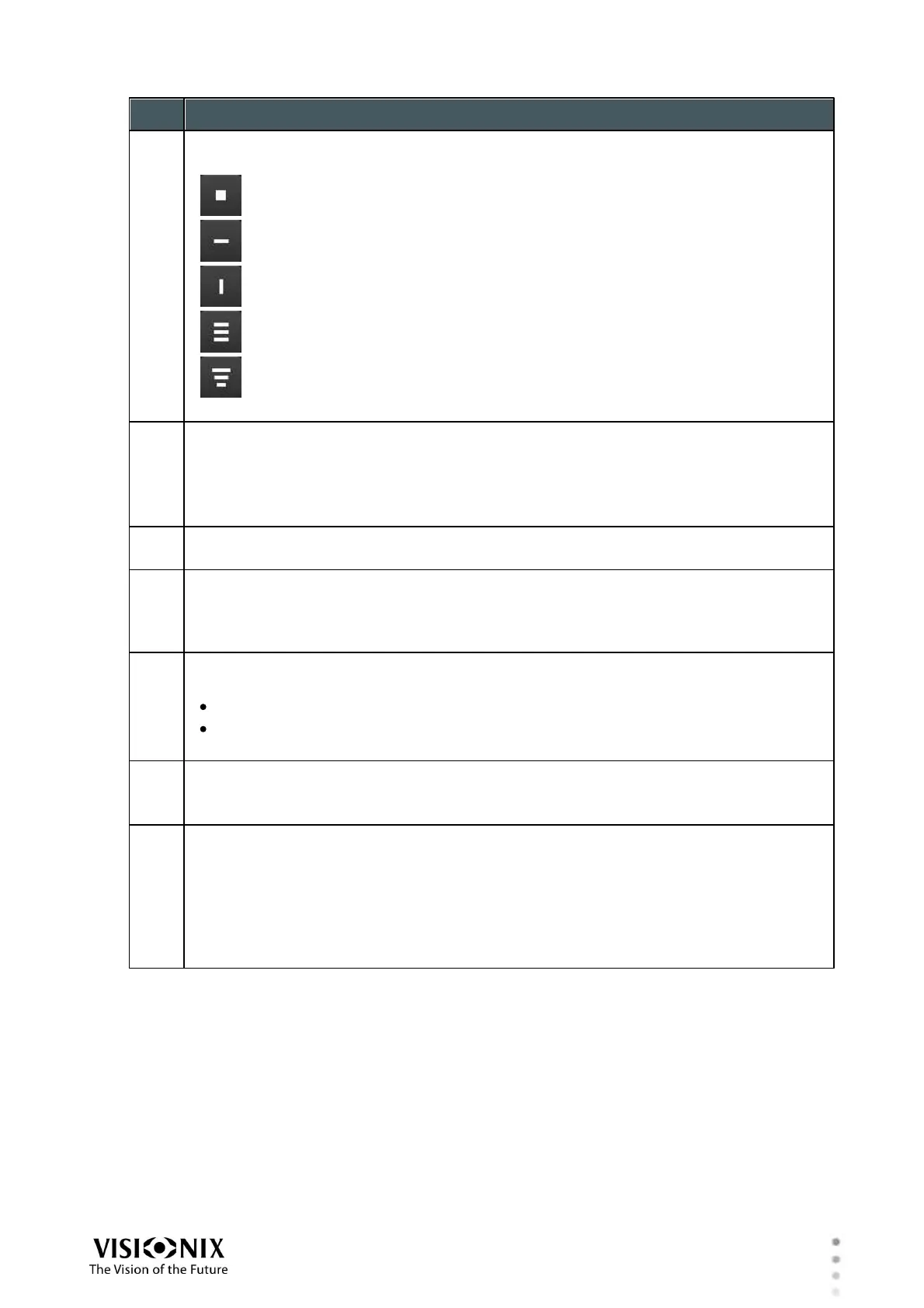
For optotypes, select the layout of the optotypes in the chart:
One optotype in the center of the chart
One horizontal line of optotypes in the center of the chart
One vertical line of optotypes in the center of the chart
Three horizontal lines of optotypes of the same size
Three horizontal lines of optotypes of descending sizes
Note: Only available when optotype charts are displayed.
Chart-specific controls
This region contains buttons that only appear for certain types of charts.
For example, in the illustration above, this region contains contrast controls (C%)
and visual-acuity measurement controls (VA) that are only displayed when optotype
charts are selected (see Optotype-Chart Controls).
Chart-control tabs
Select a tab to see the chart options it contains (#4).
Chart types
Types of charts that can be opened from the currently selected chart-control tab.
Tap an item to display that type of chart on the monitor. For information about the
available charts, see Chart Types.
Change button
Select this button to change the display:
For optotype charts, changes the optotypes in the chart
For ETDRS charts, cycles between right eye, left eye, and both eyes
Note: Only available when optotype or ETDRS charts are displayed.
Red/Green button
For optotype charts, turns red-green background on or off
Note: Only available when optotype charts are displayed.
Black/White button
For optotype charts, turns black-white inversion on (white optotypes on black
background) or off (black optotypes on white background)
For polarized or red/green charts, inverts the display for the left and right eyes (e.g.,
if the right eye currently has a green background, and the left eye has a red one,
switches the background of the right eye to red and of the left eye to green)
Note: For all other chart types, this button is not available.


 To Next Page