890557_d•en•01.07.2014 We reserve the right to carry out improvements
13
3 Introduction
The Wisotronic stands out by its elegant design as well as an especially user-
friendly user interface. The presentation of all setting steps and measuring
values is provided in plain text in a clearly arranged display window, simply
referred to as "Display" in this document. The resolution is 240 x 320 pixels
in 256 colours and the illumination ensures easy readability by a high-
contrast display.
The equipment features of the Wisotronic:
flat and elegant design housing with noble acrylic glass front cover, 4 sensor
function buttons and a touch wheel
graphic display
integrated EWFS receiver
integrated temperature sensor
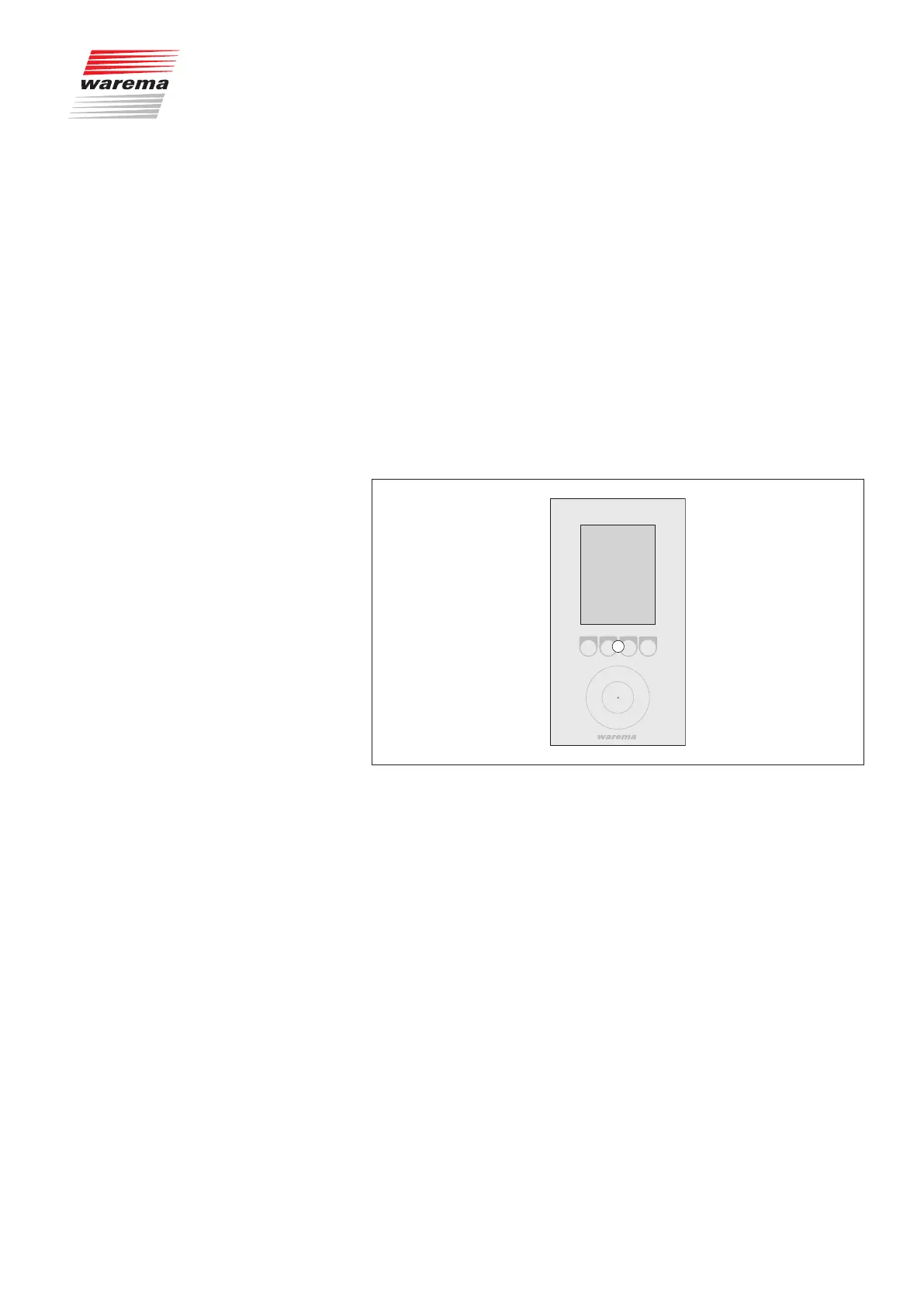
3.1 Operating elements
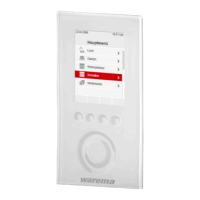
Fig. 1 The Wisotronic operating elements
Display
The illuminated display informs you on everything you can view and set
on the Wisotronic. For example, you can view the current measured val-
ues of the outside brightness and outside temperature, the current time
and much more. The various elements of the display are explained in
Chapter 3.2 on page 14.
B
Function buttons
Depending on the information on the display, different processes can be
triggered with the function buttons. For example, you may jump to the main
menu, restore a preset value, cancel an input, and more.
C
Touchwheel
The touch wheel can be used to select and open menus, channels, groups
and scenes or current weather data and measuring values in the display.
Simply move a finger along the circular depression (clockwise or anticlock-
wise). When you press the middle of the touch wheel, a preselected menu
item opens, for example, or a modified value is accepted.
Introduction


 To Next Page