890557_d•en•01.07.2014
We reserve the right to carry out improvements
14
Wisotronic 1-channel
Operating instructions
3.2 Menu elements
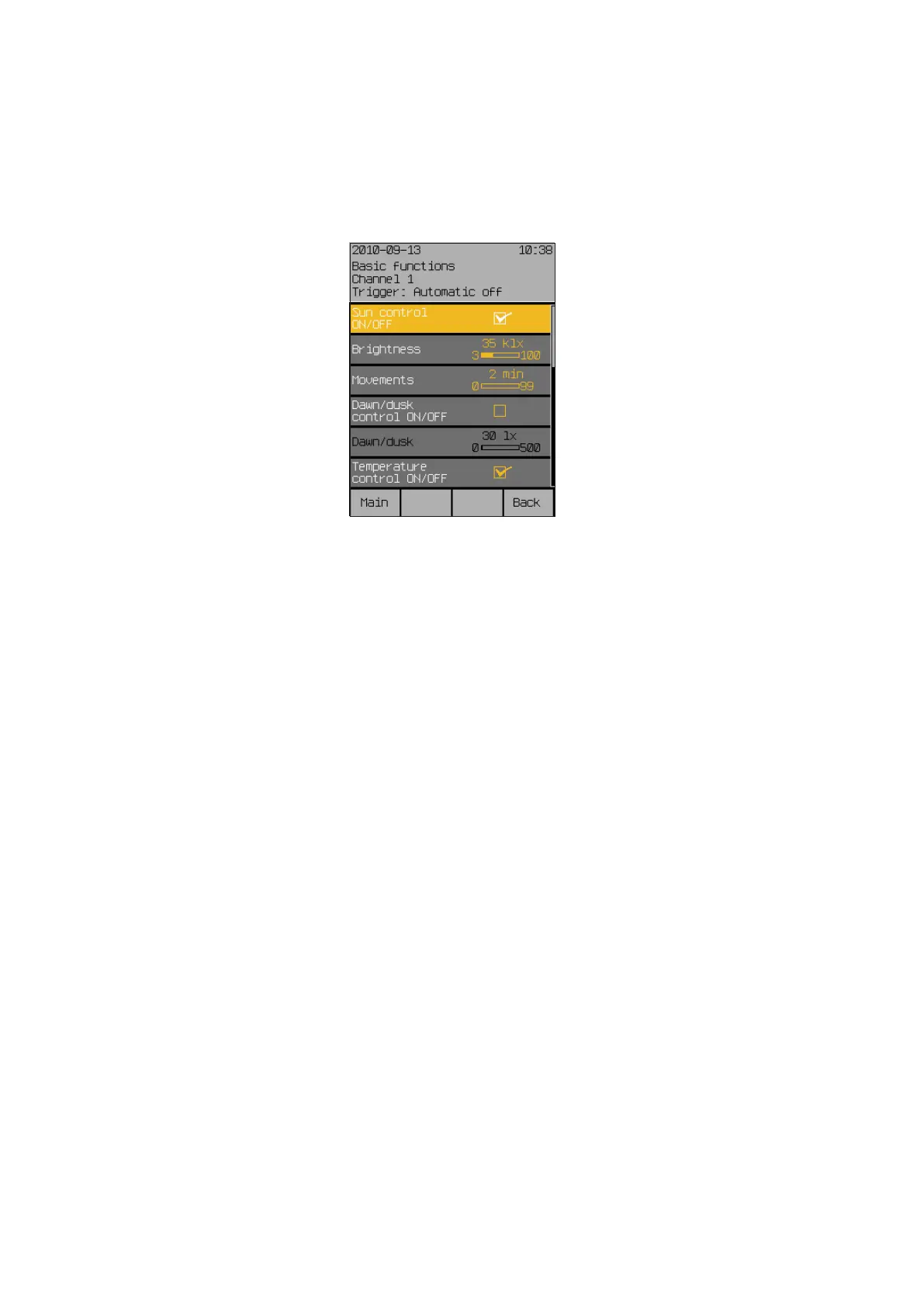
An overview of the menu elements is provided below. The menus are gener-
ally structured as shown in the following example.
The header on the very top shows you the menu in which you are located.
This is followed by six menu lines whereby each line represents a value. The
designation of the setting value is shown on the left side, and the current
value is shown on the right. The selected menu line is highlighted in colour.
If the text is shown in a black line (or if the colour scheme is bright white),
this setting cannot be selected because it does not apply to the selected
product or this function was switched off in another menu item.
A narrow scroll bar on the right edge of the screen indicates the section of
the menu in which you are located and whether further menu items exist.
Turning the touch wheel clockwise moves the selection bar downward and
turning it anticlockwise moves the bar up. If the menu has more than six lines
(indicated by the scroll bar at the right of the screen), all lines move down or
up and additional settings values become visible.
When the middle of the touch wheel is touched, the colour of the setting in
the selected line changes. This means that the value can now be set by turn-
ing the touch wheel.
In the footer on the bottom you will see four fields with functions. They are
located above the four function buttons and can be activated by touch. The
commands change depending on the menu and menu item shown. In the
example shown, you can use the [Main] function button to open the main
menu. Press the [Back] function button to return to the higher level menu.
Introduction


 To Next Page