14 / 99 www.xovis.com
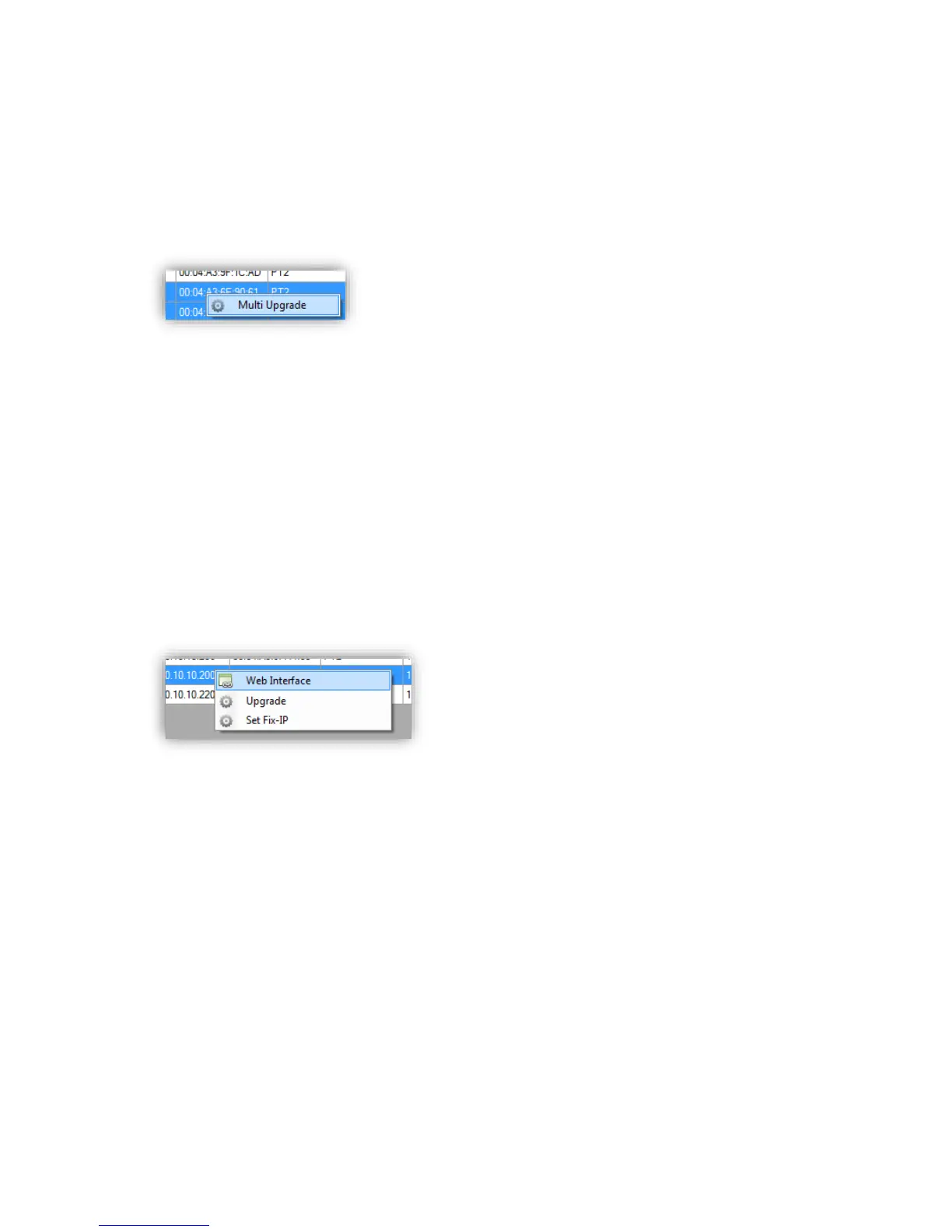
An upgrade can also be applied to multiple sensors at the same time by selecting all or a
part of the sensor in the list of the Xovis Sensor Explorer with [Ctrl] + [A] or pressed [Ctrl]
and left mouse click on the desired sensors. A right click on the selection opens a popup
menu with the only item “Multi Upgrade” (see Figure 14). Clicking it opens the same file
dialog as for upgrading a single sensor but will distribute the chosen upgrade file to all
selected sensors at the same time when applying.
Figure 14: Multi Upgrade
A sensors software / firmware can also be upgraded via its web interface. This procedure is
described in chapter 3.2.12.
3.2.4 Access the web interface
The sensor web interface is accessed by typing its IP address directly into a web browser on
a PC connected to the same network as the sensor. Alternatively, the sensors web page can
be opened by double-clicking a sensor in the Xovis Sensor Explorer or by clicking the menu
item “Web Interface” in the popup menu appearing when right-clicking on a sensor in the
Xovis Sensor Explorer (see Figure 15). The web page will be opened in the default browser of
the operating system.
Figure 15: Menu item “Web Interface” in Xovis Sensor Explorer
3.2.4.1 HTTPS
The sensor web interface can also be accessed over HTTPS by just declaring the protocol
accordingly (https://).
3.2.4.2 Supported browsers
The sensor user interface is an HTML/JavaScript based website. The following web browsers
offer a proper functionality of the website:
- Firefox 4 or newer
- Google Chrome version 10 or newer
- Microsoft Internet Explorer version 10 or newer
- Apple Safari version 5 or newer
- Opera version 12 or newer



 To Next Page