59 / 99 www.xovis.com
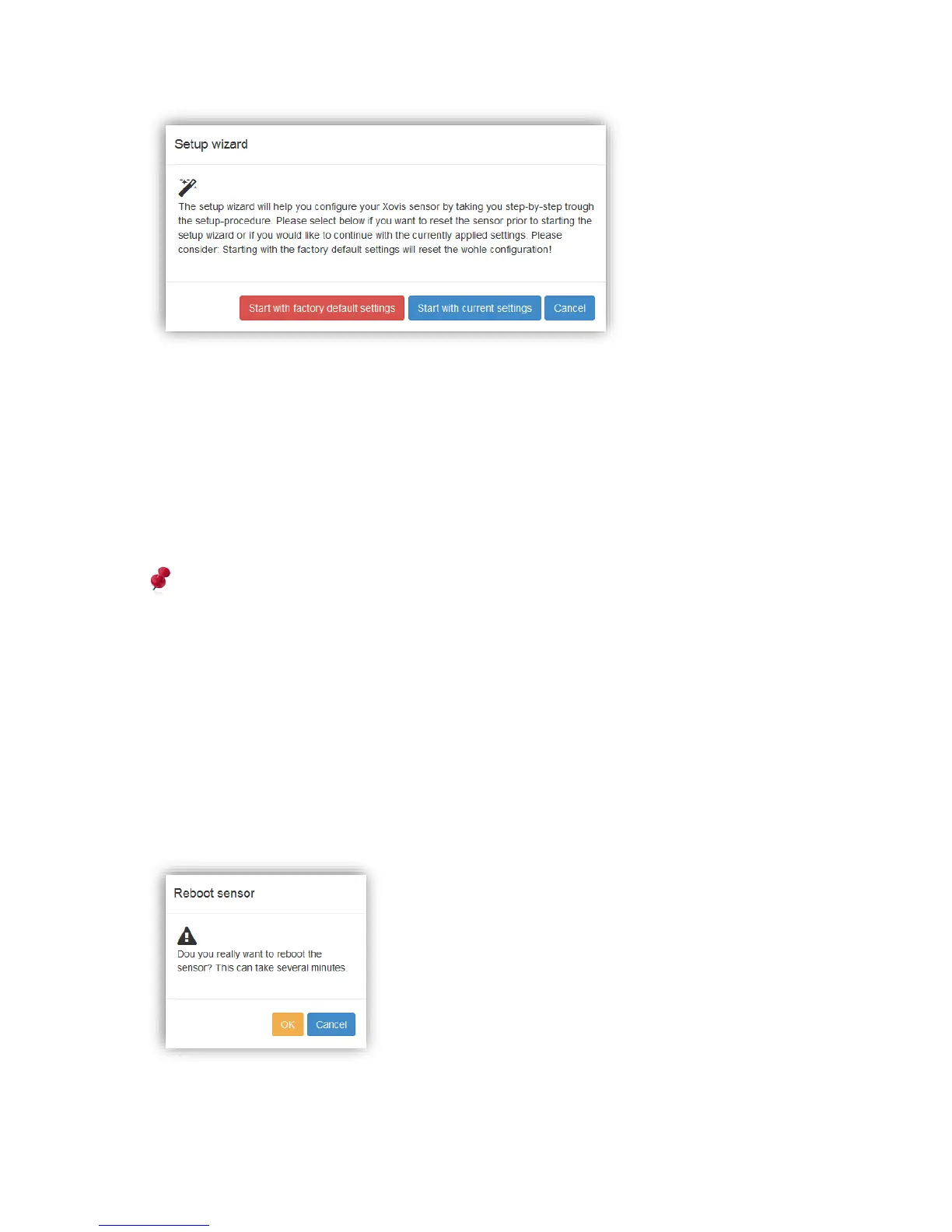
“Start with current settings” is recommended when the user just wants to use the wizard for
updating some parts of the sensor configuration, e.g. the coordinate mode or the count
elements.
“Start with factory default settings” is recommended when the user wants to start the
configuration completely from the beginning with a fresh, un-configured device as it gets
delivered right out of the factory. All settings will then be reset to their origin state expect the
network configuration. This ensures that the sensor will still be reachable under the same IP
address after applying the factory default settings.
Attention: Applying the factory default settings will delete all custom made settings,
including all count elements. All stored count data will be removed irreversibly!
After choosing to start the wizard with or without resetting the settings, the start page of the
wizard will be displayed.
3.2.10.1.4. Reboot
The “Reboot” button allows the user to reboot the sensor. This can be necessary for example
when configuration changes are made on a DHCP based network and the network clients
need to reassign their leases anticipated.
After pressing this button, the user is asked to confirm the requested reboot.
When clicking “OK”, the sensor will reboot which usually takes about 2 minutes. The
following dialog will be displayed:



 To Next Page