15 / 99 www.xovis.com
Recommended browsers are Firefox, Chrome, Opera and Internet Explorer.
For all browsers JavaScript support needs to be enabled and all caching for this website
needs to be switched off!
3.2.5 Login to the sensor
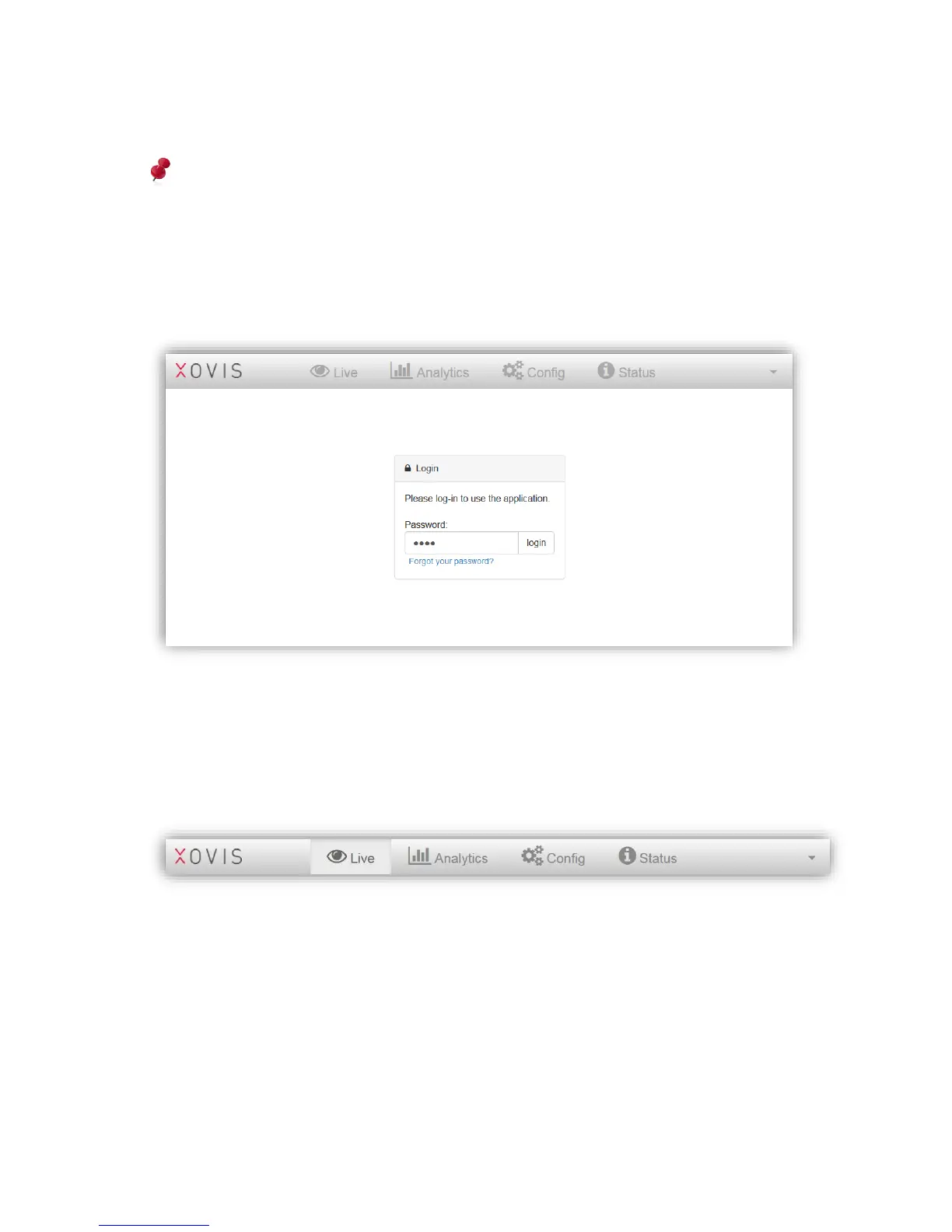
The arrival page of the website shows a log-in dialog. The default password is “pass”
(without the “”).
Figure 16: Login screen
The login screen holds a “Forgot your password” link. This allows to reset the sensor using
the Sensor Master Key (SMK). The reset procedure is described in chapter 3.2.10.4.5.
3.2.6 Navigation
The navigation bar is located at the top of the web GUI. It basically holds three sections: The
logo, the menu buttons and a context menu.
The menu buttons allow the user to switch between the four main views “Live”, “Analytics”,
“Config” and “Status”. The purpose of these views is described in their respective chapters
3.2.8 to 3.2.11. These buttons are disabled when logged out and in the setup wizard mode
(see next chapter).



 To Next Page