60 / 99 www.xovis.com
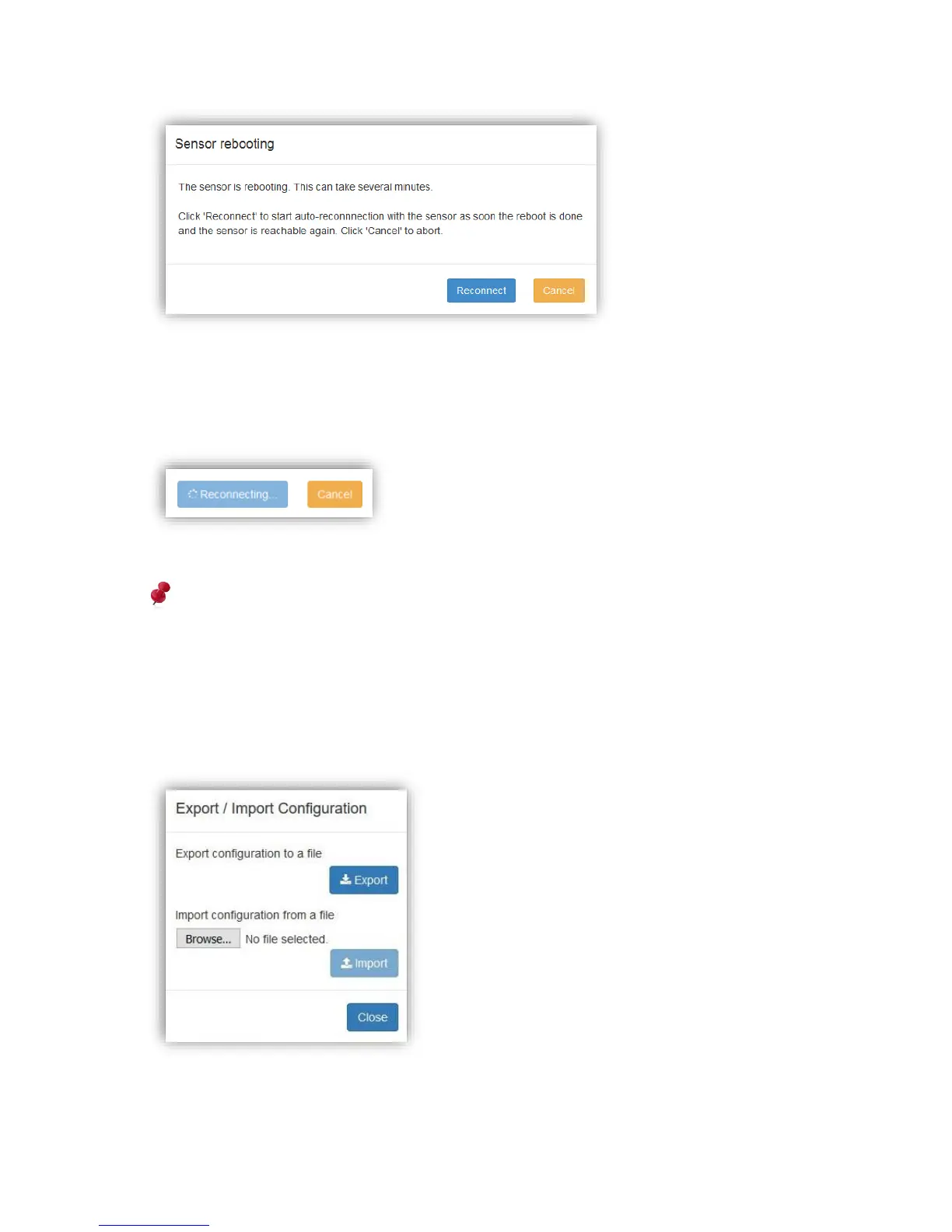
By clicking “Reconnect”, the web GUI will automatically poll the sensor to observe when it is
back online and then automatically reconnect the web GUI. While waiting for the sensor to be
online again, the “Reconnect” button will indicate the reconnection with a rotating spinner
icon as shown in Figure 45:
Figure 45: Reconnecting to the web GUI while rebooting
Reconnection will fail if the sensor is assigned to a different IP address by the DHCP
server after rebooting.
3.2.10.1.5. Export/Import
The “Export/Import” button offers a convenient way to save the whole sensor configuration to
a file or to import and apply a configuration from such a file.
By clicking the button, the following dialog offers these two options to the user:
Clicking on “Export” leads to a download of the sensor configuration file. Depending on the
browser settings, the file is automatically downloaded to a default folder or the user gets
asked where to save the file.



 To Next Page