48 | LTE Router Installation
Aprisa LTE User Manual 2.1
USB Software Upgrade Method
The LTE software can be upgraded simply by plugging a USB flash drive containing the new software into
the USB C host port on the LTE front panel. A USB A to USB C convertor will be required for USB A flash
drives.
To upgrade the Aprisa LTE router software:
1. Copy the software file *.4nu into the root directory of a USB flash drive.
2. The SuperVisor USB Boot Upgrade setting allows for the new software to just be loaded into the LTE
without affecting router operation or the new software to be loaded into the LTE with an automatic
activate and reboot.
New software will be uploaded from a USB flash drive in to the
Aprisa LTE and activated / rebooted automatically.
New software will be uploaded from a USB flash drive in to the
Aprisa LTE. The software will need to be manually activated later
(see ‘Software > Manager’ on page 212).
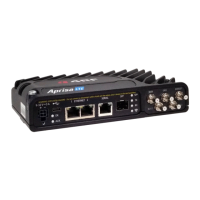
3. Insert the USB flash drive into the LTE host port . The AUX LED will light green indicating the
presence of a USB flash drive. It does not indicate the presence of a software release file on the USB
flash drive.
If the software file *.4nu on the USB flash drive is not the same software version as the software version
currently running the LTE, the software release file will be transferred to the LTE Available Software
Pack location and the file integrity verified. The version of the uploaded software will be displayed in
the Available Software Pack ‘Version’ field (see ‘Software > Manager’ on page 212).
4. Remove the USB flash drive from the LTE host port .


 To Next Page